Custom Subdomain for Marketing Pages
Video Stats lets you serve your public-facing marketing pages — opt-in pages, resource pages, and similar — from your own branded subdomain instead of from the default videostats.ai URL. Visitors see https://go.yourbrand.com/welcome-guide instead of https://videostats.ai/p/yourchannel/welcome-guide. Same page, your domain.
This is a separate feature from Custom Shortlink Domains (which routes your tracking links through go.yourbrand.com/abc123). You can use both at the same time — a custom shortlink domain on your tracking links and a custom pages domain on your opt-in pages — or just one.
Why Use a Custom Pages Domain?
Better Sales Tracking
If you are tracking both leads and sales then you would most likely need to use your own subdomain for any optin pages you host on Video Stats.
Check out the article on cross domain tracking for more detals.
Stronger Brand Trust
Visitors are more likely to opt in on a URL that matches your brand. go.yourbrand.com/free-training reads as "this is from yourbrand" — videostats.ai/p/yourbrand/free-training reads as "this is from some platform yourbrand uses."
Consistent Brand Across Every Touchpoint
If you're already using a custom shortlink domain, your tracking links live on go.yourbrand.com. With a custom pages domain you can also serve the destination of those links from the same brand-aligned domain — every link a viewer touches stays on your domain.
Sharable URLs You're Proud Of
Sometimes you want to share an opt-in URL directly on social, in podcast show notes, or in a presentation slide. A short, branded URL is more shareable and looks more legitimate.
Checking Your Account Access
Custom pages domains are gated to specific subscription tiers. To check if your account includes this feature:
- Go to Settings in your Video Stats dashboard
- Open the Custom Domains tab
- Look for the Marketing Pages Domain section
If you see a form to add a domain, your plan includes it. If you see an upgrade prompt instead, you'll need to upgrade your subscription.
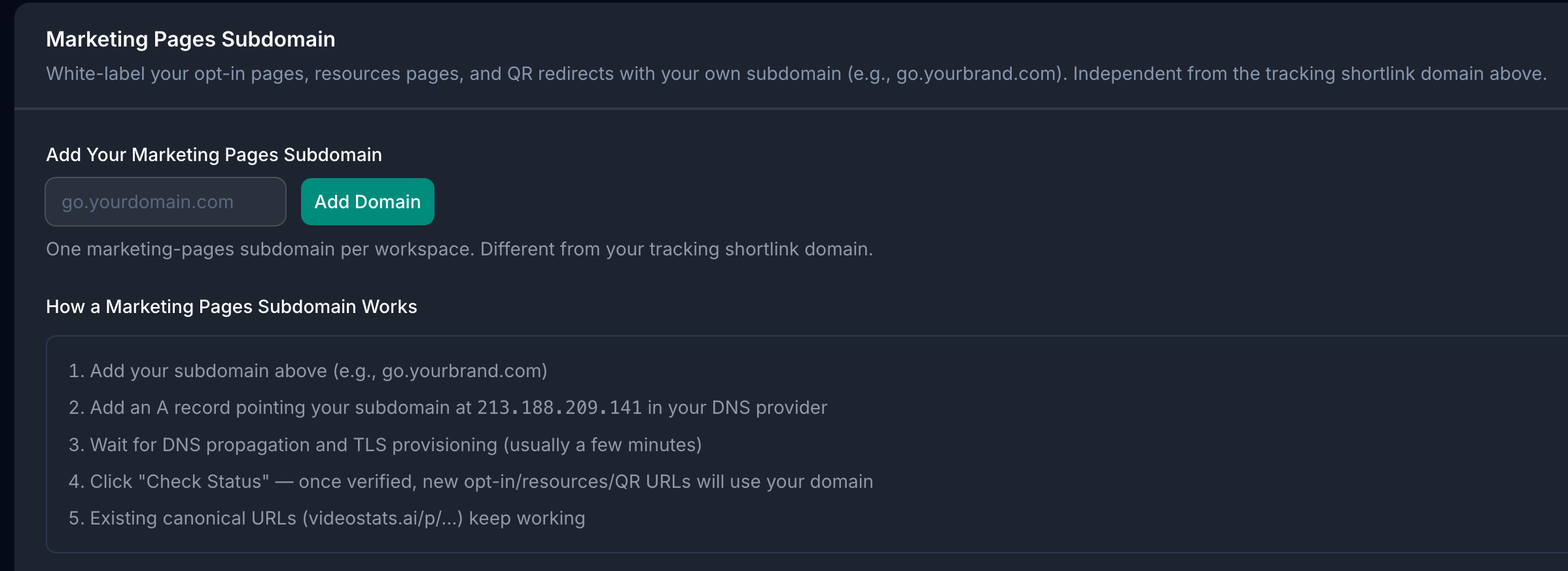
Setting Up Your Custom Pages Domain
Step 1: Pick a Subdomain
Choose a subdomain on a domain you control. Common picks:
go.yourbrand.compages.yourbrand.comlearn.yourbrand.comsignup.yourbrand.com
Tip: If you're already using a custom shortlink domain, don't use the same subdomain for both. Pick a different one — for example,
go.yourbrand.comfor shortlinks andpages.yourbrand.comfor marketing pages.
Step 2: Add the Domain in Video Stats
- Navigate to Settings → Custom Domains
- In the Marketing Pages Domain section, enter your chosen subdomain (e.g.,
pages.yourbrand.com) - Click Add Domain
Video Stats will display DNS configuration instructions immediately.
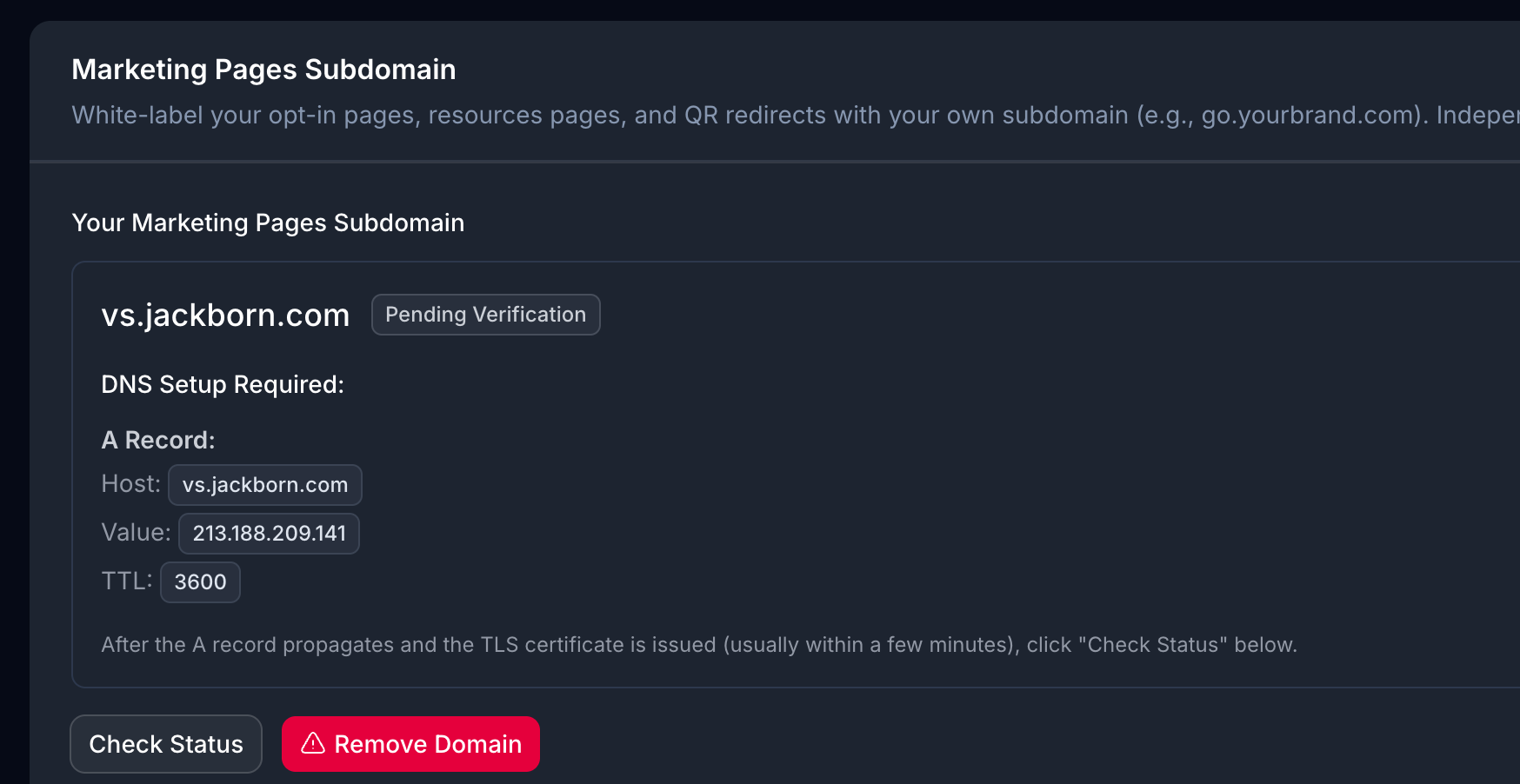
Step 3: Configure Your DNS
Add a single A record at your domain registrar pointing your subdomain to the Video Stats pages cluster.
| Setting | Value |
|---|---|
| Type | A |
| Host/Name | Your subdomain (e.g., pages or go) |
| Value/Target | The IP address shown in your dashboard |
| TTL | 3600 (or "Auto") |
Video Stats handles SSL certificate provisioning automatically once DNS resolves.

Step 4: Wait for Propagation and Verify
DNS changes can take anywhere from a few minutes to 24 hours to propagate. While you wait:
- Video Stats will automatically check your domain every few minutes in the background
- You can also click Check Status on the domain card to manually trigger a check
- Once verified, the badge changes to a green Verified state
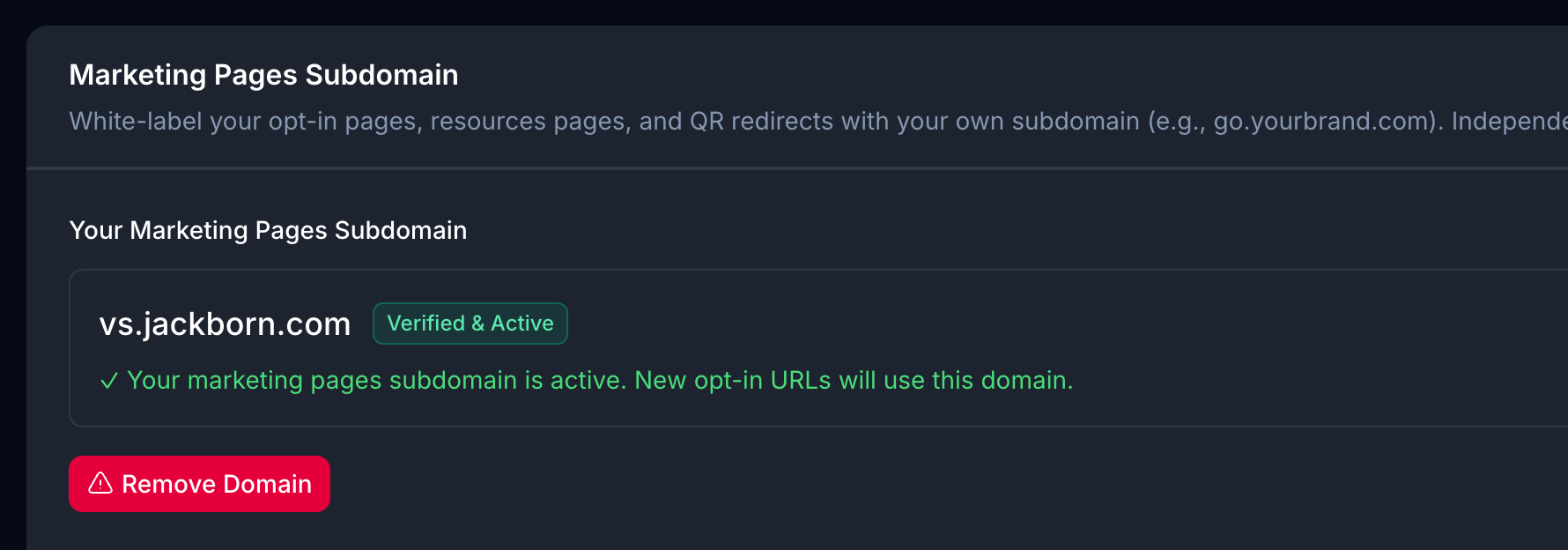
When verification completes, two things happen automatically:
- New opt-in pages and shareable URLs across your dashboard switch to your custom domain
- Existing tracking shortlinks pointing to your opt-in pages are automatically updated to redirect through your new domain — no manual republishing required
What Changes Once Your Domain Is Verified
| URL location | Before | After |
|---|---|---|
| Opt-in page links shown in your dashboard | videostats.ai/p/... | pages.yourbrand.com/... |
| Copy-link buttons throughout the dashboard | Default URL | Your custom domain |
| Tracking shortlinks pointing to opt-in pages | Redirected to default URL | Auto-resynced to your custom domain |
| Email confirmation links sent to visitors | Default URL | Your custom domain |
The original videostats.ai/p/... URLs | Still work | Still work — they're not removed |
Heads-up: Old
videostats.ai/p/...URLs continue to work even after you add a custom domain. They're not redirected or replaced — they just become aliases. This means any URL you've already published in YouTube descriptions, emails, or anywhere else will keep working. New URLs you create will use your custom domain.
Updating Existing YouTube Descriptions
If you've already typed raw videostats.ai/p/... URLs directly into video descriptions on YouTube, those won't get rewritten automatically. You have two options:
- Leave them alone — they still work, just on the default domain
- Manually edit those descriptions on YouTube to use your new custom URL
Tracking shortlinks (go.yourbrand.com/abc123 style) that point to your opt-in pages are auto-resynced — only typed-in raw URLs need attention.
Custom Pages Domain vs. Custom Shortlink Domain
These two features are independent and complementary. Here's how they compare:
| Custom Shortlink Domain | Custom Pages Domain | |
|---|---|---|
| What it does | Branded URLs for your tracking links | Branded URLs for your opt-in / resource pages |
| Example URL | go.yourbrand.com/abc123 | pages.yourbrand.com/free-training |
| DNS record type | CNAME → cname.dub.co | A record → IP address shown in dashboard |
| What ends up on it | Auto-generated tracking links from Video Stats | Your opt-in pages, resource pages, etc. |
| Setting location | Settings → Custom Domains → Custom Shortlink Domain | Settings → Custom Domains → Marketing Pages Domain |
You can enable both at the same time on different subdomains.
Removing a Custom Pages Domain
If you ever need to remove your custom pages domain:
- Go to Settings → Custom Domains
- In the Marketing Pages Domain section, click the remove/delete button on the domain card
- Confirm removal
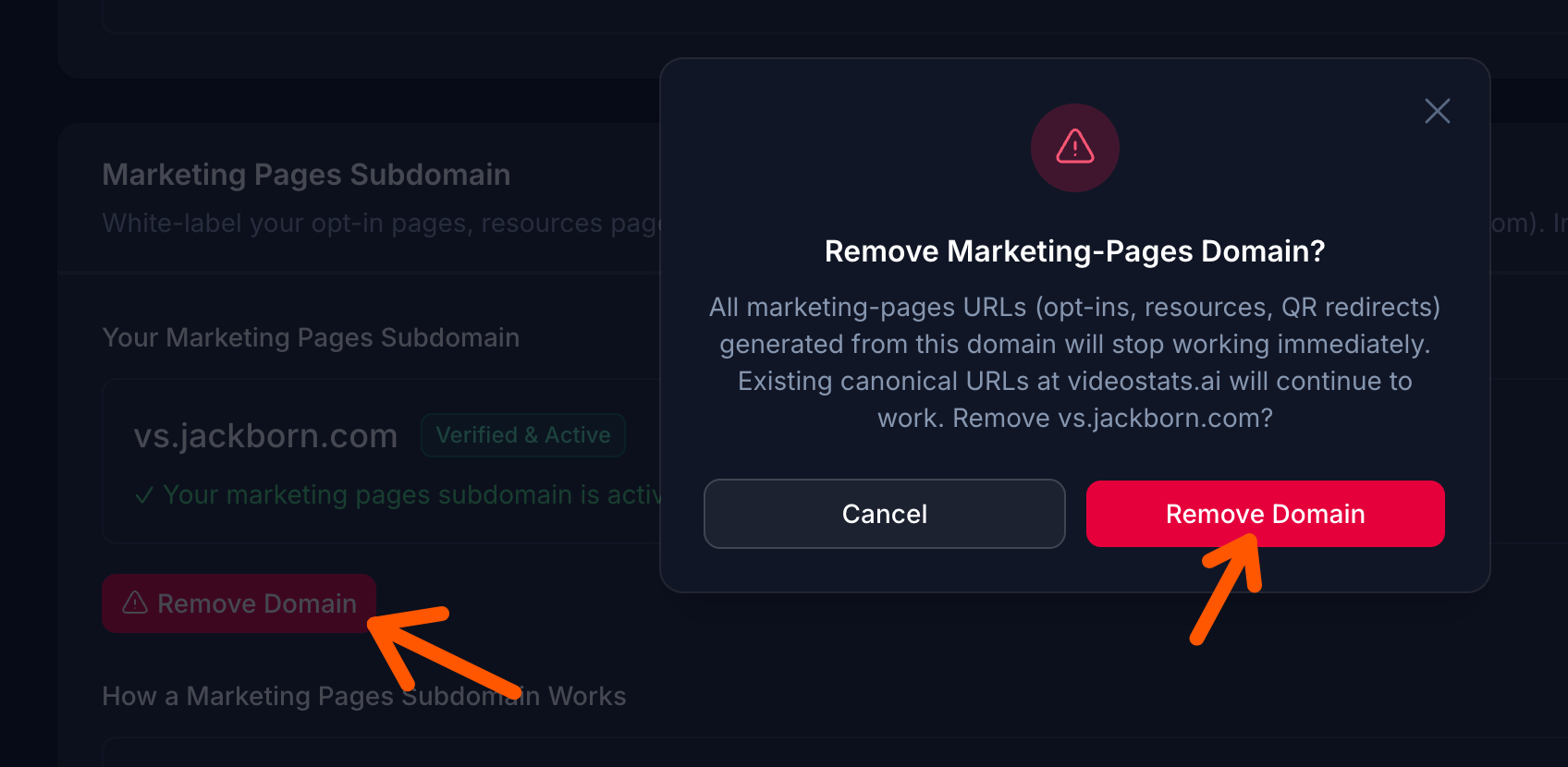
After removal:
- Your dashboard URLs immediately revert to the default
videostats.ai/p/...style - Existing tracking shortlinks are automatically resynced to redirect through the default domain
- Any URLs you'd already shared on the custom domain stop resolving
Warning: If your custom domain is deeply embedded in your funnel (printed materials, email templates, third-party automations), confirm those references are updated before removing the domain.
Troubleshooting
My domain shows "Pending verification" for a long time
DNS propagation usually completes within a few hours. To diagnose:
- Check the A record at your DNS provider — confirm it points to the IP address Video Stats showed you when you added the domain
- Use a propagation checker like
dnschecker.organd search for your subdomain - Click Check Status in Video Stats to retry verification manually
- If 24+ hours have passed and it's still pending, contact support
"Domain already in use"
The same subdomain can't be added to multiple Video Stats workspaces. If you previously added it to a different workspace, remove it from there first.
My opt-in pages still show the default URL after verification
Try a hard refresh (Ctrl-Shift-R / Cmd-Shift-R) of your dashboard. URL helpers re-evaluate on each page load, but cached browser pages can still show the old URL briefly. If the issue persists after a hard refresh, contact support.
Tracking shortlinks aren't redirecting to my custom domain
Existing tracking shortlinks should auto-resync within ~30 seconds of verification. If you have a large number of shortlinks, the resync can take a few minutes. After 5+ minutes, click on one of the shortlinks and inspect where it redirects — if it's still going to the default URL, contact support and we can manually trigger a resync.
I want to use the same subdomain for both shortlinks and pages
That isn't supported — DNS records for a single subdomain can only point one place. Use two different subdomains (e.g., go.yourbrand.com for shortlinks, pages.yourbrand.com for marketing pages).
I removed my custom domain by mistake — can I get it back?
Yes — just add it again from Settings → Custom Domains. Verification should re-complete quickly since the DNS record is still in place (provided you didn't change DNS at your registrar). Existing tracking shortlinks will resync back to the custom domain after verification.