Custom Shortlink Domains
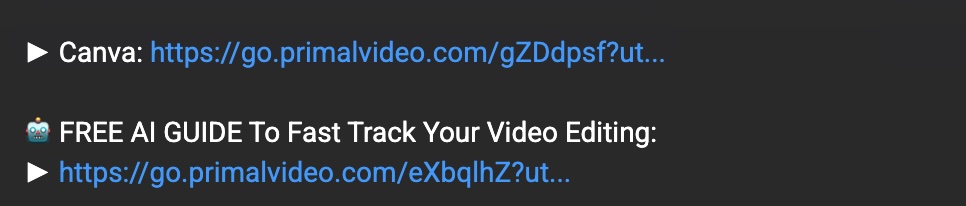
Take your YouTube marketing to the next level by using your own branded subdomain for all your tracking links. Instead of generic shortlinks, your audience will see professional, trustworthy URLs that reinforce your brand.
Why Use a Custom Domain?
Build Trust with Your Audience
When viewers see a link like go.yourbrand.com/abc123, they immediately recognize it as coming from you. This familiarity increases click-through rates because people are more likely to click links from brands they know and trust.
Consistent Brand Experience
Every touchpoint with your audience is an opportunity to reinforce your brand. Custom shortlink domains ensure that even your tracking links contribute to a cohesive brand experience.
Checking Your Account Access
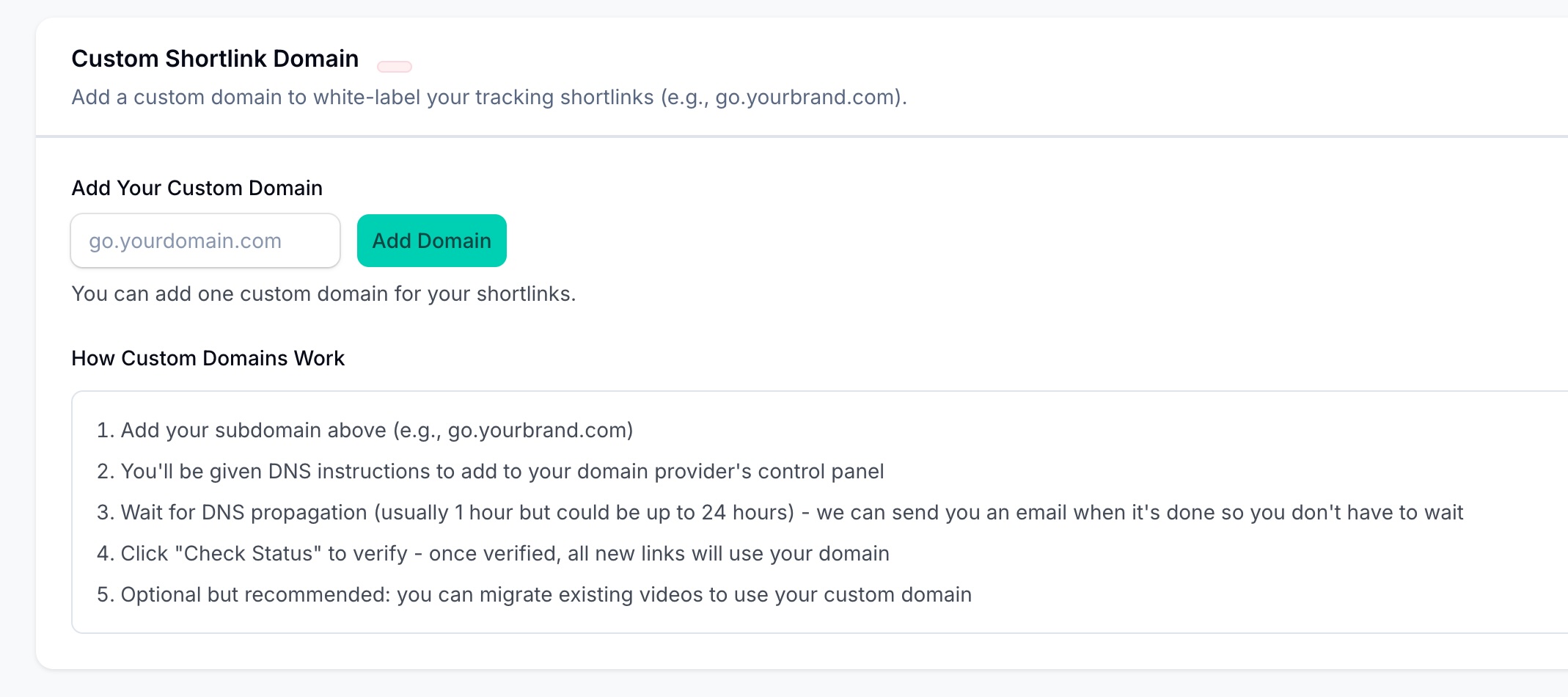
Custom shortlink domains are available on select VideoStats plans. To check if your account includes this feature:
- Go to Settings in your VideoStats dashboard
- Look for the Custom Domains tab
If you see the Custom Domains tab with the option to add a domain, your plan includes this feature. If you see an upgrade prompt instead, you'll need to upgrade your subscription to access custom domains.
Setting Up Your Custom Domain
Step 1: Choose Your Subdomain
Pick a subdomain that's short, memorable, and clearly associated with your brand. Common choices include:
go.yourbrand.comlinks.yourbrand.comclick.yourbrand.comtrack.yourbrand.com- 'a.yourbrand.com'
Important: You cannot use www as your subdomain.
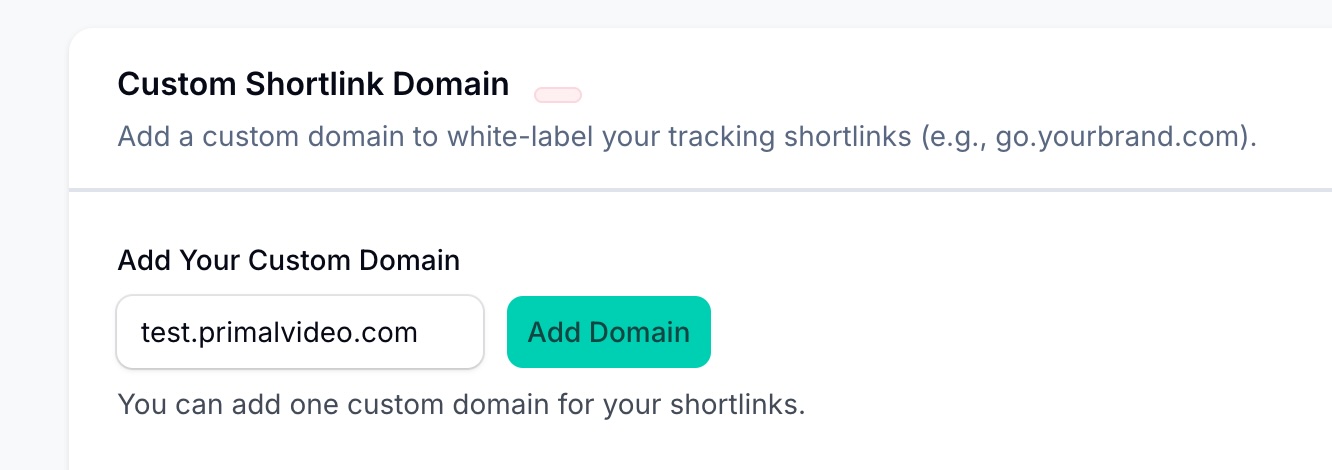
Step 2: Add the Domain in VideoStats
- Navigate to Settings → Custom Domains
- Enter your chosen subdomain (e.g.,
go.yourbrand.com) - Click Add Domain
Step 3: Configure Your DNS Settings
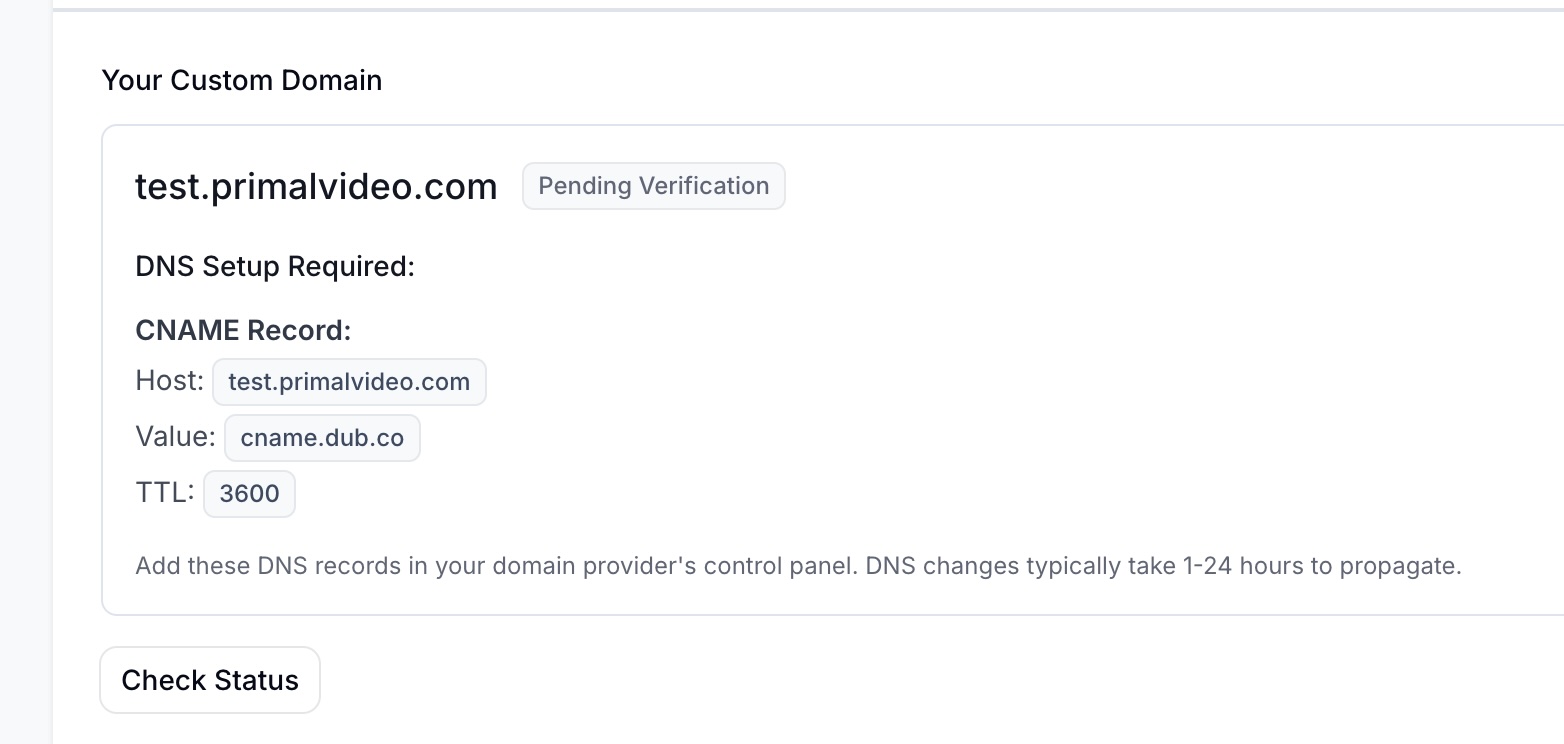
After adding your domain, VideoStats will display DNS configuration instructions. You'll need to add a CNAME record in your domain registrar or DNS provider.
DNS Record Settings:
| Setting | Value |
|---|---|
| Type | CNAME |
| Host/Name | Your subdomain (e.g., go or links) |
| Value/Target | cname.dub.co |
| TTL | 3600 (or "Auto") |
DNS Configuration by Provider
Cloudflare
- Log in to your Cloudflare dashboard
- Select your domain
- Go to DNS → Records
- Click Add record
- Configure:
- Type: CNAME
- Name: Your subdomain (e.g.,
go) - Target:
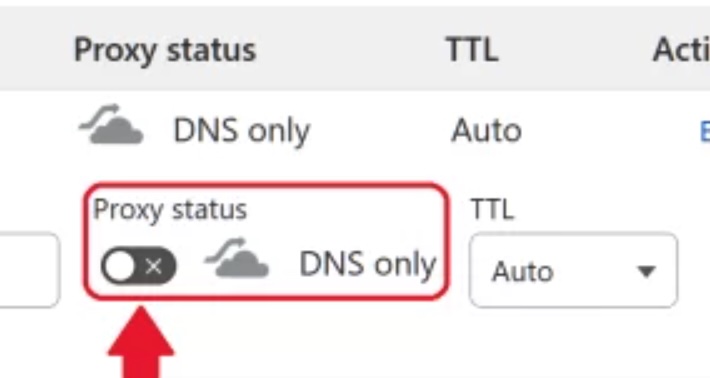
cname.dub.co - Proxy status: DNS only (gray cloud) — This is critical!
- TTL: Auto
- Click Save
Important for Cloudflare users: You must disable the proxy (orange cloud) and use "DNS only" mode. If the proxy is enabled, domain verification will fail.
GoDaddy
- Log in to your GoDaddy account
- Go to My Products → DNS
- Click Add under Records
- Select CNAME as the type
- Enter your subdomain in the Host field
- Enter
cname.dub.coin the Points to field - Set TTL to 1 Hour
- Click Save
Namecheap
- Log in to Namecheap
- Go to Domain List → Manage for your domain
- Click Advanced DNS
- Click Add New Record
- Select CNAME Record
- Enter your subdomain as the Host
- Enter
cname.dub.coas the Value - Click the checkmark to save
Other Providers
The process is similar for most DNS providers. Look for options like "DNS Management," "DNS Records," or "Zone Editor" and add a CNAME record with:
- Host/Name: Your subdomain
- Value/Target/Points to:
cname.dub.co
Verifying Your Domain
DNS changes can take anywhere from a few minutes to 24 hours to propagate across the internet.
Typically this takes 15 to 30 minutes, but the exact time depends on your DNS provider.
Checking Verification Status
- Return to Settings → Custom Domains in VideoStats
- Click the Check Status button next to your domain
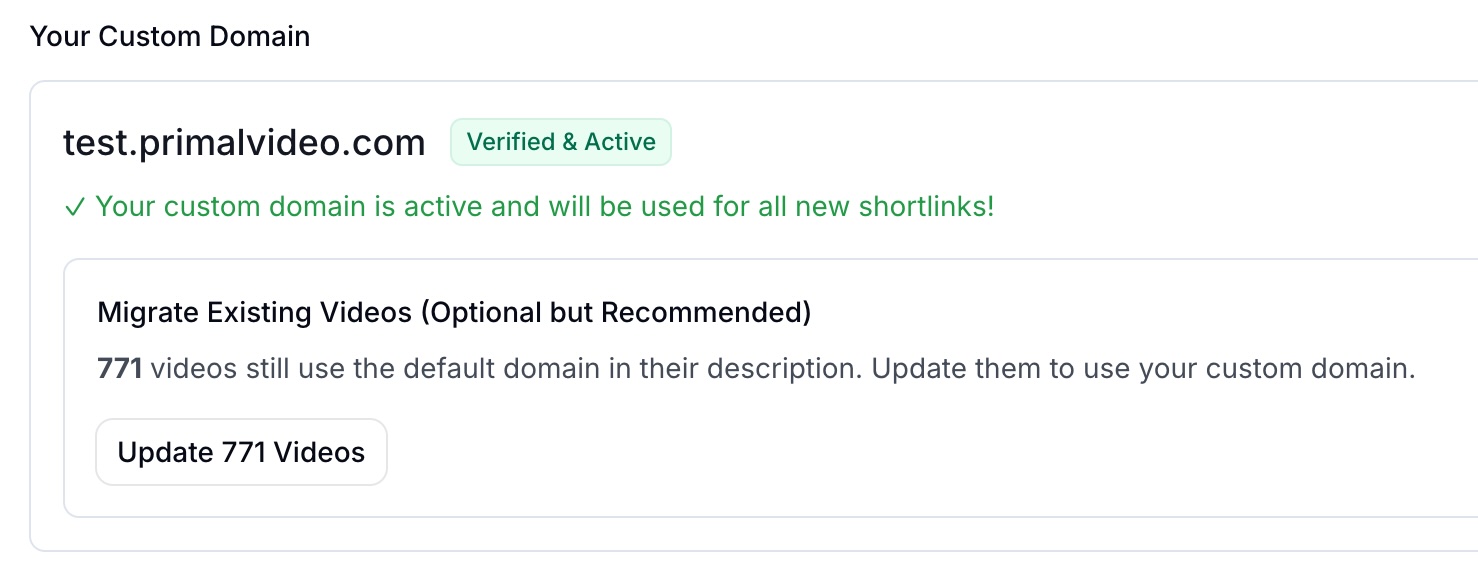
If verification succeeds, you'll see a "Verified & Active" badge, and your custom domain is ready to use!
(Note - we will also keep checking for you and send you an email when your subdomain is verified, so you don't have to wait around.)
If Verification Fails
If your domain isn't verified yet:
- Wait longer — DNS propagation can take up to 24 hours
- Double-check your CNAME record — Ensure it points to
cname.dub.coexactly - Cloudflare users — Make sure the proxy is disabled (gray cloud, not orange)
- Check for conflicts — Remove any A records for the same subdomain
Using Your Custom Domain
New Links Automatically Use Your Domain
Once your custom domain is verified, all new shortlinks you create will automatically use your branded domain. There's nothing else you need to do — VideoStats handles this seamlessly.
Example: Instead of yttrk.com/abc123, your new links will be go.yourbrand.com/abc123
What About Existing Links?
When you add a custom domain, your existing video descriptions still contain the old default domain links. You have two options:
Option 1: Convert Existing Links (Recommended)
VideoStats can automatically update all your existing YouTube video descriptions to use your new custom domain.
- After domain verification, you'll see a message showing how many videos still use the old domain
- Click Update Videos to start the migration
- VideoStats will update your video descriptions in the background
- You'll receive a notification when the process completes
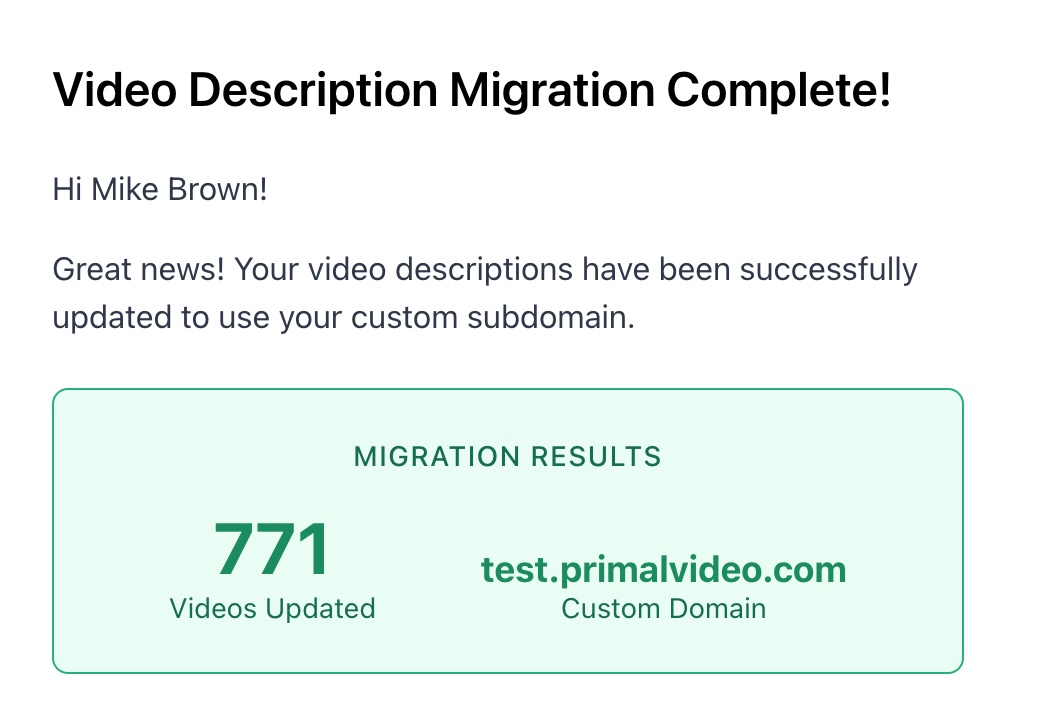
What happens during migration:
- All shortlinks in Dub are updated to use your new domain
- YouTube video descriptions are updated via the YouTube API
- The process runs in the background — you can continue using VideoStats
- A record is kept in your Link History for reference
Option 2: Keep Existing Links As-Is
You can choose not to migrate your existing links. In this case:
- Old videos will continue using the default domain links (they still work perfectly)
- New videos will use your custom domain
- Your audience may see a mix of domains across your content
This option works well if:
- You have a very large number of videos and prefer a gradual transition
- You want to test the custom domain on new content first
- You're not concerned about brand consistency across older content
Removing Your Custom Domain
Before You Remove: Important Considerations
Removing a custom domain is a significant action. Before proceeding, understand what will happen:
- All shortlinks will be migrated back — Every link using your custom domain will be changed to use the default domain
- YouTube descriptions will be updated — Your video descriptions will be modified to reflect the new URLs
- This takes time — The migration process runs in the background and may take several minutes depending on how many links you have
- The process is reversible — You can always add a custom domain again later
When You Might Remove a Domain
- You're changing your brand or domain name
- You're consolidating multiple brands
- You no longer have access to manage DNS for that domain
- You're downgrading to a plan that doesn't include custom domains
How to Remove Your Domain
- Go to Settings → Custom Domains
- Click the Remove Domain button
- Review the confirmation dialog showing how many video descriptions will be affected
- Click Remove Domain to confirm
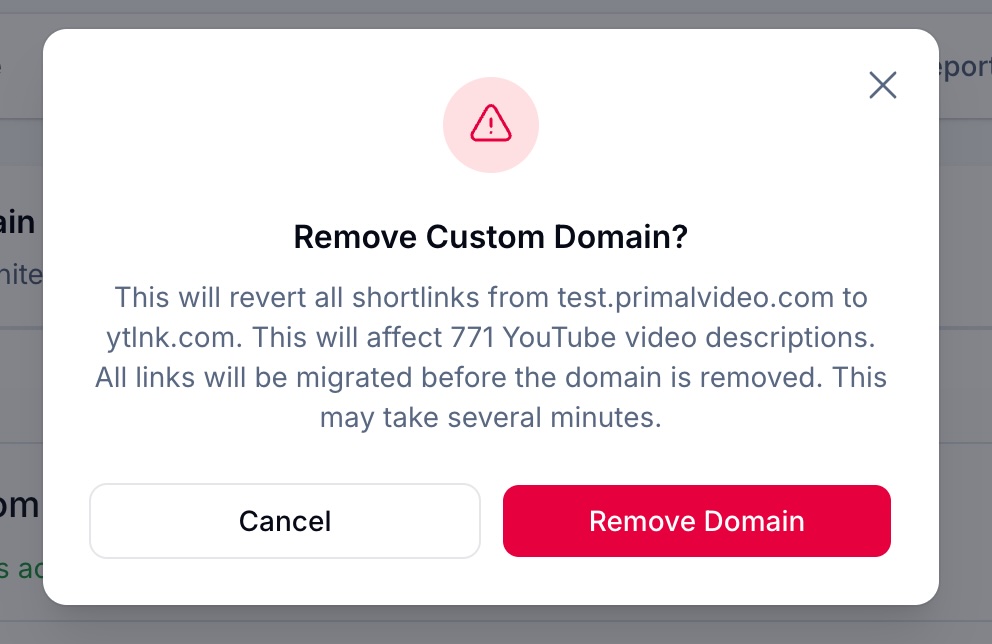
VideoStats will:
- Update all your shortlinks to use the default domain
- Update your YouTube video descriptions
- Send you a notification when the process completes
- Remove the domain from your account
Note: Your existing shortlinks will continue to work — they'll just use the default domain instead of your custom domain.
Frequently Asked Questions
How long does DNS verification take?
Most domains verify within 30 minutes, but it can take up to 24 hours depending on your DNS provider and TTL settings.
Can I have multiple custom domains?
Currently, VideoStats supports one custom domain per workspace. If you need multiple domains, consider creating separate workspaces.
Will my old links break if I add a custom domain?
No. Your existing links continue to work. The custom domain only affects new links unless you choose to migrate existing ones.
What if I remove my custom domain later?
All links will be migrated back to the default domain automatically. Your shortlinks will continue to work — only the domain portion changes.
Do custom domains affect click tracking?
No. All click tracking and analytics work exactly the same whether you use a custom domain or the default domain.
Is SSL/HTTPS included?
Yes. All custom domains are automatically secured with SSL certificates. Your links will always use HTTPS.
Troubleshooting
Domain stuck on "Pending Verification"
- Verify your CNAME record points to
cname.dub.co - If using Cloudflare, ensure proxy is disabled (gray cloud)
- Wait at least 24 hours for DNS propagation
- Check for conflicting A records on the same subdomain
New links not using my custom domain
- Confirm your domain shows "Verified & Active" status
- Try refreshing the Settings page
- Create a new link to test — existing links aren't automatically changed
Video migration seems stuck
- Check your notifications for status updates
- Large numbers of videos take longer to process
- The process runs in batches to avoid rate limits
- If issues persist, contact support