New Link Tracking (Keep Your Own Links)
Video Stats now offers a second way to track the links in your YouTube descriptions — one that keeps your own links exactly as they are instead of replacing them with a redirect shortlink.
Instead of your description link being rewritten to something like ytlnk.com/abc123, your link stays as yoursite.com/free-training and Video Stats simply adds a small tracking tag to the end of it.
The Two Ways to Track a Link
Video Stats supports both tracking methods at the same time, and picks the right one for each individual link automatically.
| Redirect Link (original) | New Link Tracking | |
|---|---|---|
| What viewers see | ytlnk.com/abc123?utm_source=... | yoursite.com/free-training?vsi=1234 |
| How it works | Click goes through Video Stats, then forwards to your page | Click goes straight to your page; our tracking code records it |
| Works on any website? | Yes — including affiliate and partner links | Only on pages where you can install the tracking code |
| Length in your description | Longer | Shorter |
Why Use the New Method?
Your links take up less room. No long string of UTM parameters cluttering your description.
Your links keep looking like your links. Viewers see your real domain and your real page name, so there's no mystery about where they're about to land.
Nothing depends on a redirect. The click goes directly to your page. There's no middle step to trust — even though our redirects are rock solid.
No confusion for your audience. Some viewers hesitate before clicking an unfamiliar shortened link. A link that clearly reads yoursite.com/free-training doesn't create that hesitation.
Important: This Requires the Tracking Code on Your Page
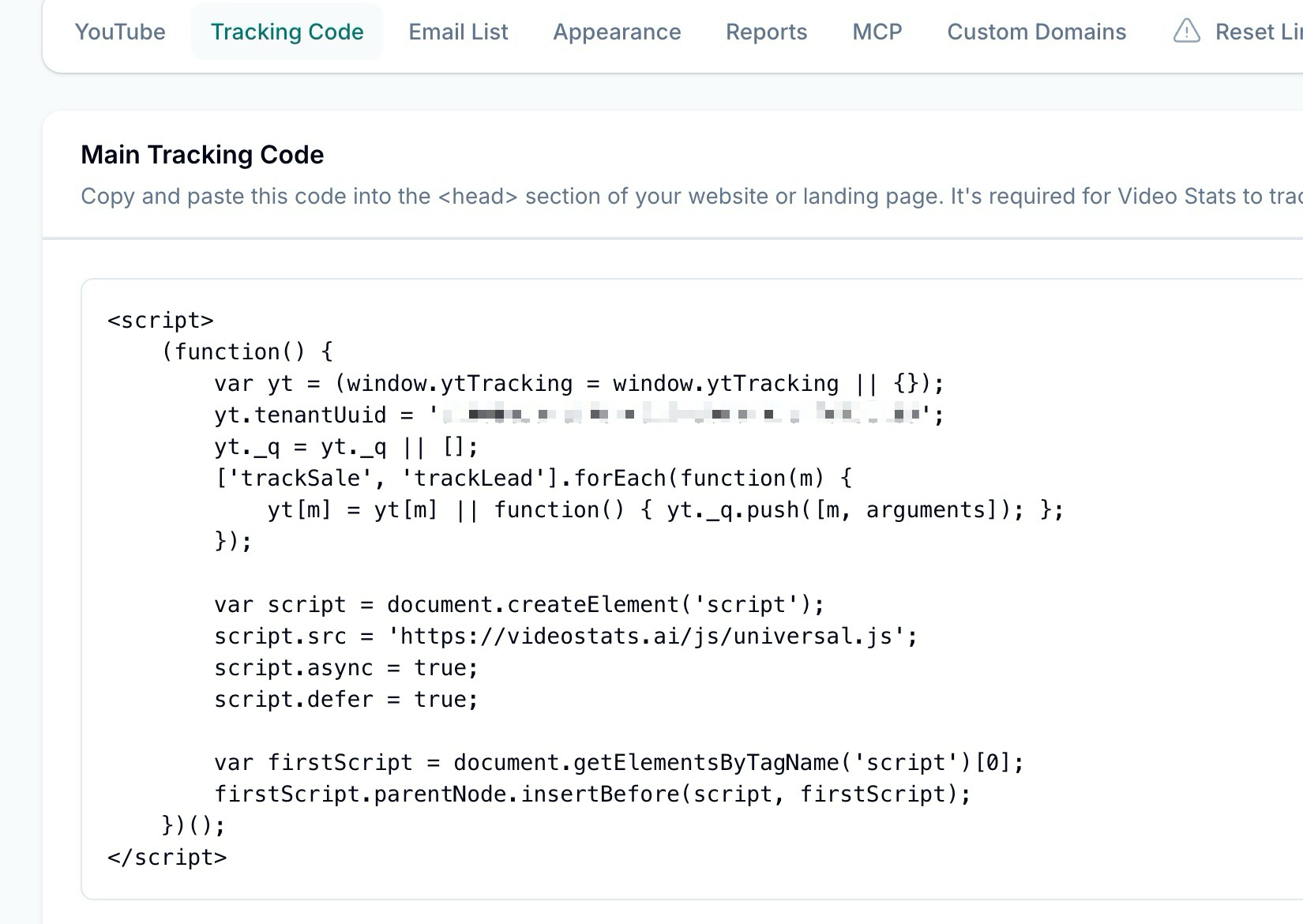
New Link Tracking works because a small piece of Video Stats JavaScript runs on the page your link points to. When a visitor arrives with the ?vsi= tag on the URL, that code records the click and connects it back to the video that sent them.
This means New Link Tracking only works on websites you control — pages where you (or your developer) can add the tracking code.
If the tracking code isn't installed on the destination page, the click cannot be recorded. Nothing breaks — the visitor still lands on your page perfectly normally — but the click won't appear in your Video Stats analytics.
You'll find your tracking code under Settings → Tracking Code. If you haven't installed it yet, see the Tracking Code for Leads and Tracking Code for Sales articles for full installation instructions.
Affiliate Links Are Handled Automatically
This is the part most people ask about, so to be clear:
You do not need to do anything special for affiliate links. Video Stats decides which tracking method to use for every link individually, and automatically uses the original redirect style for any link pointing to a site you don't control.
Because you can't install JavaScript on Amazon, ClickBank, a partner's sales page, or any other third-party site, New Link Tracking simply isn't possible for those links. Video Stats knows this and handles it for you.
Here's how the decision works for each link in your description:
- Does this link point to one of the domains you've listed as yours? → Use New Link Tracking (
?vsi=), keeping the link as-is. - Anything else → Use a redirect shortlink, exactly as before.
So a single video description can end up with a mix, and that's completely normal:
Get my free training here:
https://yoursite.com/free-training?vsi=1234          ← your site, new tracking

The camera I use:
https://ytlnk.com/x7Bq2                              ← affiliate link, redirect tracking

My favourite editing software:
https://ytlnk.com/k9Rm4                              ← affiliate link, redirect tracking
Both kinds of links report into the same dashboard. Clicks, leads, and sales all show up together, and you can still see exactly which video drove each one. You don't lose any tracking on your affiliate links by turning this feature on.
Turning On New Link Tracking
If You're Just Getting Started
New Link Tracking is set up for you during onboarding. When you connect your YouTube channel, Video Stats detects your main website, asks you to confirm it, walks you through installing the tracking code, and then converts the links pointing to that website.
If You're an Existing Customer
- Go to Settings in your Video Stats dashboard
- Open the YouTube tab
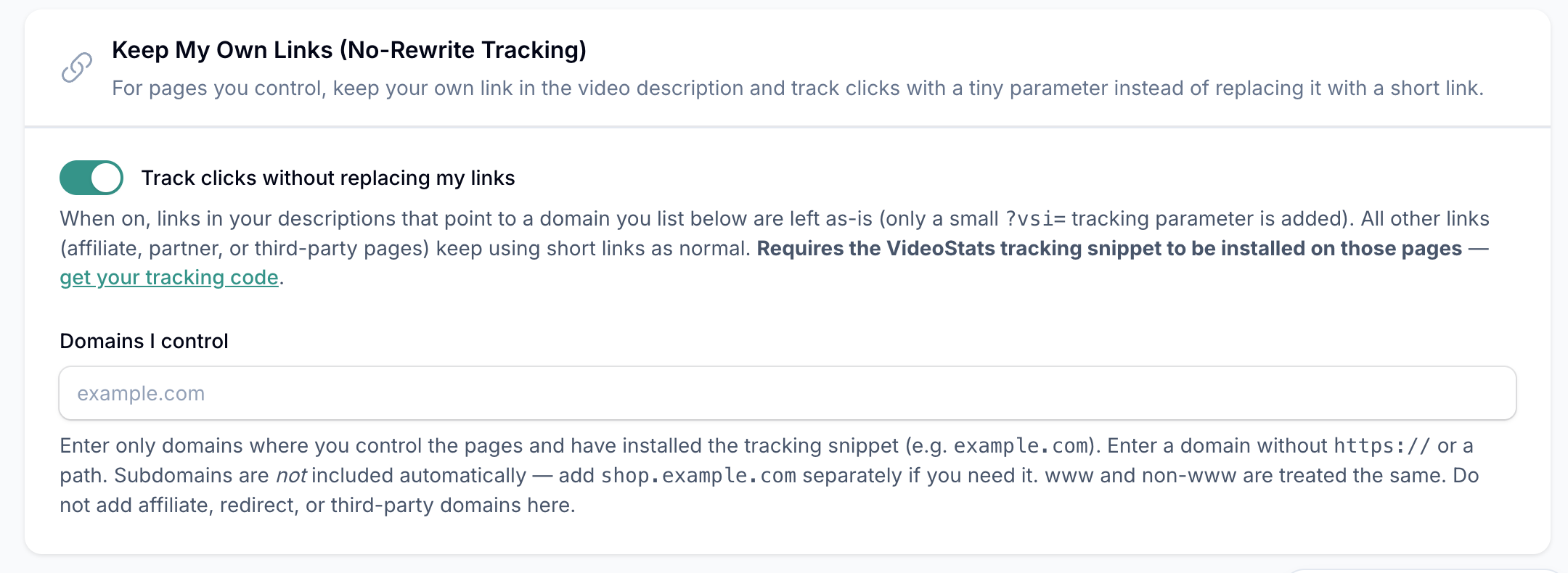
- Find the section called Keep My Own Links (No-Rewrite Tracking)
- Switch on Track clicks without replacing my links
- Add each domain you control in the Domains I control field
- Click Save
Listing Your Domains Correctly
The Domains I control field is what tells Video Stats which links are safe to leave in place. A few rules to know:
Enter the domain only. Type yoursite.com — not https://yoursite.com and not yoursite.com/pricing.
www doesn't matter. yoursite.com and www.yoursite.com are treated as the same site.
Subdomains are NOT included automatically. If you also send traffic to shop.yoursite.com or members.yoursite.com, add each one as its own separate entry. This is deliberate — owning yoursite.com doesn't guarantee your tracking code is installed everywhere else on your domain.
Only add domains where the tracking code is actually installed. Never add affiliate links, redirect services, or third-party platforms here. If you list a domain you can't put the tracking code on, links to it will stop being tracked.
What Your Links Will Look Like
Once converted, your description links get a short tag added to the end:
Before:  https://yoursite.com/free-training
After:   https://yoursite.com/free-training?vsi=1234
If your link already has a question mark in it, the tag is added with an & instead:
Before:  https://yoursite.com/offer?plan=pro
After:   https://yoursite.com/offer?plan=pro&vsi=1234
The number is unique to that specific video-and-link combination — it's how Video Stats knows which video sent each visitor. Your page loads exactly as normal; the tag is only read by the tracking code.
Frequently Asked Questions
Will this break my existing links?No. The tag is added to the end of your URL and doesn't change where the link goes. Your pages will load exactly as they always have.
Do I still get lead and sale tracking?Yes. Once the click is recorded, leads and sales are attributed exactly the same way as with redirect links. Your dashboard, Top Converting Videos, and reports all work identically.
Can I use both methods at once?Yes — and you almost certainly will. Video Stats mixes them automatically within the same description based on where each link points.
What if I turn it on but haven't installed the tracking code yet?Install the code first. If your links are converted before the code is live on your site, visitors will still reach your pages normally, but those clicks won't be recorded.
What happens to links I already converted to shortlinks?Turning on New Link Tracking does not automatically change links that were already converted. Existing shortlinks in your descriptions keep working exactly as they are — you won't lose any data or break any links. If you'd like previously converted links switched over to the new style, contact support and we can look at your account.
Can I switch back?Yes. Turn the toggle off in Settings → YouTube, and future conversions will go back to using redirect shortlinks.
Troubleshooting
My links converted, but clicks aren't showing up.The most likely cause is that the tracking code isn't installed on the destination page, or is only installed on some pages of your site. Check that the code appears on every page your YouTube links point to.
Some of my links were converted to shortlinks instead.That's expected behaviour for any link pointing to a domain that isn't in your Domains I control list. Check whether the destination is a subdomain — those need to be added separately.
I added my domain but nothing changed.The setting applies to links as they're converted. Links already converted before you made the change keep their existing format.
Still stuck?Reach out to support with the video URL and the link in question, and we can tell you which tracking method was applied and why.