Tracking Code for Sales
Sale tracking is what turns Video Stats from a click counter into an actual ROI dashboard. Once it's set up, every sale that comes in on your thank-you page (or order confirmation page) is connected back to the YouTube video that drove the original click — so you can see which videos earn money, not just which ones get views.
Sale tracking uses the same Video Stats tracking code as lead tracking, plus one small additional snippet on the page where the sale completes.
Before You Start
Sale tracking has one prerequisite: the base Video Stats tracking code must already be installed on your thank-you page (and ideally sitewide). If you haven't done that yet, set up Tracking Code for Leads first — it walks you through the install and verification.
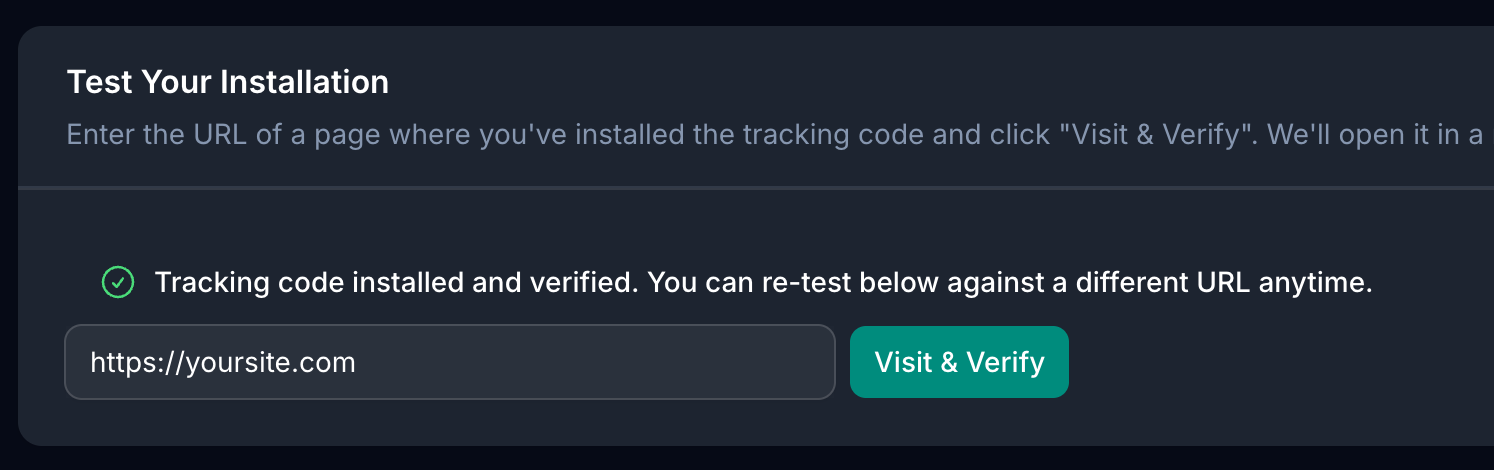
You'll know the base code is installed when Settings > Tracking Code shows a green Verified badge.
How Sale Tracking Works
Your customer will trigger a sale in Video Stats when she:
- Clicks a Video Stats tracking link in one of your videos
- Lands on your site (a
dub_idcookie is set automatically) - Goes through your funnel and completes a purchase
- Lands on your thank-you page or order confirmation page
…the tracking code on the thank-you page reads the tracking cookie and sends a "sale" event to Video Stats, including the order amount, currency, and (optionally) the order ID. Video Stats then connects that revenue back to the original video.
If the customer didn't go through a tracking link first, the sale isn't attributed to a video — that's expected. Direct traffic, organic search, and other non-YouTube sources won't show up in your video-attributed revenue.
Step 1 — Make Sure the Base Tracking Code Is on Your Thank-You Page
The thank-you page needs the same <script> snippet from Settings > Tracking Code that's installed on the rest of your site. If your tracking code is installed sitewide, you're already done with this step.
If your thank-you page is on a different domain from where the click landed (for example, your opt-in page is on yourbrand.com and your checkout / thank-you page is on cart.yourbrand.com or a third-party shopping cart), see Cross Domain Tracking for the extra setup needed to carry attribution across domains.
Step 2 — Add the Sale Tracking Snippet
On your thank-you page (and only your thank-you page), add a second small snippet that fires the sale event. There are two ways to do this — pick whichever fits how your thank-you page is built.
Option A: JavaScript Snippet (Recommended)
Add this script to your thank-you page, after the base Video Stats tracking code:
<script>
window.addEventListener('load', function() {
    if (window.ytTracking && window.ytTracking.trackSale) {
        ytTracking.trackSale({
            amount: 14999,             // Sale amount in CENTS — see below
            currency: 'USD',
            orderId: 'ORDER-12345',    // Your order ID (optional but recommended)
            email: '[email protected]'  // Optional, helps attribution
        });
    }
});
</script>
Replace the values with your actual sale data:
| Field | Required | Description |
|---|---|---|
amount | Yes | The sale amount in cents (e.g., 9999 = $99.99). Most checkout systems already give you the value in cents. |
currency | No | 3-letter code like USD, EUR, GBP. Defaults to USD if omitted. |
orderId | No | Your internal order ID. Useful for cross-referencing in reports. |
email | No | Customer's email — helps attribution if cookies were lost between domains. |
⚠️ Important: Amount must be in cents, not dollars.
99.99won't work — use9999. This matches how Stripe, PayPal, Paddle, and most other payment systems already format their amounts.
Option B: Dynamic Values from Your Cart / Checkout System
If you're using a platform like Shopify, ThriveCart, SamCart, ClickFunnels, Kartra, etc., you'll usually replace the hard-coded values with the platform's "merge tags" or template variables so each customer's actual order data gets passed in.
Example with template variables (syntax varies by platform):
<script>
window.addEventListener('load', function() {
    if (window.ytTracking && window.ytTracking.trackSale) {
        ytTracking.trackSale({
            amount: {{ order.total_in_cents }},
            currency: '{{ order.currency }}',
            orderId: '{{ order.id }}',
            email: '{{ customer.email }}'
        });
    }
});
</script>
Check your platform's documentation for its exact variable syntax. The key requirement is that amount ends up as a number in cents.
Step 3 — Test a Sale
The fastest way to confirm everything is working:
- Click one of your own Video Stats tracking links from a fresh browser (or incognito window)
- Go through your full funnel: click → opt-in → checkout
- Complete a real test purchase (a $1 product, your cheapest tier, or a coupon-discounted order)
- Land on the thank-you page
- Open your Video Stats dashboard — within a few minutes you should see the sale attributed to that video
If the sale shows up with the right amount and is attributed to the correct video, you're done.
Preventing Duplicate Sales on Page Reload
Customers often reload thank-you pages, share the link, or bookmark them. Video Stats handles this automatically — each sale is tagged with an invoice ID that prevents the same purchase from being counted twice.
You don't have to do anything to enable this — it's built into the tracking code. If you want to be extra safe, you can pass an explicit invoiceId (or orderId, which doubles as one) so reloads of the thank-you page never produce duplicate sales:
ytTracking.trackSale({
    amount: 14999,
    currency: 'USD',
    orderId: 'ORDER-12345',
    invoiceId: 'INV-2025-001'   // Same invoice = counted only once
});
If you don't pass an invoiceId or orderId, Video Stats auto-generates one and stores it in a cookie for 24 hours so reloads of the same page don't double-count.
Currencies and Amounts
Common amount values for reference:
| Sale Price | amount Value |
|---|---|
| $1.00 | 100 |
| $9.99 | 999 |
| $49.00 | 4900 |
| $99.99 | 9999 |
| $149.99 | 14999 |
| $1,000.00 | 100000 |
Currency is whatever 3-letter ISO code you pass — USD, EUR, GBP, AUD, CAD, etc. If you sell in multiple currencies, make sure each thank-you page passes the correct currency value for that order.
Troubleshooting
Sales aren't showing up in my dashboard
- Confirm the base tracking code (the one from Settings > Tracking Code) is on the thank-you page. The sale snippet alone isn't enough — it depends on the base code being loaded first.
- Check that the customer actually came through a tracking link before purchasing. If they came from a direct visit, organic search, or social media, there's no
dub_idto attribute to — and that's expected behavior. - Make sure
amountis in cents (an integer). A value like99.99will fail validation. - Open your browser's dev tools on the thank-you page, check the Console for errors, and check the Network tab for a request to
/api/track-sale— that confirms the snippet is firing.
The amount is wildly off — ex: $0.99 instead of $99.00
You're passing dollars instead of cents. Multiply by 100 (or use your platform's "amount in cents" variable). 99.99 should be sent as 9999.
My checkout is on a different domain than the rest of my site
This is the cross-domain case. The visitor's cookie was set on the original domain and isn't automatically available on the checkout domain. See Cross Domain Tracking for the setup that handles this.
My thank-you page is on a third-party shopping cart I can't add code to
If you can't paste any code on the thank-you page, sale attribution from that page isn't possible directly — but if your cart can pass the customer's email through to a confirmation page you do control, you can still attribute the sale by passing email to trackSale and letting Video Stats match by email. Contact support for help with non-standard checkouts.
Sales are double-counting
Double-counting almost always means the snippet is firing twice. Check that:
- The sale snippet is on the thank-you page once, not twice
- You're not pasting it into both a "global" and a "page-specific" code area
- If you're using a funnel builder, make sure you didn't add the snippet at both the funnel level and the step level