Video Performance
Understanding which individual videos are driving results is one of the biggest challenges for YouTube creators. Standard YouTube Analytics shows you views and engagement, but it cannot tell you which specific video generated leads or drove traffic to your offers. VideoStats bridges this gap by showing you exactly how each video performs in terms of business metrics.
Video Performance Overview
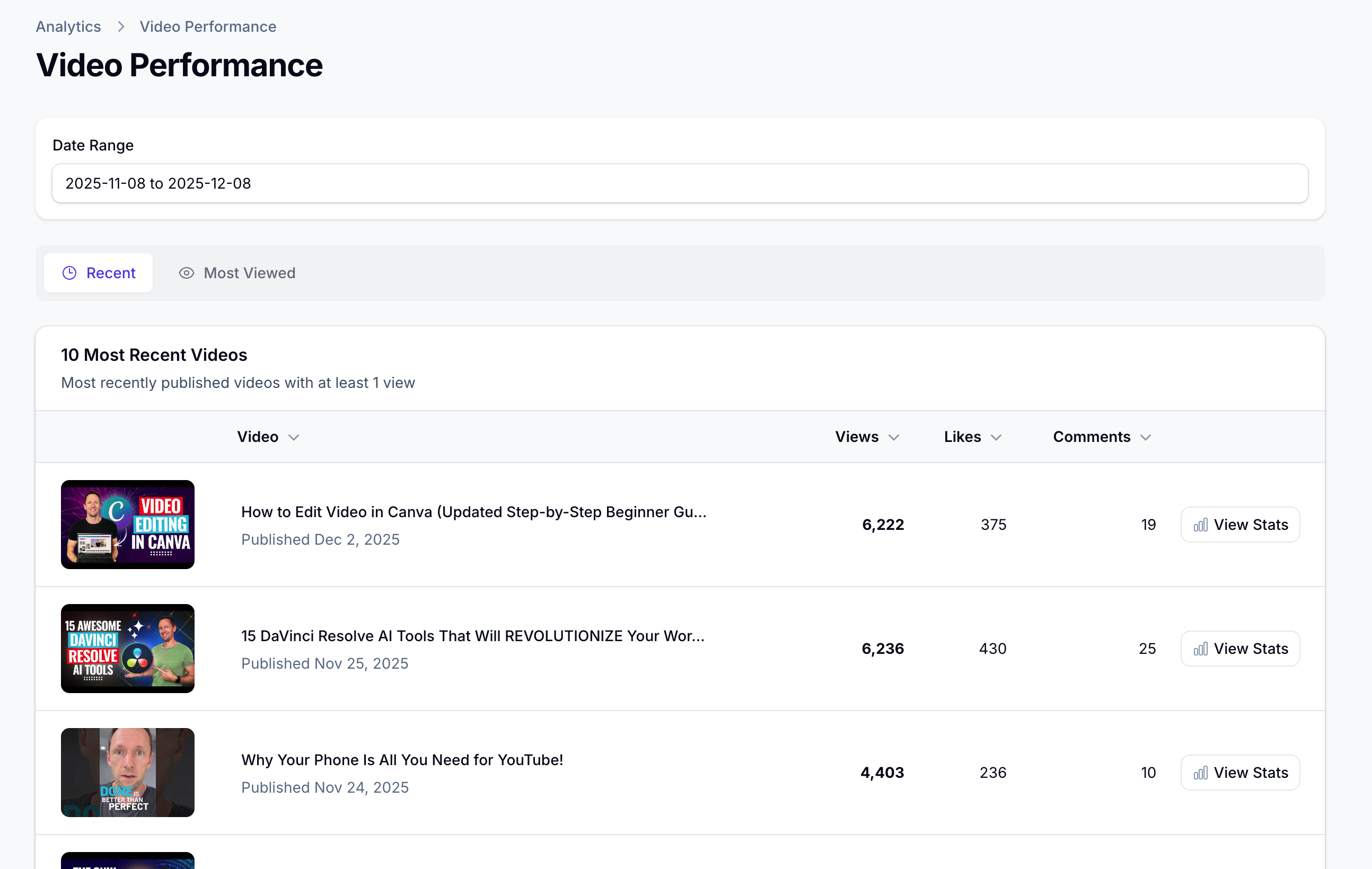
Navigate to Analytics → Video Performance to see a list of your videos and their performance metrics.
Date Range
At the top of the page, you can select a date range to filter the data. This affects all metrics shown on the page, letting you focus on specific time periods like the past week, month, or a custom range.
View Tabs
You can switch between two views:
- Recent: Shows your 10 most recently published videos with at least 1 view. This is helpful for tracking how your newest content is performing.
- Most Viewed: Shows your 10 most viewed videos. This helps you identify your evergreen content that continues to attract viewers.
Video List
Each video in the list shows:
- Thumbnail: Visual preview of the video
- Title: The video's title
- Published Date: When the video was uploaded to YouTube
- Views: Total view count for the selected period
- Likes: Number of likes received
- Comments: Number of comments
- View Stats: Click this button to see detailed analytics for that specific video
Individual Video Stats
When you click View Stats on any video, you see a comprehensive breakdown of that video's performance. This is where the real insights live.
Video Selector
At the top, you can quickly switch between videos using the dropdown, or adjust the date range to focus on a specific time period.
Video Overview Card
This section shows:
- The video thumbnail
- Full title
- Published date
- Link to watch on YouTube
- Current views and likes counts
- The video's description including all links
The description is especially useful because you can see exactly which links are in this video and verify they are being tracked.
Link Analytics
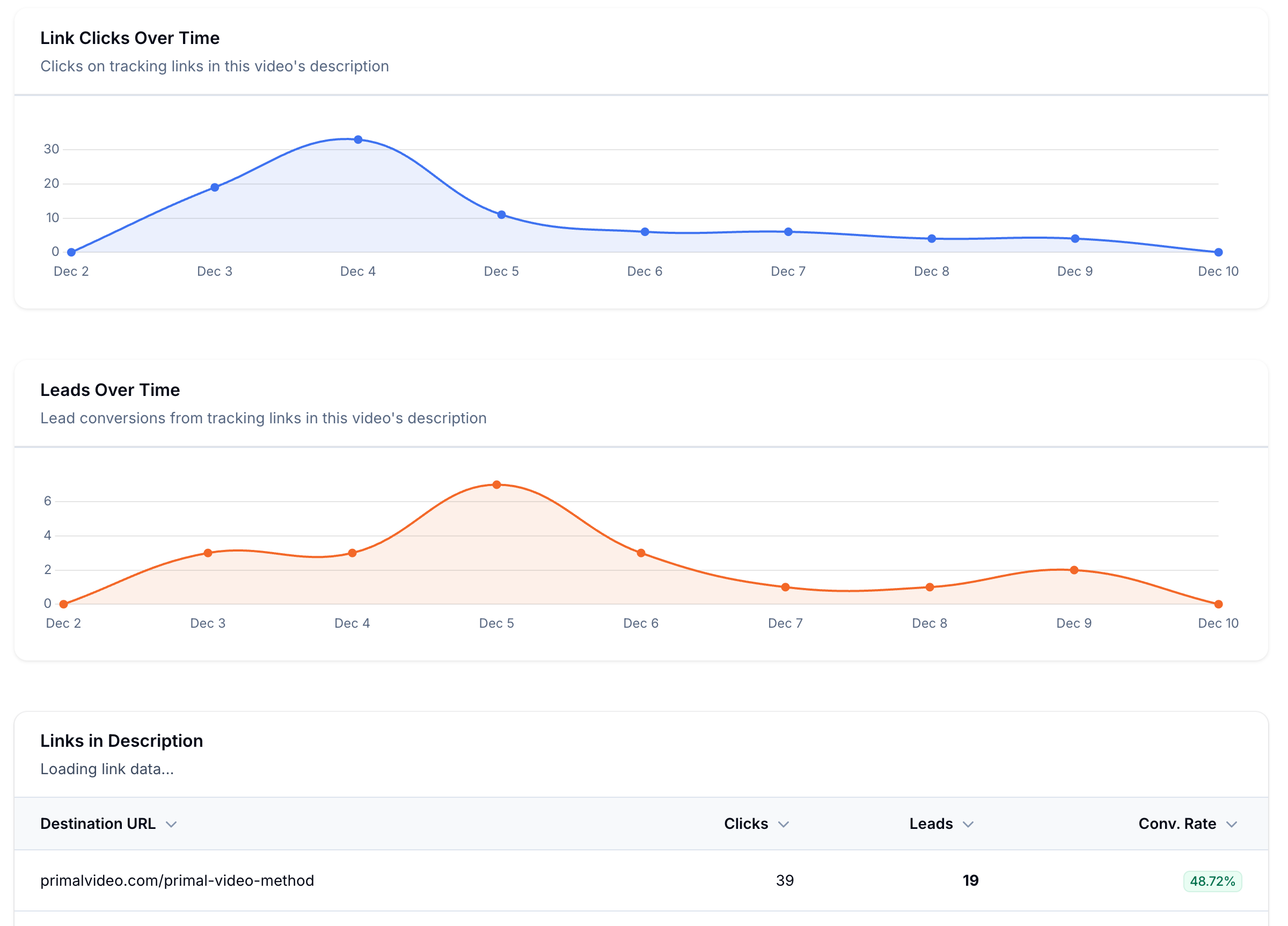
This is the most valuable section for understanding your video's business impact.
Link Clicks Over Time
This chart shows how many times people clicked on the tracking links in this video's description over time. Use it to:
- See when clicks spike (often after the video gets recommended or shared)
- Understand the click pattern as the video ages
- Identify if recent changes to thumbnails or titles affected click behavior
Leads Over Time
This chart shows how many conversions (email signups, opt-ins, etc.) came from this specific video over time. This directly measures the video's ability to generate business results, not just views.
Links in Description
This table breaks down the performance of each link in your video's description:
- Destination URL: Where the link points to
- Clicks: How many times this specific link was clicked
- Leads: How many conversions came from this link
- Conv. Rate: The percentage of clicks that became leads
This data is incredibly valuable because it tells you:
- Which calls-to-action in your video are most effective
- Which landing pages convert best from this video's audience
- Whether certain offers resonate better with viewers of this content
For example, if your main method page converts at 45% but your subscribe page only converts at 14%, you know which offer to emphasize more in similar videos.
YouTube Metrics
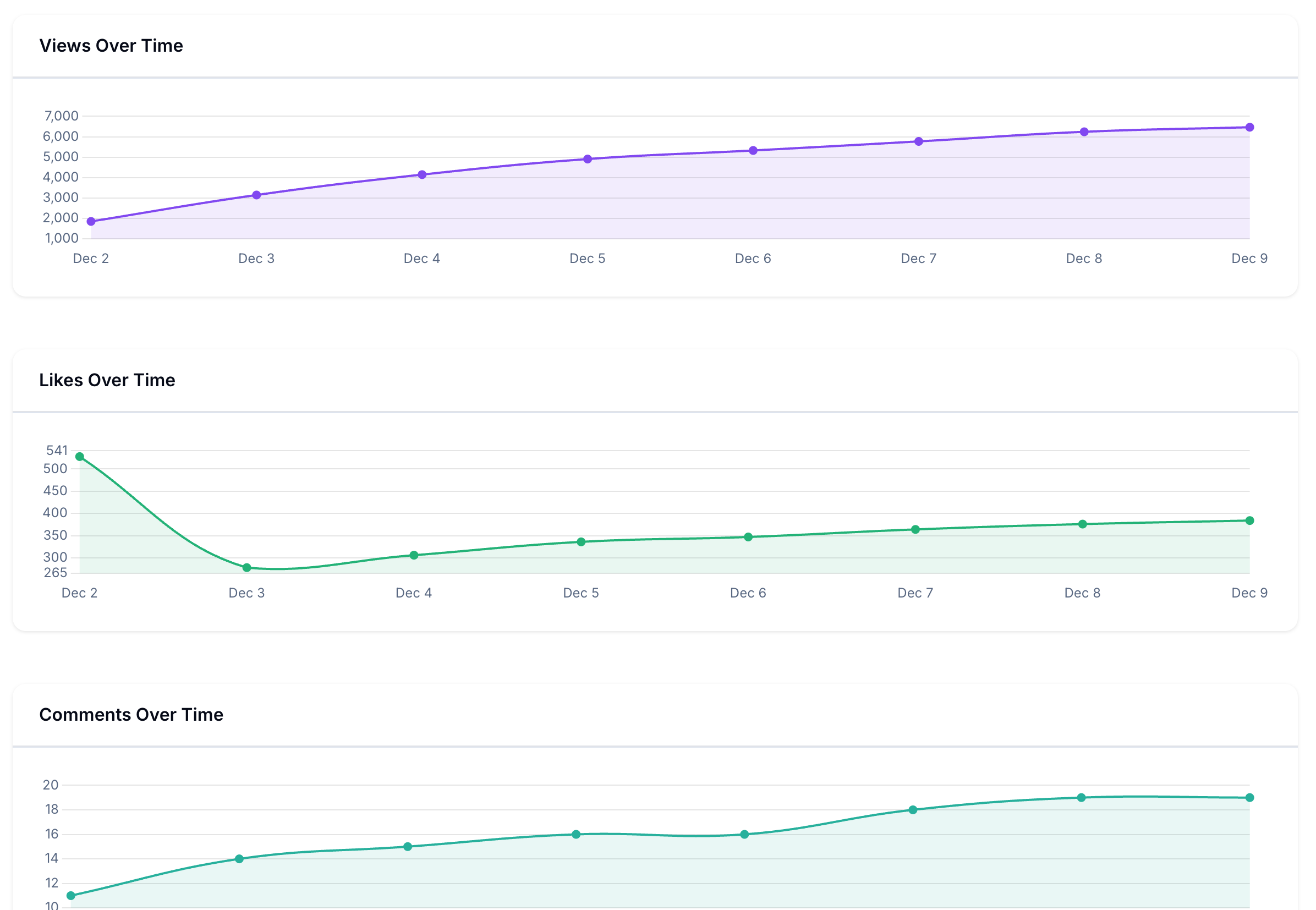
This section shows daily snapshots of your video's YouTube performance over time.
Views Over Time
Track how your video's view count grows day by day. This helps you:
- See if the video is gaining momentum or declining
- Identify when the video might have been picked up by the algorithm
- Understand the video's lifecycle
Likes Over Time
See how likes accumulate over time. A healthy ratio of likes to views indicates the content is resonating with viewers.
Comments Over Time
Track comment activity. Videos that generate discussion often perform better in the algorithm and indicate strong audience engagement.
Making Better Content Decisions
Use Video Performance to answer questions like:
- Which videos should I create more of? Look at videos with high conversion rates, not just high views.
- Which calls-to-action work best? Compare link performance across different videos.
- Is this video still generating results? Check if older videos continue to drive leads.
- Should I update this video's description? If a video gets views but few clicks, the description might need better calls-to-action.
- Which topics convert my audience? Videos on certain topics may drive more business results than others.
Tips
- Check your top-performing videos regularly to understand what makes them successful
- Compare conversion rates between similar videos to identify what works
- Use the date range filter to see how performance changes over time
- Pay attention to videos with high views but low conversions, as they may need better calls-to-action
- Look at the Links in Description table to understand which offers resonate with each video's audience