Resources Page
VideoStats gives you a powerful and simple way to create a professional resources page. This lets you recommend tools, training, software, and other resources to your audience, and these can include your affiliate links so you earn commissions when viewers make purchases.
We automatically brand your resources page to match your YouTube channel theme.
And VideoStats shows you beautiful charts to show you which resources are getting the most clicks.
Why Create a Resources Page
A resources page is valuable because:
- It gives viewers a central place to find everything you recommend
- You can include affiliate links for passive income
- You can track which resources get the most clicks
- Updating recommendations is easy with VideoStats
How It Works
Your resources page displays your recommended tools and services organized into categories. Each resource shows:
- A title (the name of the tool or service)
- A description explaining why you recommend it
- An image or logo
- A link (which can be your affiliate link)
The page automatically uses your YouTube banner at the top and has a clean, professional design that matches your channel.
Creating Your Resources Page
There are 2 ways to create your Resources Page:
Using the Wizard (powered by AI)
Creating it manually
Using the AI Wizard to Create Your Resources Page in Seconds
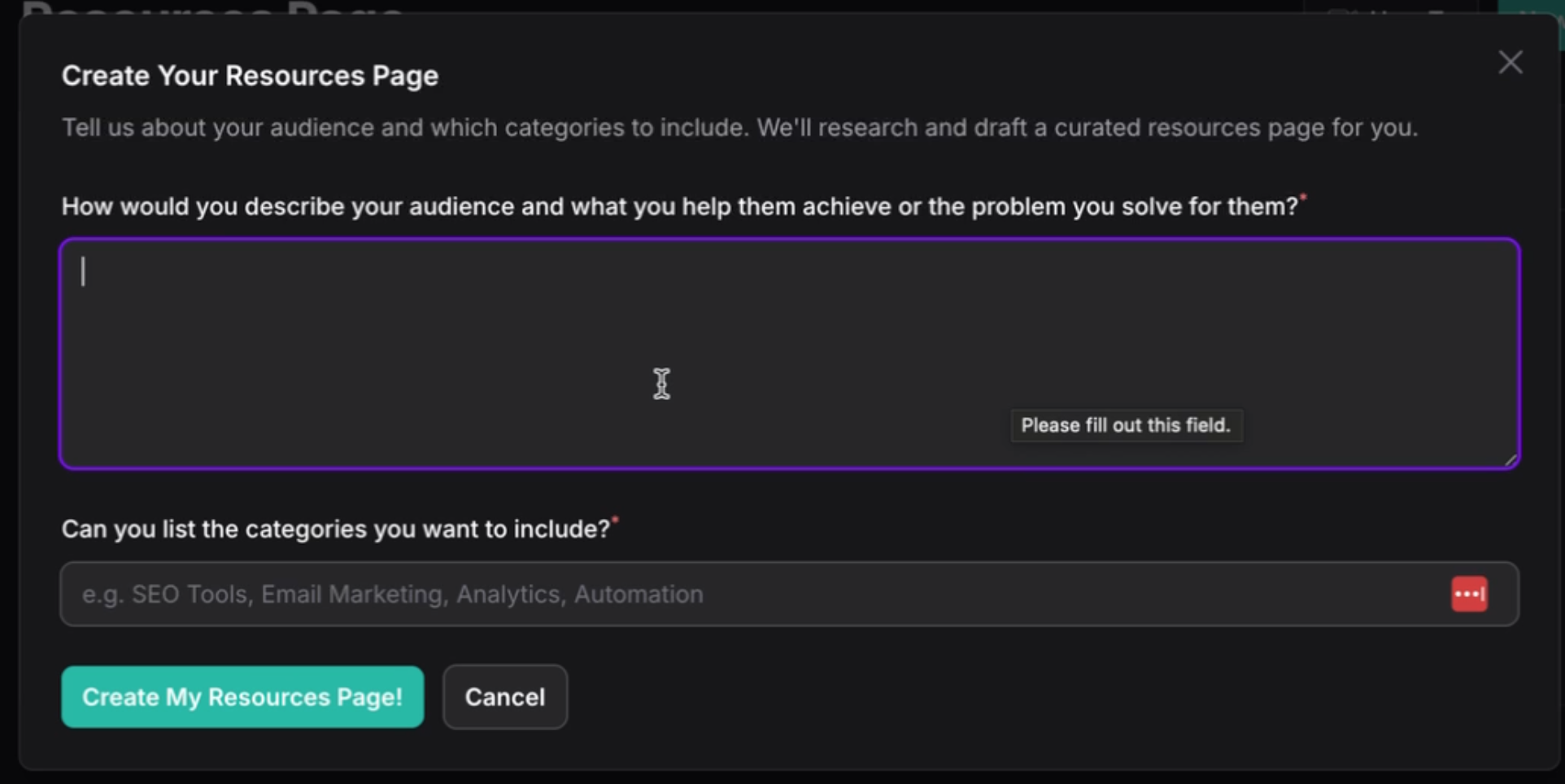
The goal of the AI wizard is to help you very quickly create a first version of your Resources Page. You'll need to edit the results after the wizard has created this first version. But it's usually much faster and easier to edit what the AI Wizard created than to try to create it manually. Here are the steps:
Click the Wizard button in the top right.
Next, describe your audience and what you help them achieve or the problem you solve for them
List a few categories of resources you want to include (separated by commas)
Then click Create My Resources Page button
In a few seconds you'll have a draft of your resources page.
What you'll need to do next is edit this AI version to:
Include any affiliate links
Remove any resources you're not interested in recommending
Add any resources AI missed
How to Create Your Resources Page (Manual Method)
- Navigate to Marketing → Resources Page
- Click Create
- Fill in your page details:
Page Information
- Page Title: The heading visitors will see (e.g., "My Recommended Tools")
- Page Description: A brief intro shown below the title explaining what the page is about
- Status: Set to "Published" when ready for visitors to see, or "Draft" while you are still working on it
Adding Categories
Organize your resources into categories like "Software", "Training", "Equipment", etc.
- Click Add Category
- Enter a category name (e.g., "Email Software")
- Add resources within that category
Adding Resources
Within each category, add your recommended resources:
- Click Add Resource inside a category
- Enter the Resource Title (e.g., "ConvertKit")
- Write a Description explaining why you recommend it
- Paste your Resource Link (this can be an affiliate link)
- Upload an Image (like the product logo) - optional but recommended
Reordering
You can easily change the order of both categories and resources:
- Click and drag categories to change their order on the page
- Click and drag resources within a category to change their order
Footer Content
Optionally add footer text for:
- Legal disclaimers (recommended for affiliate links)
- Terms of service links
- Additional information for visitors
Viewing Your Page
After saving, you can view your resources page:
- Go back to the Resources Page list
- Click View Page in the actions menu
You will see:
- Your YouTube banner at the top
- A professional layout with your categories and resources
- Hover animations on resource cards
- Your resources displayed in the exact order you set
Sharing Your Resources Page
Copy your resources page URL to share it:
- Add it to your YouTube channel "About" section
- Include it in video descriptions
- Share in your community posts
- Add to your website or link-in-bio
Checking Analytics
VideoStats tracks clicks on your resources so you can see what is performing best:
- Go to Marketing → Resources Page
- Click Analytics in the actions menu
You will see:
- Performance over time for each resource
- A breakdown showing which resources get the most clicks
- Your top performing resources at a glance
This helps you understand what your audience is most interested in, so you can create more content around those topics or negotiate better affiliate deals.
Best Practices
- Use quality images: Product logos or screenshots make the page look professional
- Write helpful descriptions: Explain why you recommend each resource and who it is best for
- Organize logically: Group related resources together in categories
- Keep it updated: Remove resources you no longer recommend and add new favorites
- Add a disclaimer: If using affiliate links, add a note in the footer
Tips
- Mention your resources page in videos when discussing tools you use
- Check analytics regularly to see which recommendations resonate with your audience
- Use the drag-and-drop feature to put your most valuable resources at the top
- Keep descriptions concise but informative