Magic QR Codes
If you want to use QR codes in your YouTube videos, Magic QR Codes offer a smarter approach that solves a common problem video creators face.
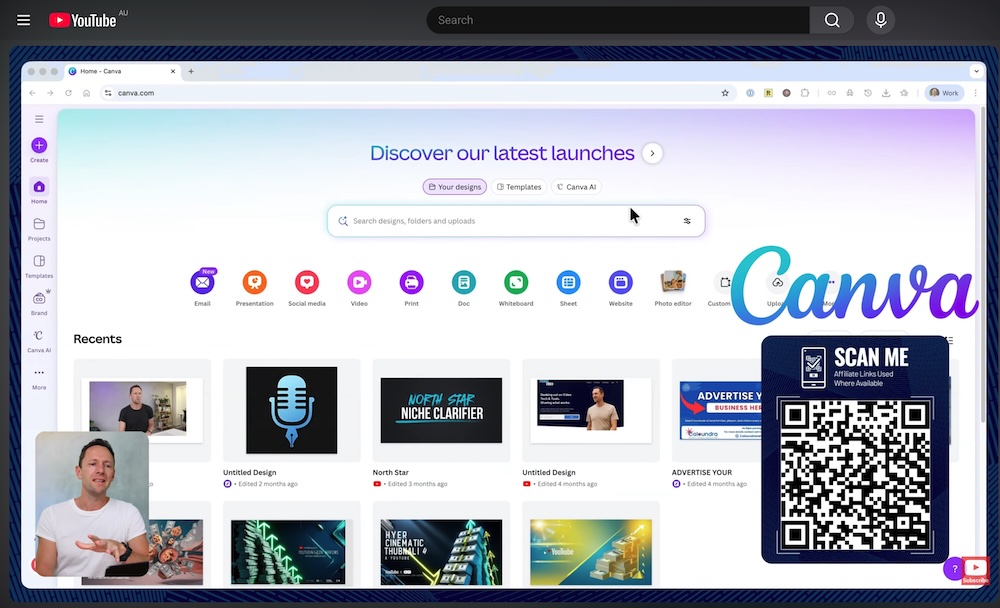
The Problem with Traditional QR Codes
With a typical QR code workflow, you run into a chicken-and-egg situation:
- You record your video
- You need to add the QR code during editing (before uploading to YouTube)
- The QR code converts to a URL when scanned
- But to track which video the scan came from, you need the YouTube video ID in the URL
- You do not have the video ID yet because you have not uploaded to YouTube!
This makes it impossible to answer important questions like:
- Which video did this scan come from?
- How many scans or clicks did this QR code get?
- How many leads did it generate?
- How many sales?
The Solution: QR Codes You Can Change After You Put Them In Your Video
Magic QR Codes solve this by letting you create the QR code first, use it in your video editing, upload to YouTube, and then associate the video later. The QR code updates behind the scenes to include the video tracking information.
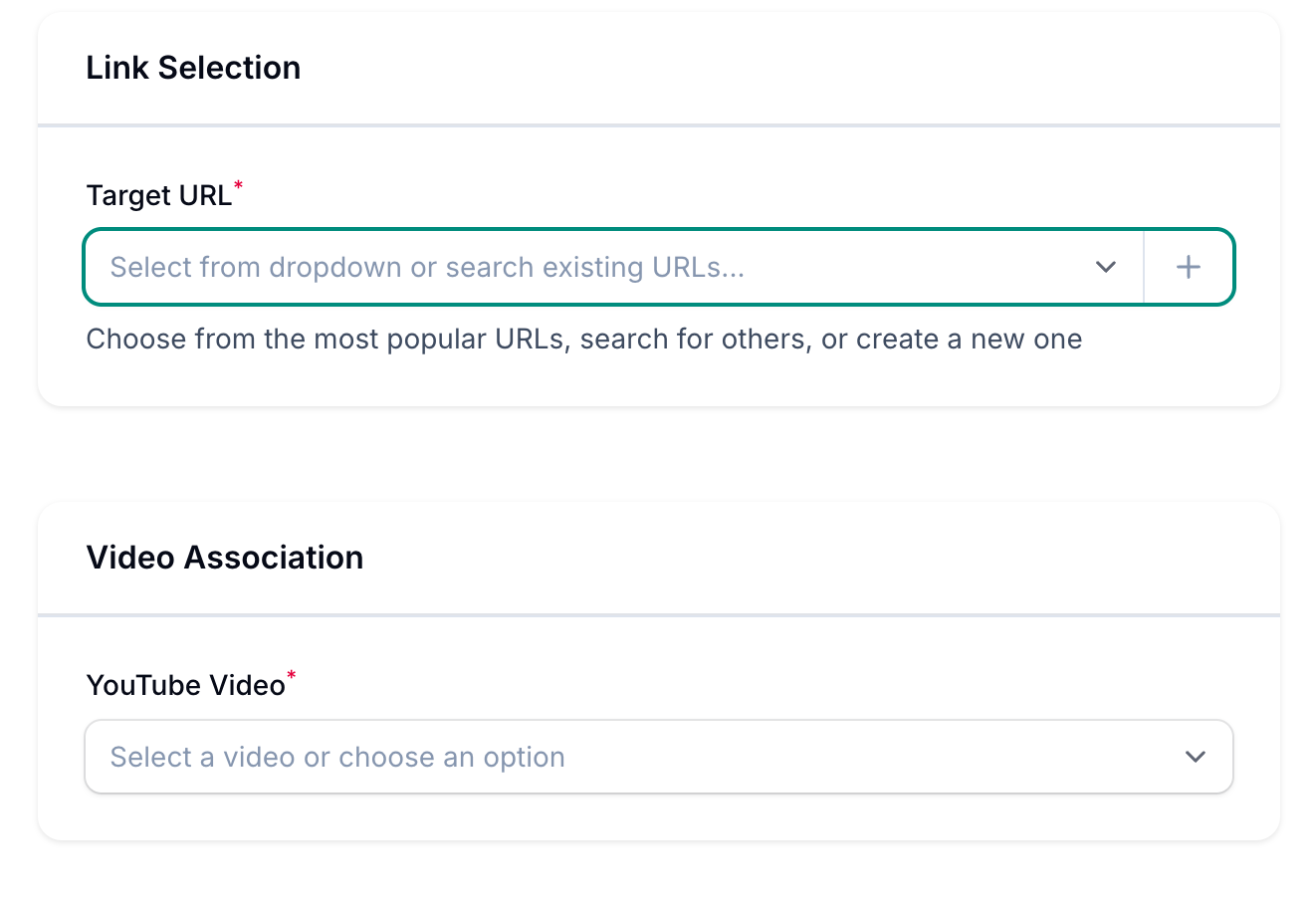
How to Create a Magic QR Code
- Navigate to Marketing → Magic QR Codes
- Click Create Magic QR Code
- Choose your Target URL from the list of URLs already in use on your channel
- For YouTube Video, select "Video not yet uploaded" (you will associate it later)
Click Create
Customizing Your QR Code
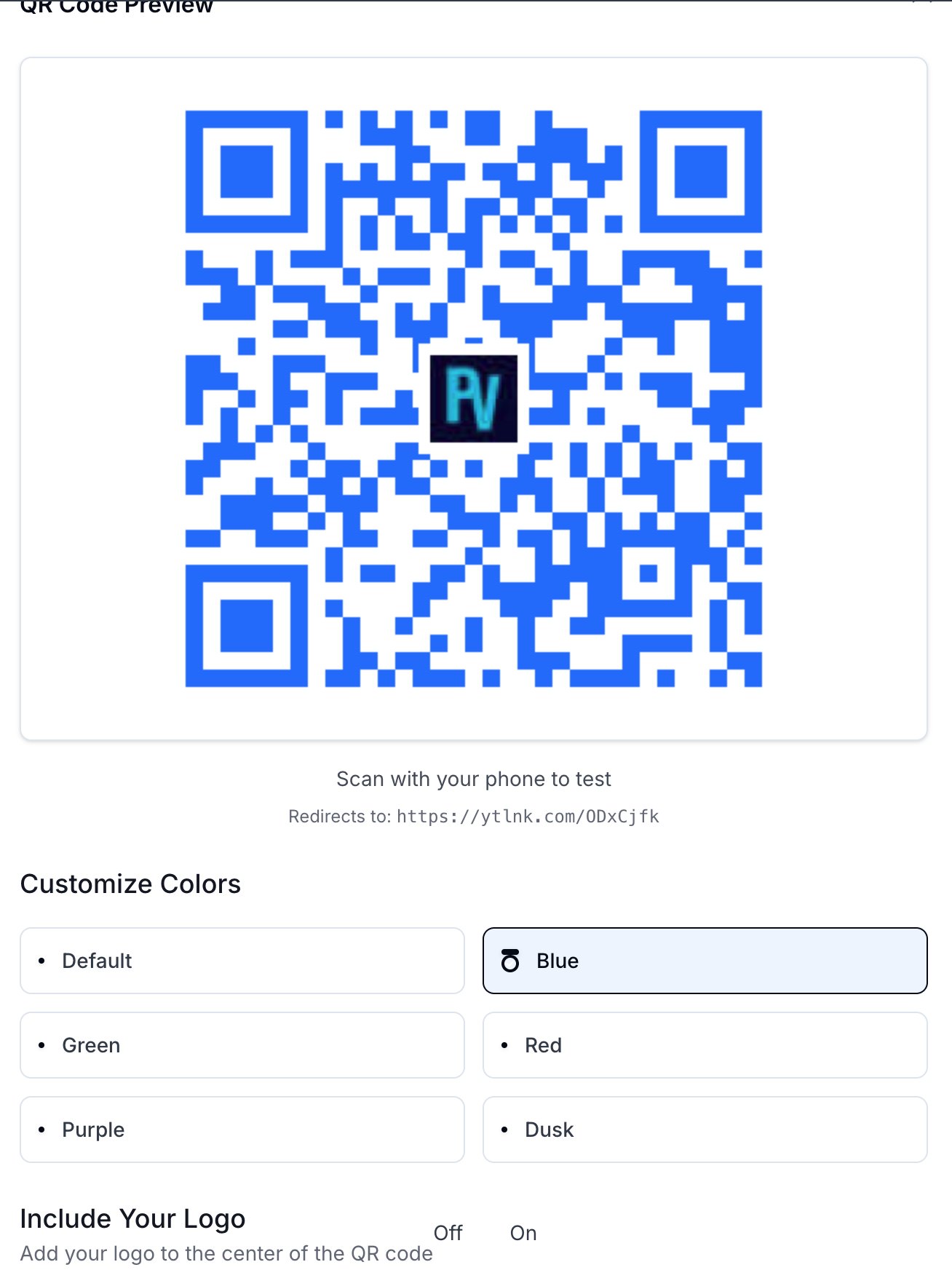
Once created, click on your QR code to customize it:
- Change colors - Match your brand or video style
- Add your logo - Place your logo in the center of the QR code
- Download PNG - Get the image file to use in your video editing software
- Copy image URL - Use the URL directly if needed
After Uploading Your Video
Once your video is uploaded to YouTube and you have the video in your VideoStats account:
- Return to Magic QR Codes
- Click Edit on the QR code you used
- Select the YouTube video from the dropdown
- Click Save Changes
That is it! The QR code is now associated with your video. When someone scans it, they will go to your target URL and VideoStats will track that it came from that specific video.
What Gets Tracked
Each Magic QR Code automatically includes UTM parameters:
- utm_source: youtube
- utm_medium: video
- utm_campaign: qrcode
- utm_content: Your YouTube video ID (added when you associate the video)
This allows you to see in your analytics exactly which videos are driving scans, leads, and sales.