Inviting Team Members
Collaborate with your team by inviting colleagues to your Video Stats workspace. Each team member can be assigned a specific role that determines their level of access and permissions.
(Note - your ability to invite any team members... and how many you can invite is determined by your subscription level with Video Stats.)
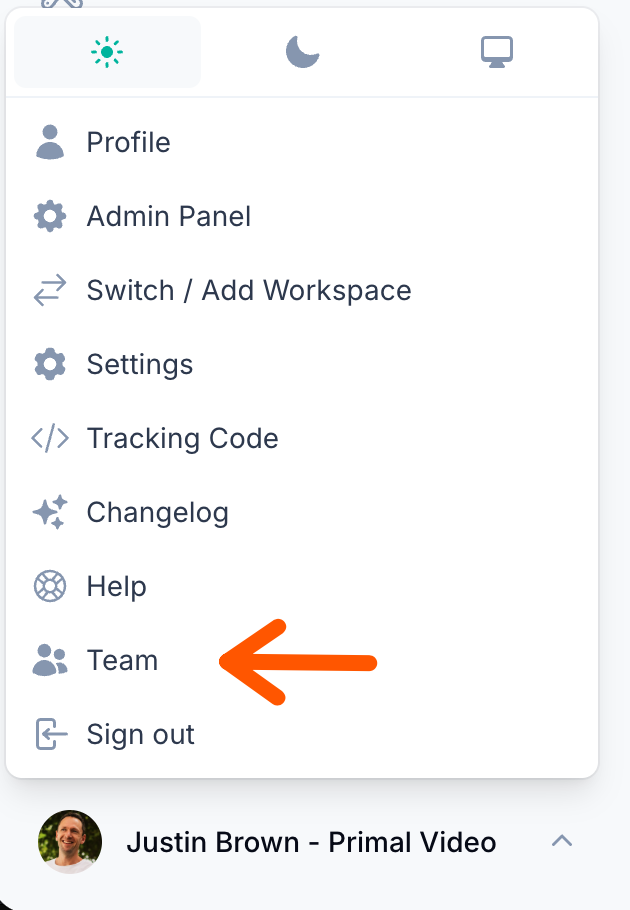
How to Invite a Team Member
- From your dashboard, click Team in the left sidebar
- Select Invite People
- Enter the email address of the person you want to invite
- Choose a role for the new team member (Admin, User, or Junior)
- Click Create to send the invitation
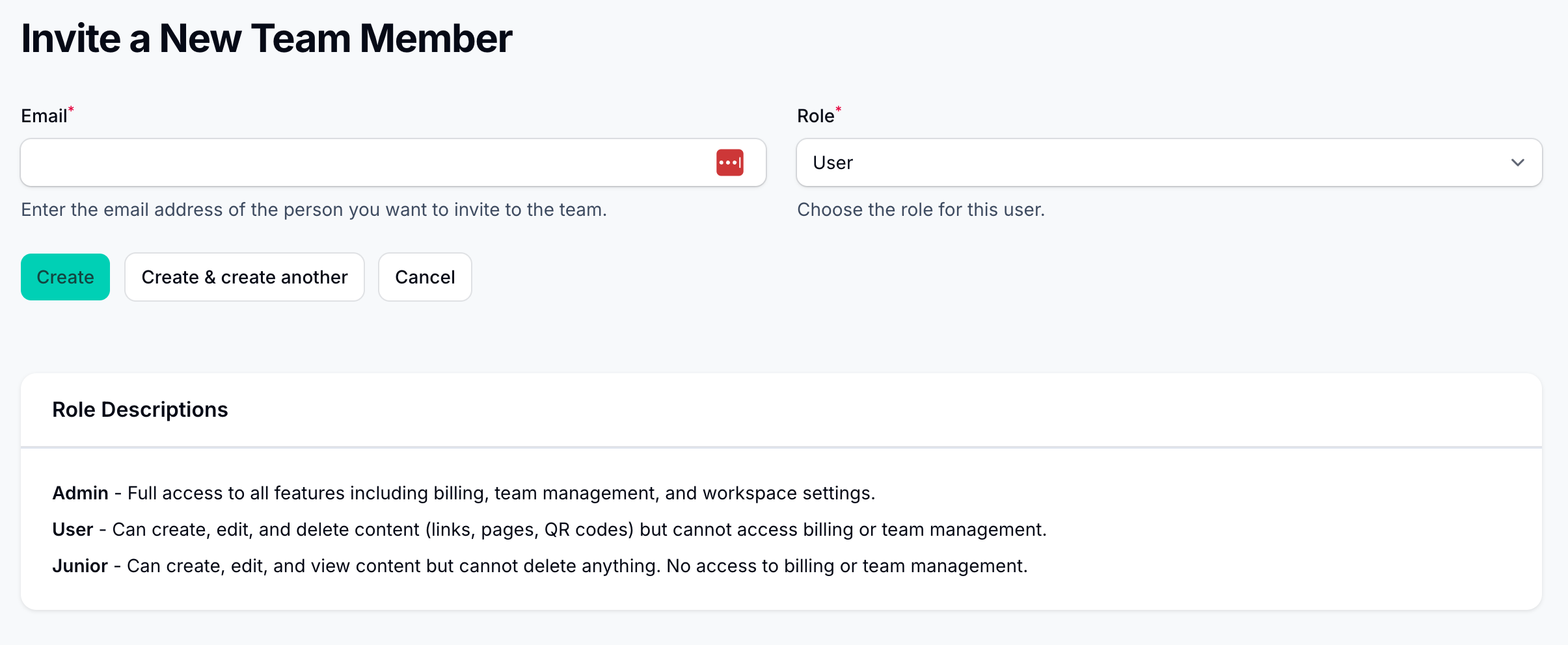
The invited person will receive an email with a link to join your workspace. Invitations expire after 7 days, so make sure your team member accepts the invitation promptly.
Understanding Team Roles
Video Stats offers three different roles, each with varying levels of access and permissions. Choose the appropriate role based on what the team member needs to accomplish.
Admin
Admins have full access to all features in your workspace.
What Admins can do:
- Create, edit, and delete all content (links, pages, QR codes)
- Manage billing and subscriptions
- Add or remove seats from your plan
- Invite and manage team members
- Change workspace settings
- View all analytics and financial data
Best for: Business owners, account managers, or trusted team leads who need complete control over the workspace.
User
Users have content access but cannot manage billing or team settings.
What Users can do:
- Create, edit, and delete links
- Create, edit, and delete promo code pages
- Create, edit, and delete optin pages
- Create, edit, and delete resources pages
- Create, edit, and delete QR codes
- View analytics for their content
What Users cannot do:
- Access billing or subscription information
- Invite or manage team members
- Change workspace settings
- View financial transactions
Best for: Marketing team members, content creators, or campaign managers who need to work with links and pages but don't need administrative access.
Junior
Juniors have limited content access with no ability to delete.
What Juniors can do:
- Create and edit links
- Create and edit promo code pages
- Create and edit optin pages
- Create and edit resources pages
- Create and edit QR codes
- View analytics for their content
What Juniors cannot do:
- Delete any content
- Access billing or subscription information
- Invite or manage team members
- Change workspace settings
- View financial transactions
Best for: New team members, interns, or contractors who need to contribute content but shouldn't have the ability to permanently remove anything.
Role Comparison Table
| Permission | Admin | User | Junior |
|---|---|---|---|
| Create links and pages | Yes | Yes | Yes |
| Edit links and pages | Yes | Yes | Yes |
| Delete links and pages | Yes | Yes | No |
| View analytics | Yes | Yes | Yes |
| Manage billing | Yes | No | No |
| Invite team members | Yes | No | No |
| Manage team | Yes | No | No |
| Change workspace settings | Yes | No | No |
Managing Your Team Size
The number of team members you can have depends on your subscription plan. Each plan includes a certain number of seats.
If you've reached your seat limit, you'll see a notification when trying to invite new members. You can either:
- Add more seats to your current plan
- Upgrade to a higher tier with more included seats
Frequently Asked Questions
Can I change a team member's role after they've joined?Yes, Admins can change the role of any team member at any time from the Team management section.
What happens when an invitation expires?If the invitation isn't accepted within 7 days, it will expire. You can simply send a new invitation to the same email address.
Can someone belong to multiple workspaces?Yes, a person can be invited to multiple Video Stats workspaces. They'll be able to switch between workspaces from their dashboard.
What happens if I remove a team member?The content they created remains in your workspace. Only their access is revoked.