Automatic Video Import & Link Conversion
VideoStats can automatically monitor your YouTube channel for new videos and import them without any manual action. You can also optionally enable automatic link conversion, which will convert any links in your new video descriptions to trackable URLs as soon as they're detected.
How It Works
When you enable automatic video import, VideoStats monitors your YouTube channel and detects new videos within seconds of publishing. When new videos are detected:
- Video descriptions are imported into VideoStats automatically
- Links are discovered in the video descriptions
- If auto-convert is enabled, links are converted to tracking URLs immediately
- You receive an email notification summarizing what was imported and converted
This means your tracking links are ready almost instantly after you publish a video—no waiting required.
VideoStats also detects when you update a video's description, so if you add links to an existing video, those will be picked up automatically too.
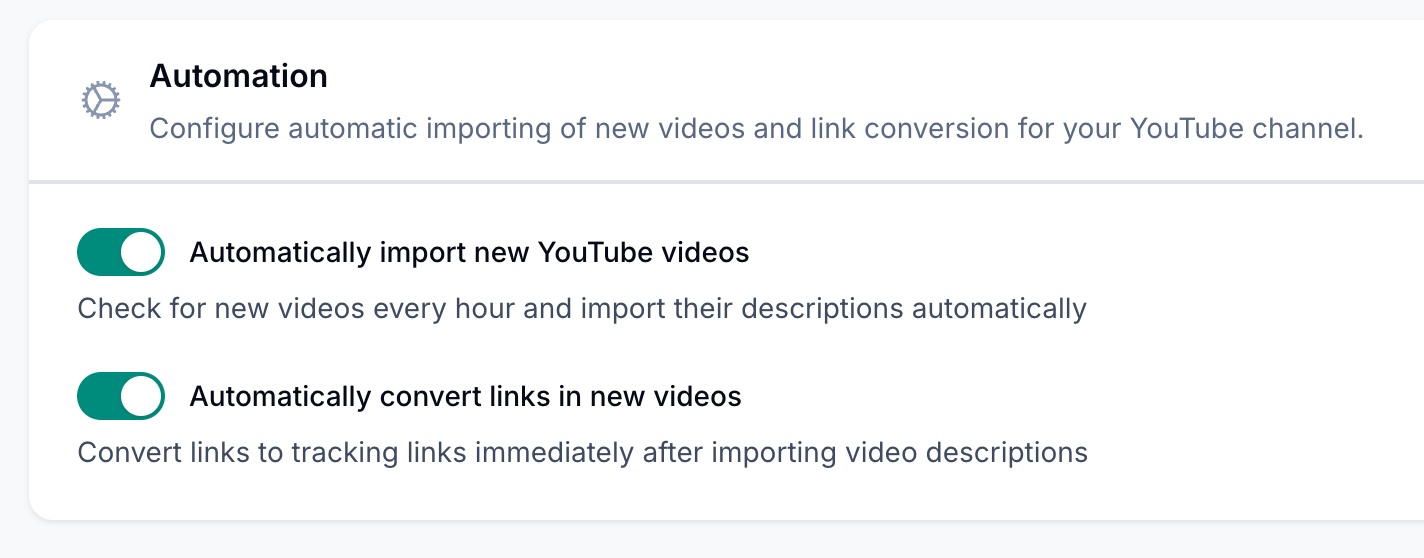
Enabling Automatic Video Import
To enable automatic video import:
- Navigate to Settings in your dashboard
- Scroll down to the Automation section
- Toggle on "Automatically import new YouTube videos"
- Click Save Automation Settings
Once enabled, VideoStats will automatically detect and import new videos within seconds of you publishing them to YouTube.
Enabling Automatic Link Conversion (Optional)
Automatic link conversion is a separate setting that you can enable independently. This means you can:
- Import only: Have new videos imported automatically, but review and convert links manually
- Import + Convert: Have both the import and link conversion happen automatically
To enable automatic link conversion:
- First, ensure "Automatically import new YouTube videos" is enabled
- Toggle on "Automatically convert links in new videos"
- Click Save Automation Settings
Note: The auto-convert option is only available when auto-import is enabled. If you disable auto-import, auto-convert will be disabled automatically.
What Gets Converted
When automatic link conversion is enabled, VideoStats will:
- Find all links in your new video descriptions
- Create tracking shortlinks for each unique URL
- Replace the original links with tracking URLs in your video descriptions
- Add UTM parameters to identify which video the click came from
If a link has already been converted in a previous video, VideoStats will reuse the existing shortlink rather than creating a duplicate. This keeps your link management clean and consolidated.
Email Notifications
When automatic conversion runs successfully, you'll receive an email notification with:
- The number of new videos detected
- The number of links converted
- A list of the new video titles
- A direct link to view your videos in VideoStats
When to Use Each Setting
| Scenario | Auto-Import | Auto-Convert |
|---|---|---|
| You want full automation with no manual steps | On | On |
| You want to review links before converting them | On | Off |
| You prefer to manually import videos | Off | Off |
Recommended: Full Automation
For most users, we recommend enabling both settings. This ensures your new videos are immediately trackable without any manual intervention. You'll be notified via email whenever new videos are processed, so you're always in the loop.
When to Keep Auto-Convert Off
You might want to keep auto-convert off if:
- You want to review which links get converted before they're updated
- You have specific links you don't want to track
- You prefer to batch your link conversions manually
Checking Automation Status
You can verify that automation is working by:
- Looking for the email notifications when new videos are uploaded
- Checking your Videos page to see newly imported videos
- Reviewing the Links page to see recently created tracking links
Troubleshooting
Videos aren't being imported automatically
- Ensure your YouTube channel is connected in Settings
- Verify that "Automatically import new YouTube videos" is toggled on
- Check that your YouTube OAuth connection is still valid (reconnect if needed)
Links aren't being converted
- Confirm that "Automatically convert links in new videos" is toggled on
- Note that links are only converted in new videos detected after you enable the setting
- Existing videos need to be converted manually via the Videos page
I didn't receive an email notification
- Email notifications are only sent when auto-convert is enabled AND links are actually converted
- Check your spam folder
- Verify your email address is correct in your account settings