Promo Code Pages
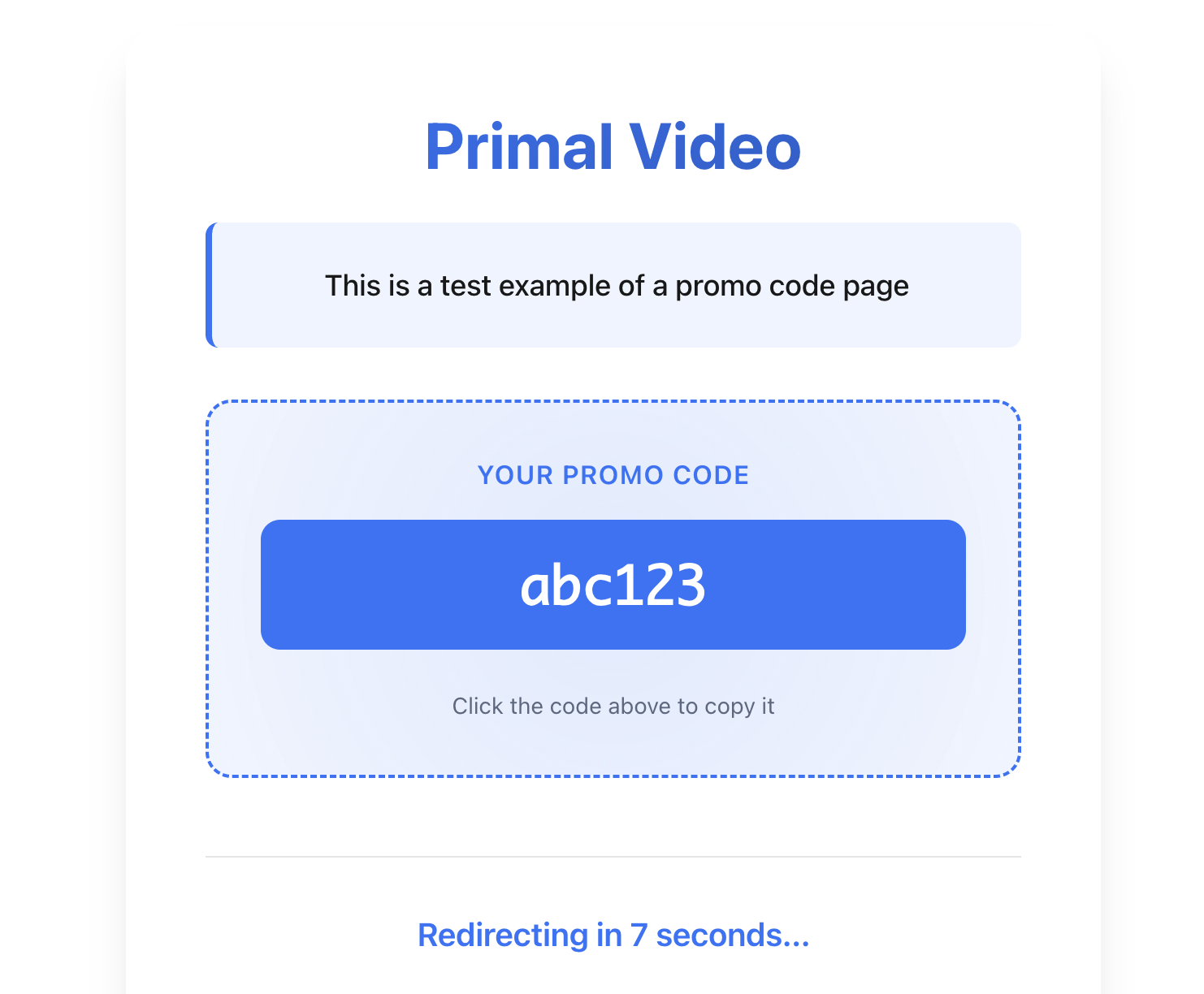
Promo Code Pages give you another way to earn money with your YouTube channel. You can create branded pages that display a promo code to your viewers, then automatically redirect them to the offer after a set number of seconds.
Why Use Promo Code Pages
Promo Code Pages are powerful because they let you:
- Give viewers a reason to click your link ("Click for my exclusive discount code")
- Display your unique promo code on a branded page
- Automatically redirect to the product or affiliate offer
- Update the promo code anytime without changing your video descriptions
- Track which pages are getting the most views and clicks
How It Works
- A viewer watches your video and you mention an exclusive promo code
- They click the link in your description
- They see a branded page with your promo code prominently displayed
- After a few seconds, they are automatically redirected to the offer (or they can click to go immediately)
- They enter your promo code on the merchant's site
The beauty of this system is that if your promo code changes, you can update it in one place without editing any of your videos. All your links will show the new code automatically.
Creating a Promo Code Page
- Navigate to Marketing → Promo Code Pages
- Click Create
- Fill in the details:
Basic Information Tab
- Page Title: A name for this promo code page (e.g., "TubeBuddy Discount")
- URL Slug: Auto-generated from the title, forms the page URL
- Description: Optional details that encourage viewers to use the code
Promo Code Details
- Promo Code: The actual code viewers will copy (e.g., "PRIMALVIDEO20")
- Redirect URL: Where to send people after they see the code (your affiliate link or the product page)
- Redirect Delay: How many seconds to wait before redirecting (default is 5 seconds, set to 0 for no automatic redirect)
Advanced Options Tab
- Deadline Date: Optional expiration date for time-limited offers
- Deadline Message: Message to show when the deadline has passed
- Custom Colors: Customize background, text, and button colors to match your brand
SEO Tab
- Meta Title and Description: Control how the page appears in search results
- Search Engine Indexing: Choose whether search engines can find this page
Using Your Promo Code Page
After creating a promo code page, you will see it in your list. To use it:
- Copy the page URL from the table
- Add it to your YouTube video descriptions where you mention the offer
- When viewers click the link, they will see your promo code page
Updating Your Promo Code
If your promo code changes (for example, a new monthly code from an affiliate program):
Go to Marketing → Promo Code Pages
Click Edit on the page you want to update
- Change the promo code to the new value
- Update the description if needed
- Click Save
All your existing links will now show the new promo code. You do not need to update any of your video descriptions.
Viewing Analytics
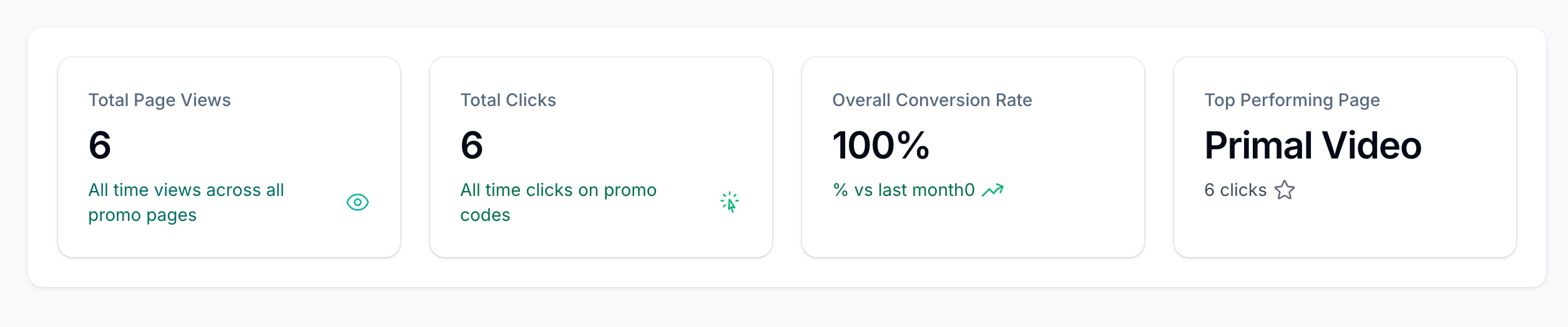
Each promo code page tracks views and clicks. To see how your pages are performing:
- Go to Marketing → Promo Code Pages
Click Analytics in the top right
View clicks over the past 30 days
Compare performance across all your promo codes
The analytics help you understand which promo codes and offers resonate most with your audience, so you can focus on promoting the ones that work best.
Best Practices
- Keep codes memorable: Use short, easy-to-type codes when possible
- Add urgency: Set a deadline if the offer is time-limited
- Write compelling descriptions: Remind viewers why they should use this code
- Use consistent naming: Name your pages clearly so you can find them later
- Check analytics regularly: See which codes drive the most engagement
Tips
- Create different promo code pages for different products or affiliate programs
- Use the same page across multiple videos promoting the same offer
- Update codes monthly if your affiliate program provides rotating codes
- Set the redirect delay long enough for viewers to copy the code (5-10 seconds works well)