Advanced Link Features
Copying a Link
When you need to use one of your tracking links, click the short link in the table. A dialog will appear asking how you plan to use it:
For YouTube videos: Choose "Yes" and select the video from the dropdown. This adds special tracking so clicks are attributed to that specific video. This is important for your analytics.
For other places: Choose "No" and optionally fill in the source, medium, and campaign fields. For example:
Source: Where the traffic comes from (email, facebook, google)
Medium: The type of marketing (newsletter, ads, post)
Campaign: A name for your campaign (summer-sale, product-launch)
You do not have to fill in every field, but adding at least one helps you understand where your traffic is coming from.
Editing a Link
Click anywhere on a link row (except the short link itself) to open the edit page. Here you can access advanced features organized in tabs:
Main Tab
Change the destination URL, add a title or description, and organize links with tags and folders.
UTMs Tab
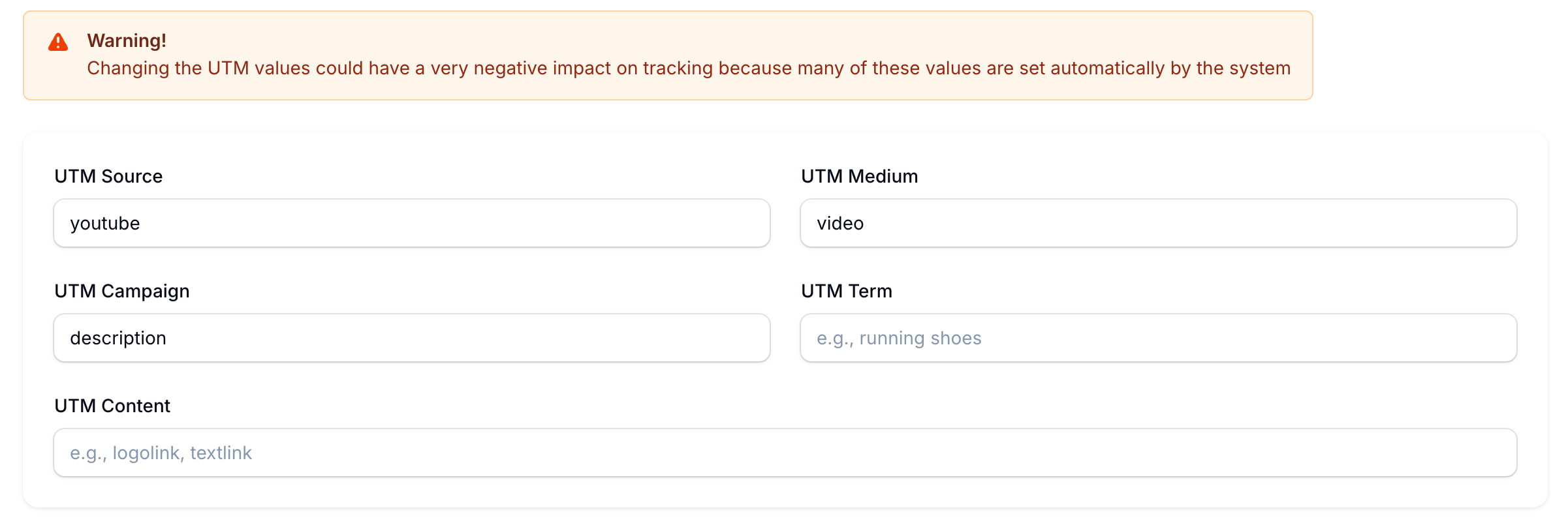
View and modify the UTM tracking parameters. Be careful here, as many values are set automatically by the system for proper tracking.
Split Testing Tab
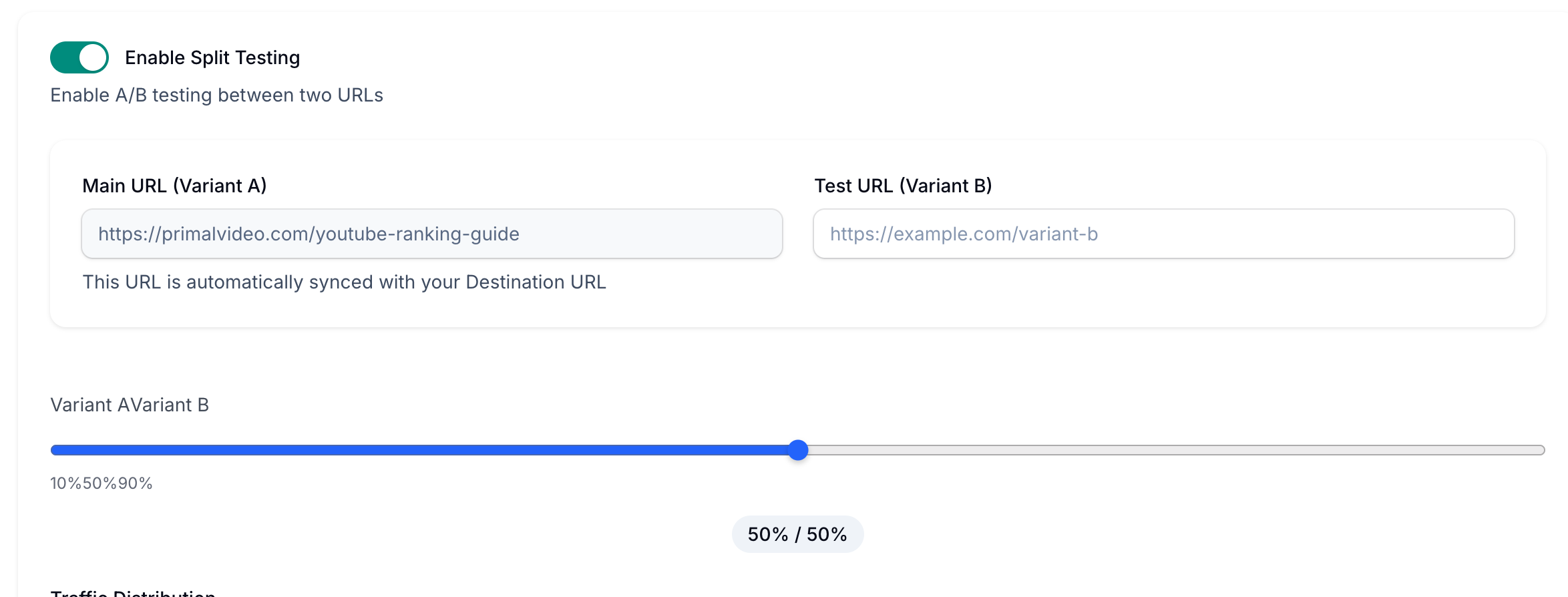
Test two different URLs against each other to see which one performs better:
Enable the split testing toggle
Your main destination URL becomes Variant A
Enter a different URL for Variant B
Adjust the traffic split slider (default is 50/50)
Set how long the test should run (up to 6 weeks)
Save and monitor which variant gets better results
Targeting Tab

Send users to different pages based on their device:
iOS Redirect: Where iPhone and iPad users should go
Android Redirect: Where Android users should go
This is useful if you have app-specific landing pages or mobile-optimized content.
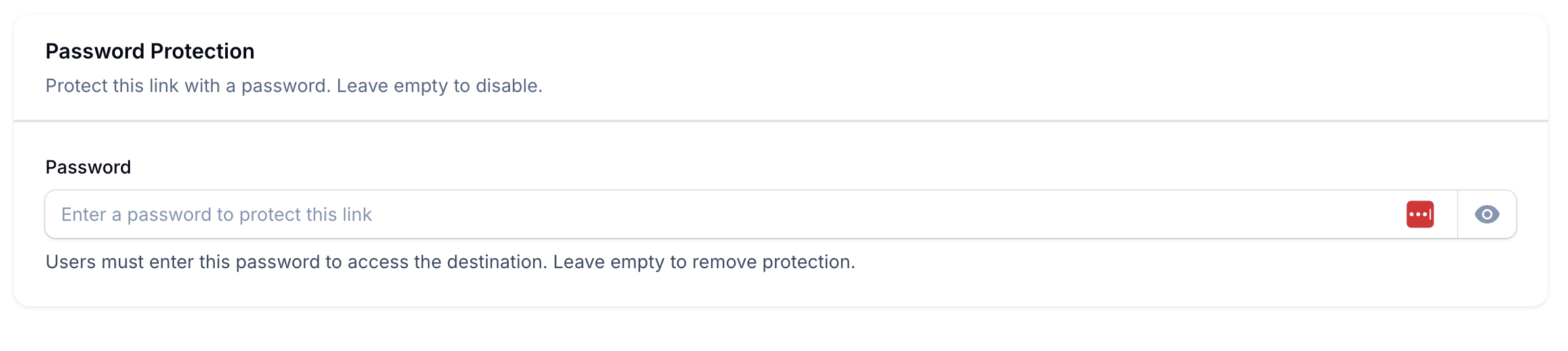
Password Tab
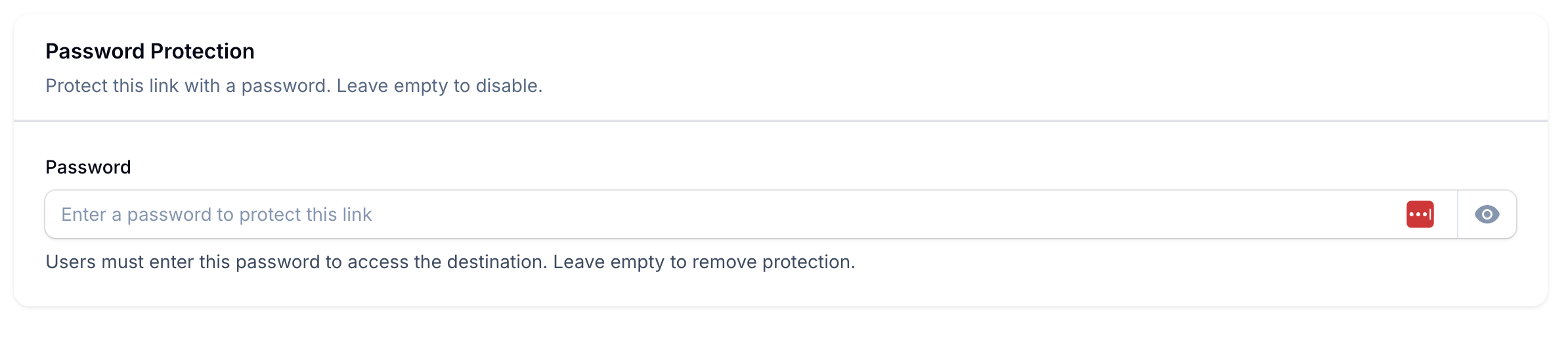
Protect your link with a password. When someone clicks the link, they see a branded page where they must enter the password before continuing to the destination.
Note: For collecting emails, use Optin Pages instead. Password protection is for simple content access where you just need someone to type a password.
Expiration Tab

Set a deadline for your link:
Expiration Date: When the link should stop working
Expired URL: Where to send people after the deadline
This is useful for limited-time offers, early bird pricing, or time-sensitive promotions.
QR Code Tab
Create a scannable QR code for this link. The QR code can be used in physical materials, video thumbnails, or anywhere you want people to scan to visit your tracked link. See Magic QR Codes for more details on this feature.