AI Assistant Setup (MCP Server)
VideoStats includes a built-in AI integration that lets you connect tools like Claude (CoWork), ChatGPT, Claude Code, Claude Desktop, and Cursor directly to your channel's analytics data. Once connected, you can ask natural-language questions about your YouTube performance and get instant answers — no need to navigate dashboards or export CSVs.
This works using the Model Context Protocol (MCP), an open standard that lets AI tools securely read data from external services.
Choose Your Connection Method
Most people only need the connector URL. It's the same for everyone:
https://videostats.ai/mcp/video-stats-oauth
| Method | Best for | How it works |
|---|---|---|
| Connector URL (Recommended) | Claude (web, desktop app and CoWork), ChatGPT | Paste the connector URL into your AI tool, sign in to VideoStats, choose the workspace to connect, and click Authorize. No token to copy or manage. |
| MCP Token (Advanced) | Claude Code, Cursor, scripts, and tools that can't sign in with OAuth | Create a token in VideoStats and paste a connection command into your tool's config. |
What You Can Do
Once connected, your AI tool has access to:
- Video performance — views, likes, clicks, leads, sales, and conversion rates for any video
- Channel overview — subscriber counts, video counts, and aggregate metrics
- Top content — rank videos by any metric to find your best performers
- Landing page performance — see which destination URLs drive the most conversions
- URL drill-down — find which specific videos are driving clicks, leads, and sales to any landing page
- Thumbnail analysis — get AI-powered visual feedback on your thumbnails with performance context
- Trend analysis — compare this week vs. last month, spot what's trending up or down
- Optimization opportunities — find high-traffic videos with below-average conversions
- Side-by-side comparisons — compare 2-5 videos head-to-head on every metric
- QR code management — list, view stats, and create QR codes with optional video association
- Feedback — request features or improvements directly through your AI tool
Method 1: Connector URL (Recommended for Claude & ChatGPT)
The connector URL is the easiest way to connect. You paste one URL into your AI tool, sign in to VideoStats, choose the workspace, and you're done. No token to copy, store, or rotate.
Step 1: Copy Your Connector URL
- Go to Settings > MCP in your VideoStats dashboard
- Find the Claude CoWork and ChatGPT Connector section at the top
- Click Copy URL
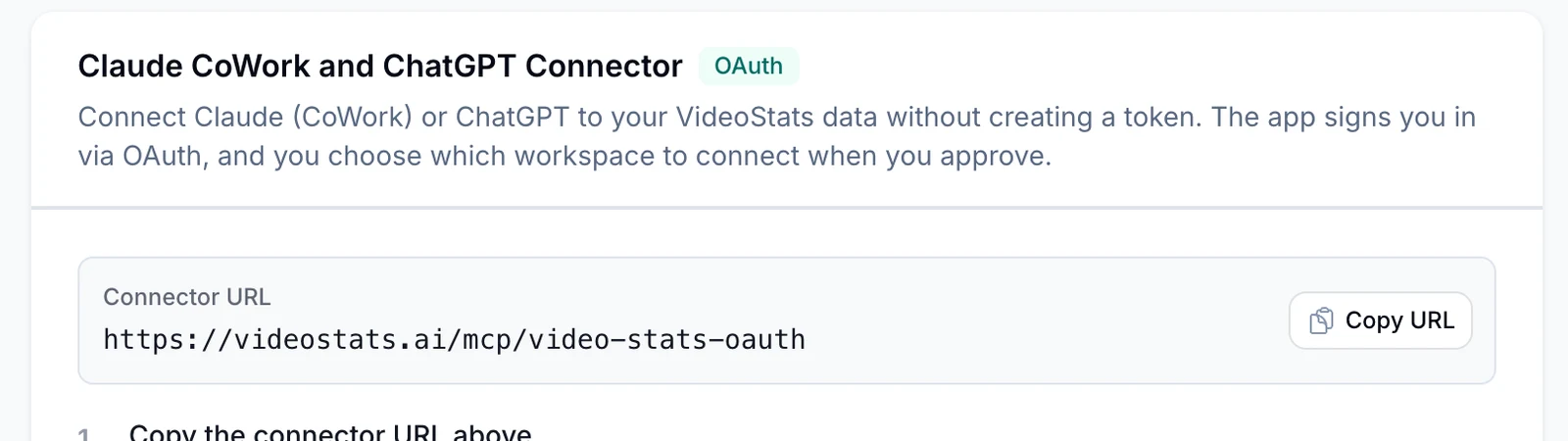
The connector URL is the same for everyone. If you have more than one channel, you'll choose which one to connect when you approve the connection.
Step 2: Add the Custom Connector in Your AI Tool
Claude (web, desktop app and CoWork)
Custom connectors work on every Claude plan. The free plan allows one custom connector.
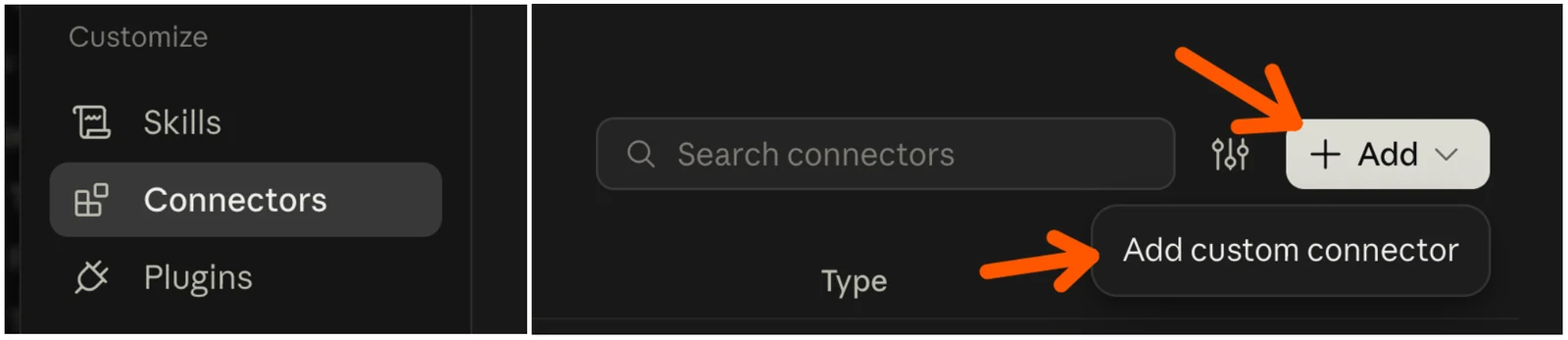
- In Claude, click Customize in the sidebar and choose Connectors
- Click + Add in the top right, then Add custom connector
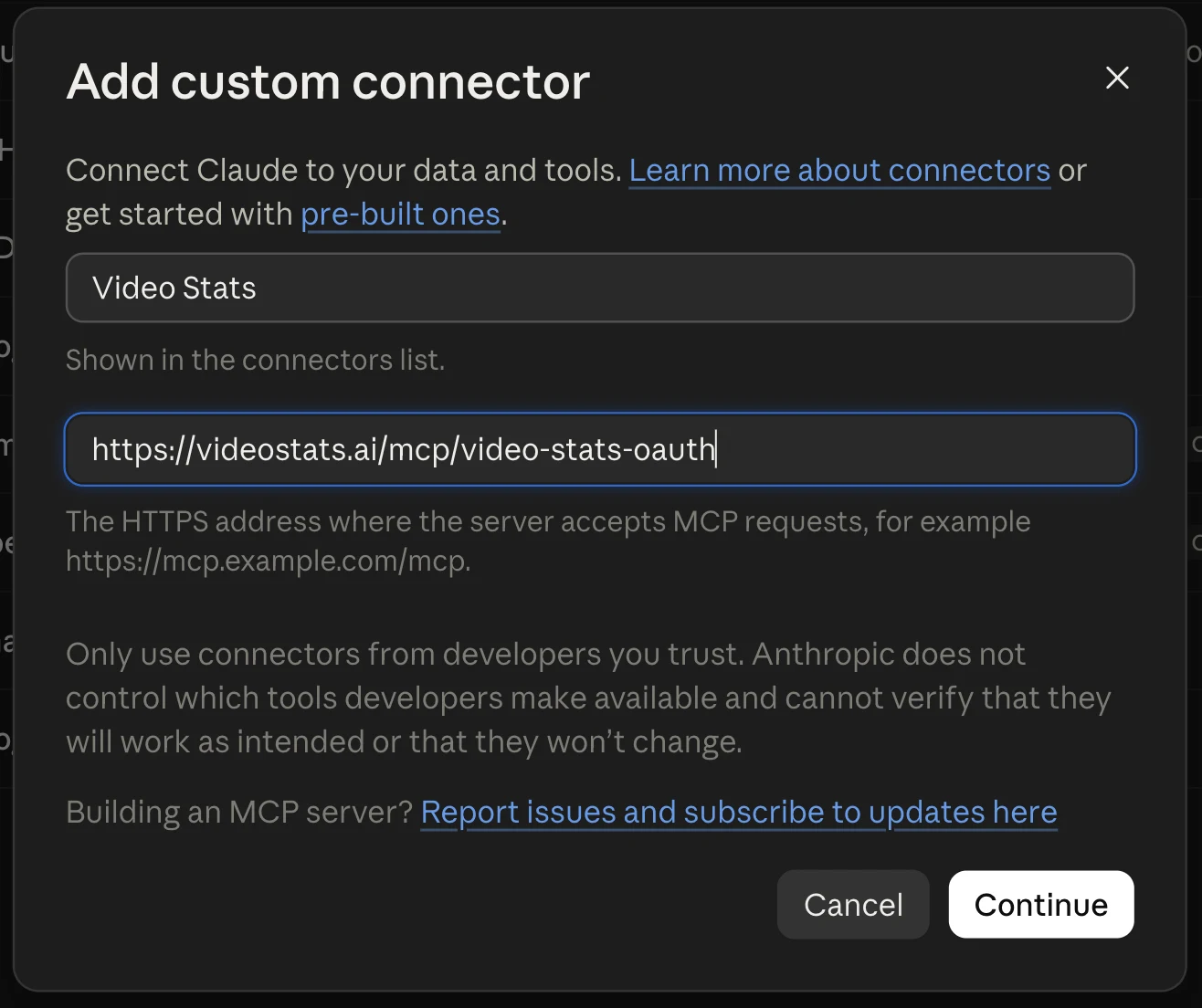
- Enter Video Stats as the name and paste the URL from Step 1 as the MCP server URL
- Click Continue
On a Team or Enterprise plan, an owner adds the connector once under Organization settings > Connectors. Everyone else then finds it under Customize > Connectors and clicks Connect.
ChatGPT
Custom apps need a paid ChatGPT plan (Plus, Pro, Business, Enterprise or Edu), and you add them in ChatGPT on the web.
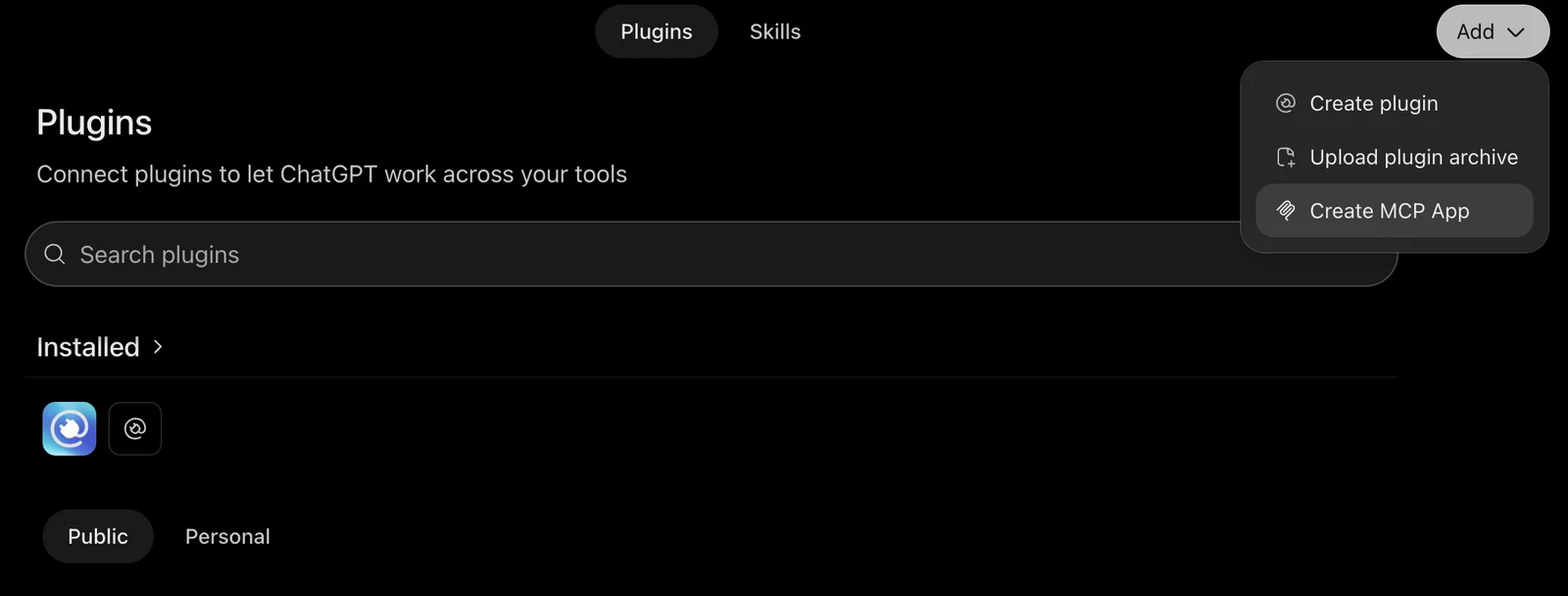
- In ChatGPT, open Settings > Plugins and click Browse directory (or click Plugins in the sidebar)
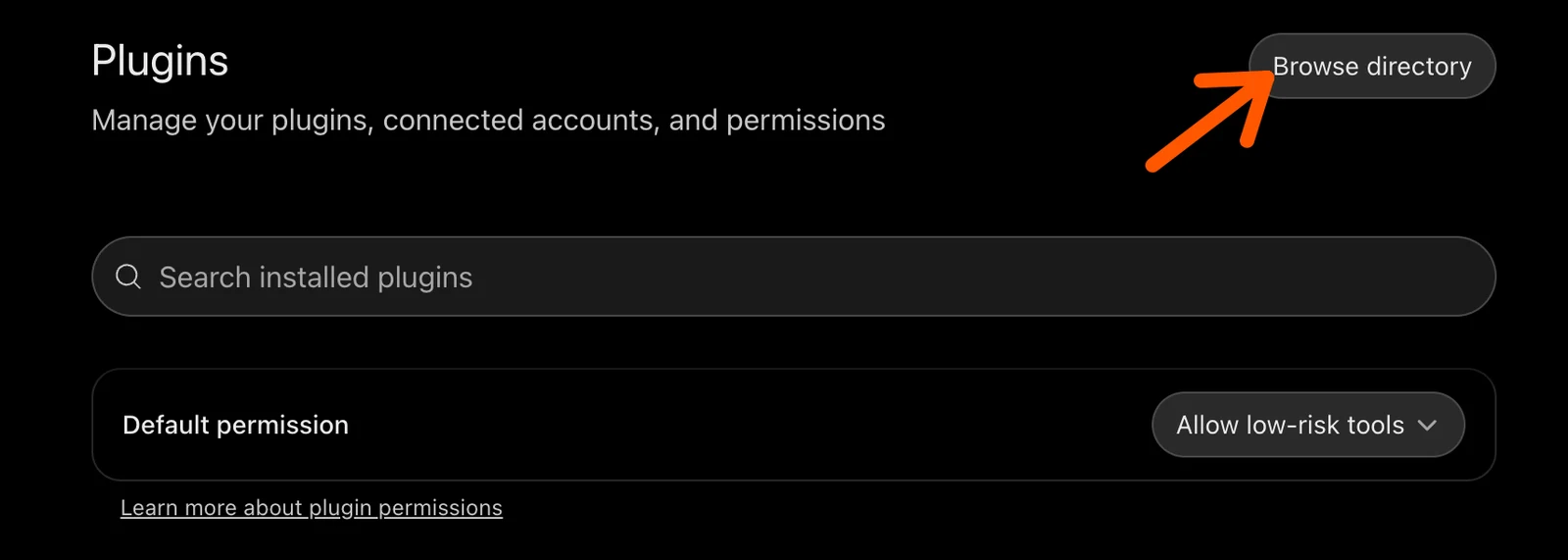
- Click Add in the top right and choose Create MCP App
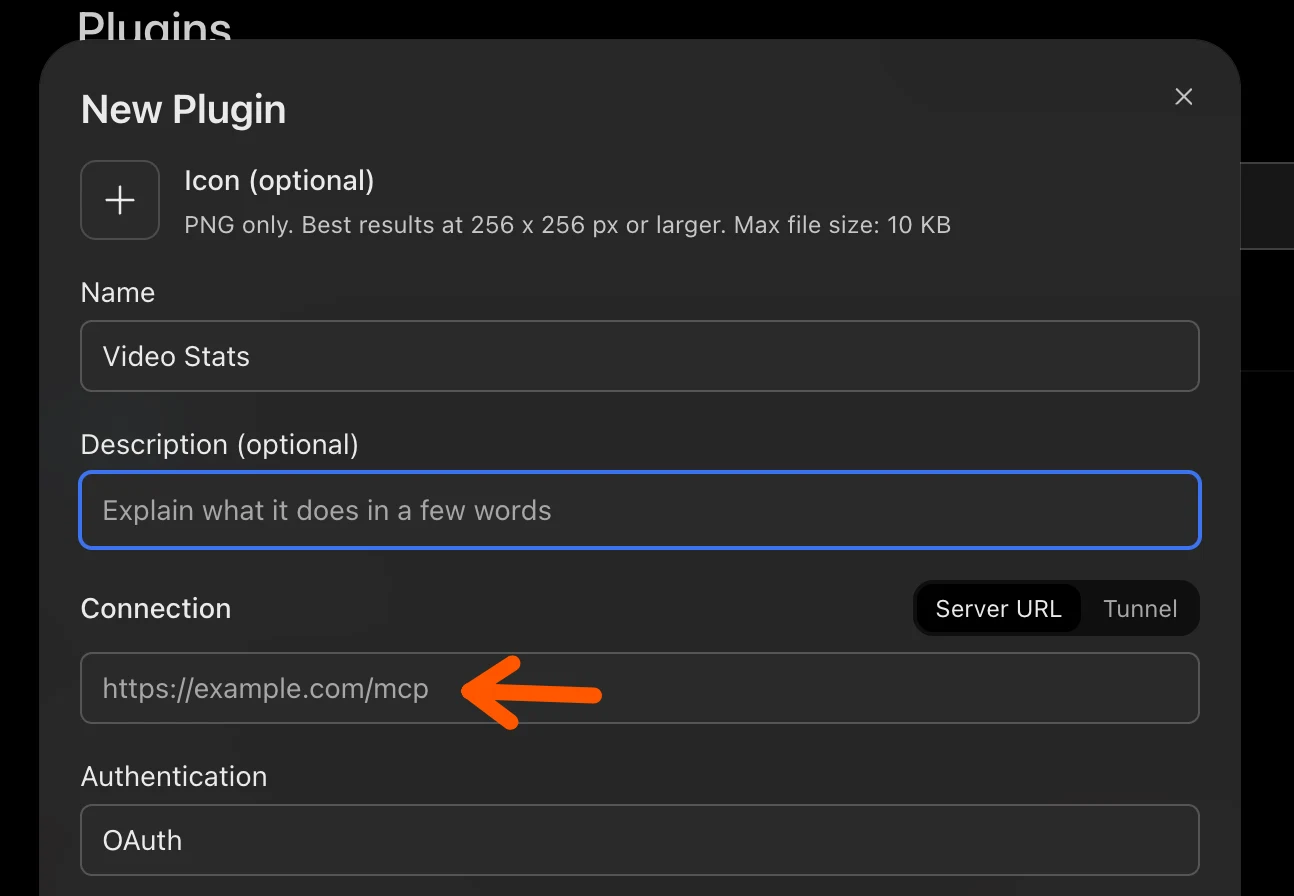
- Fill in the New Plugin form:
- Name: Video Stats
- Description (optional): for example, "My YouTube channel's views, link clicks, leads and sales"
- Connection: leave Server URL selected and paste the URL from Step 1
- Authentication: OAuth
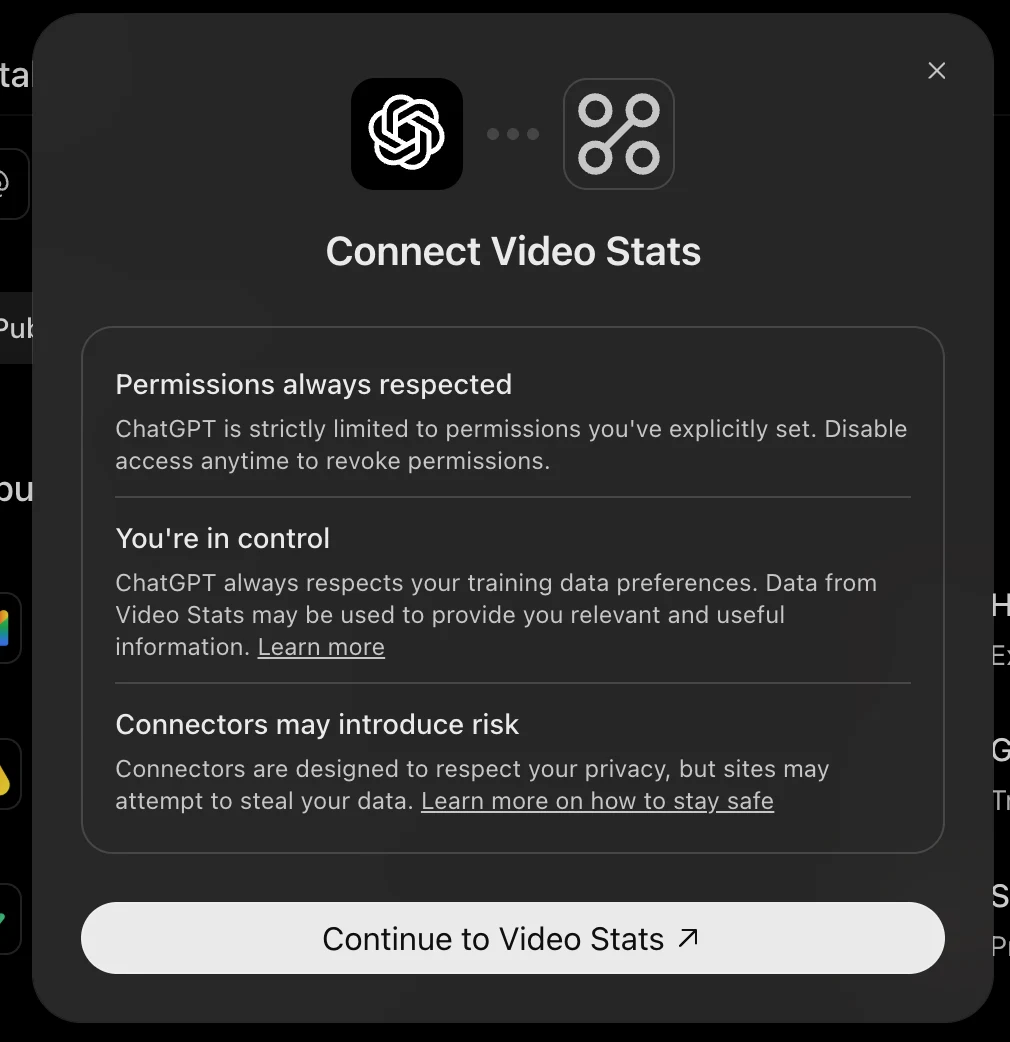
- Create the app. ChatGPT shows a Connect Video Stats screen. Click Continue to Video Stats
Step 3: Choose Your Workspace and Authorize
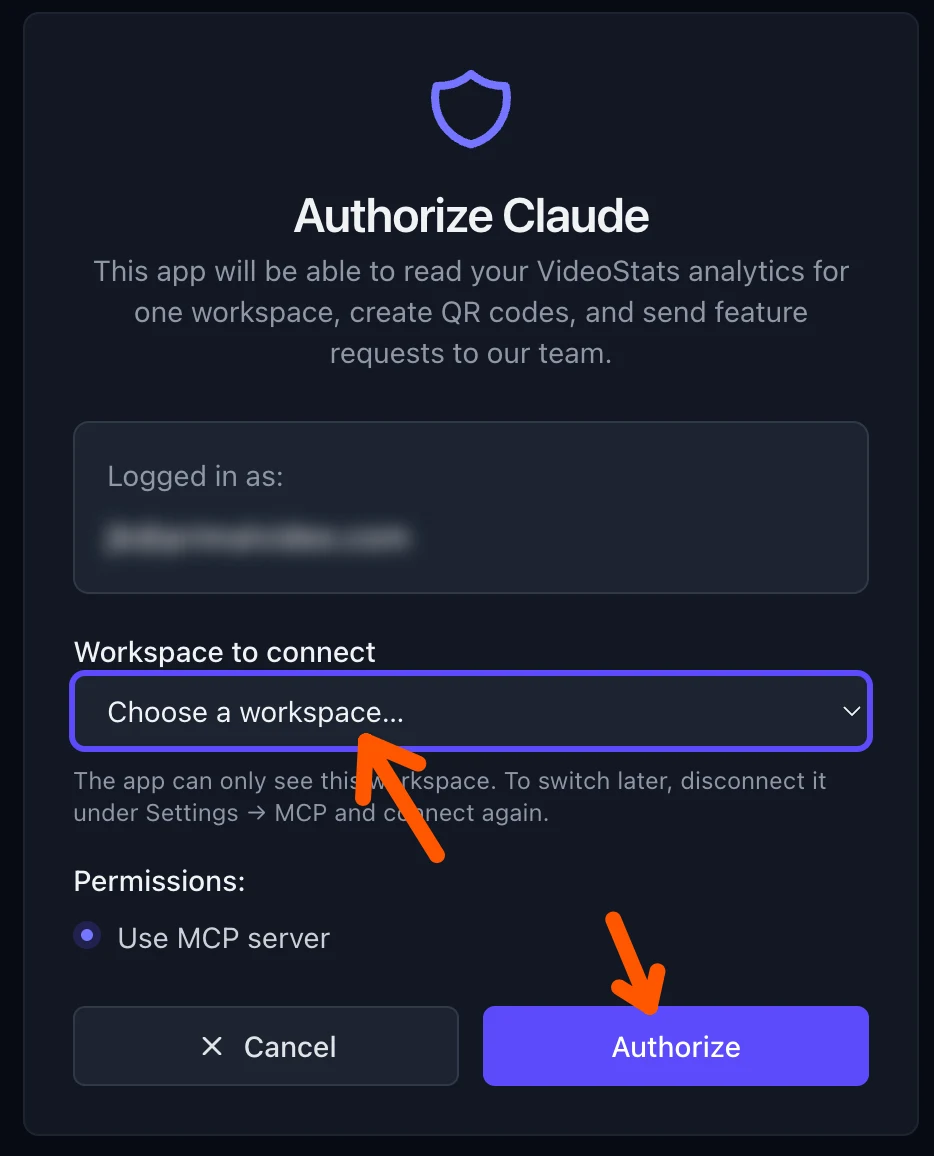
A VideoStats window opens (in ChatGPT, after you click Continue to Video Stats).
- Sign in to VideoStats (if you're not already signed in)
- Under Workspace to connect, choose the channel you want your AI tool to see
- Click Authorize
Your AI tool now has access to that workspace's data, and only that workspace. You can revoke access at any time under Settings > MCP > Connected apps, or by removing the connector from your AI tool.
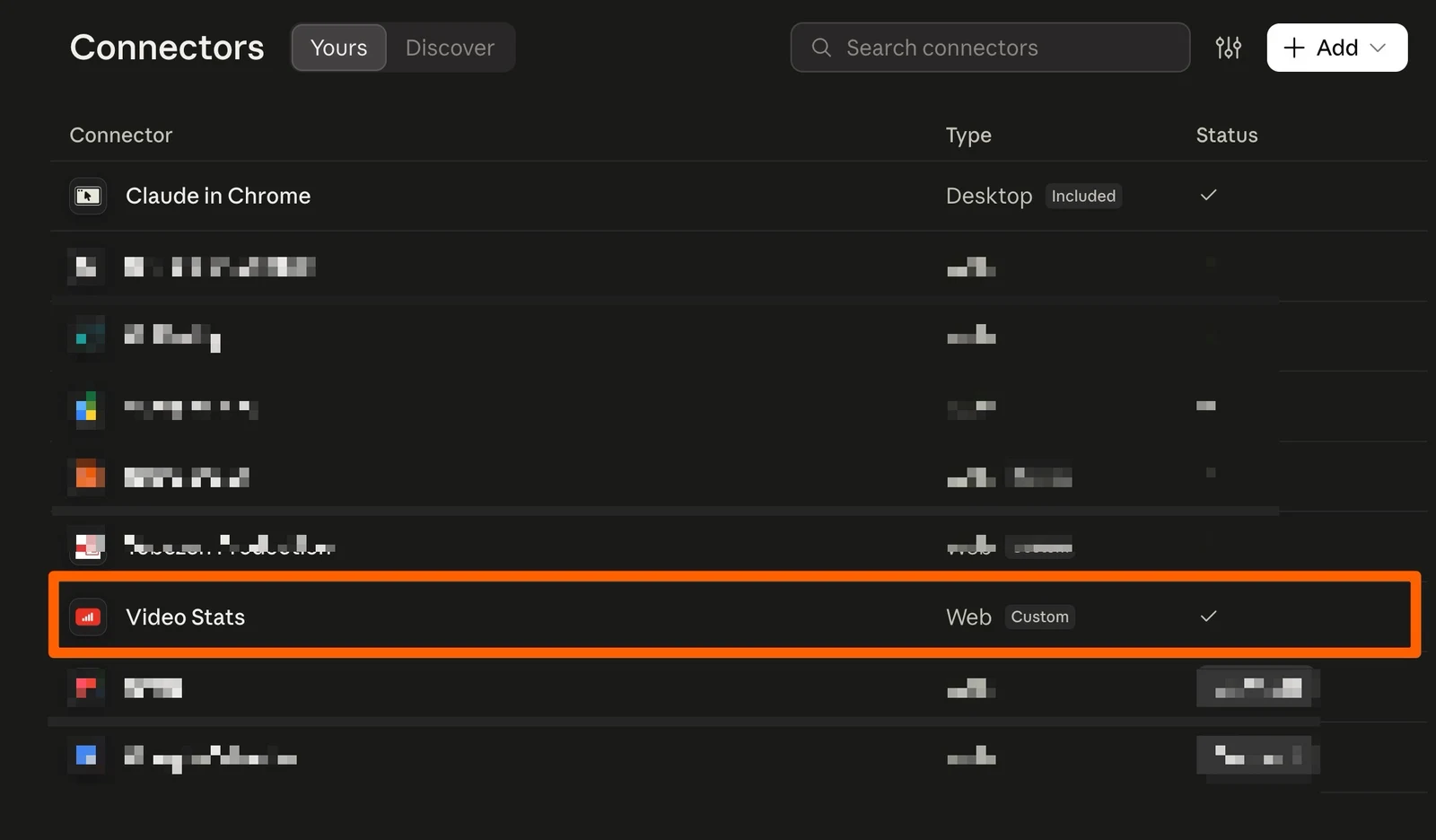
In Claude, Video Stats now shows in Customize > Connectors with a tick:
Step 4 (Claude): Use VideoStats in a chat
In a new chat, click the + button in the message box, open Connectors, and check that Video Stats is switched on. Then ask your question.
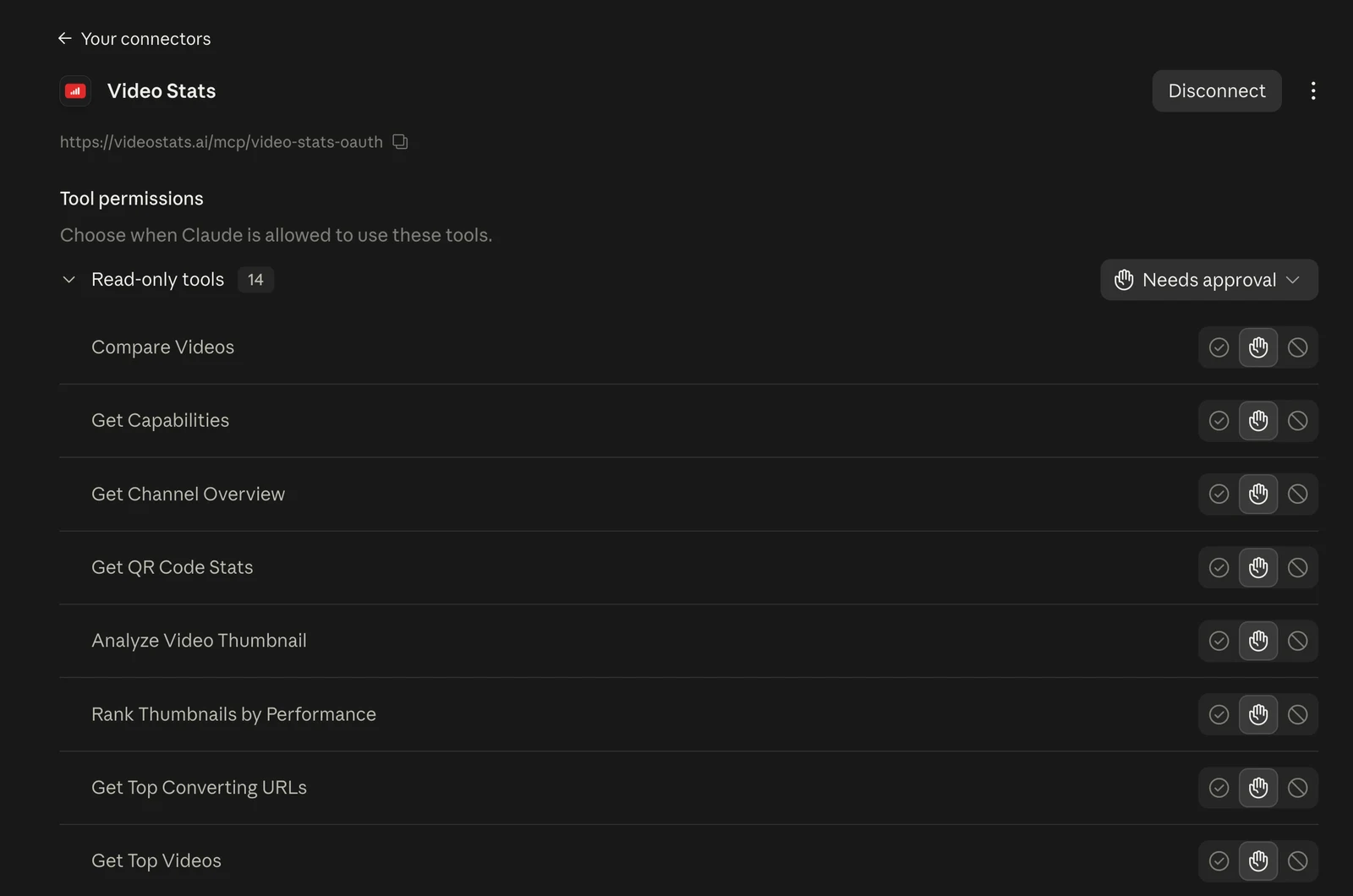
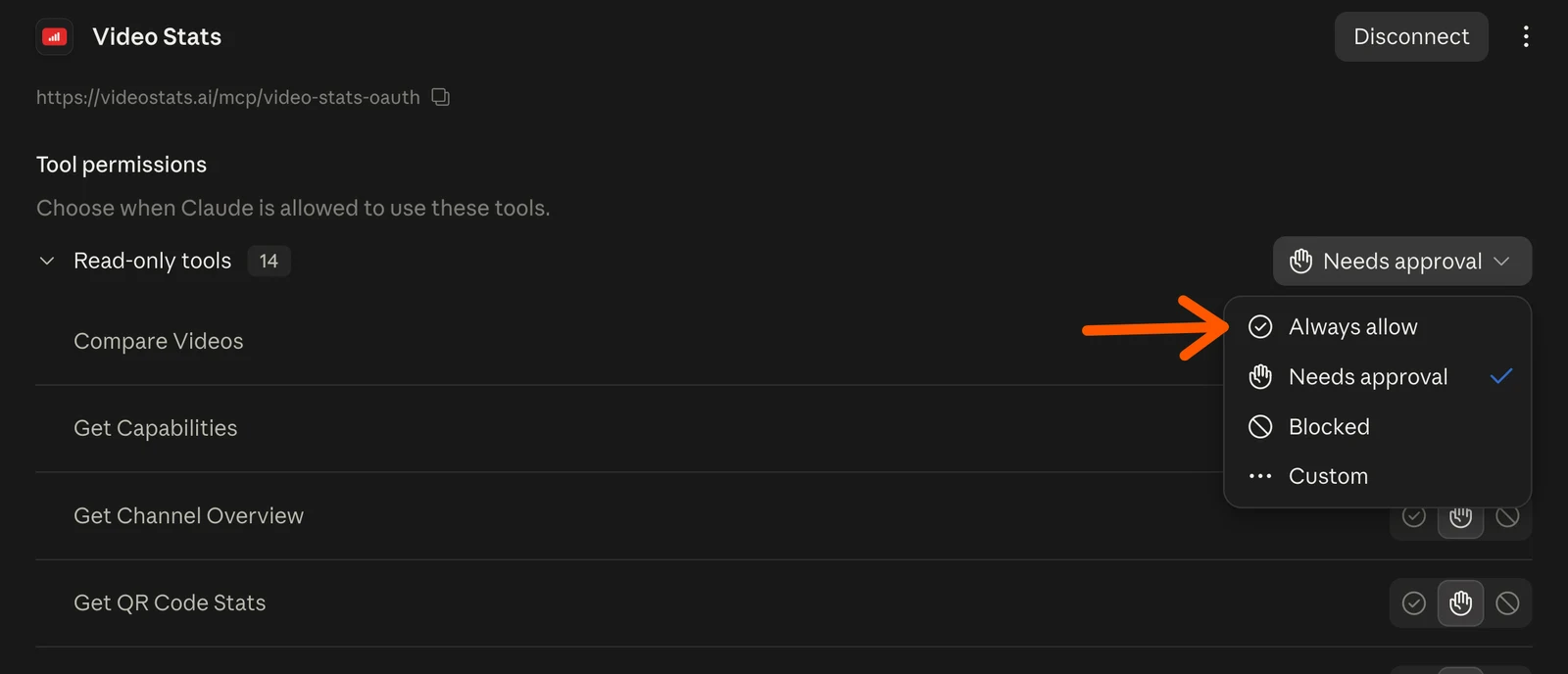
By default, Claude asks before it uses each VideoStats tool. To stop the prompts, open Customize > Connectors > Video Stats. Under Tool permissions, open the Needs approval menu next to Read-only tools and choose Always allow. Creating a QR code and sending a feature request still ask first.
Step 4 (ChatGPT): Use VideoStats in a chat
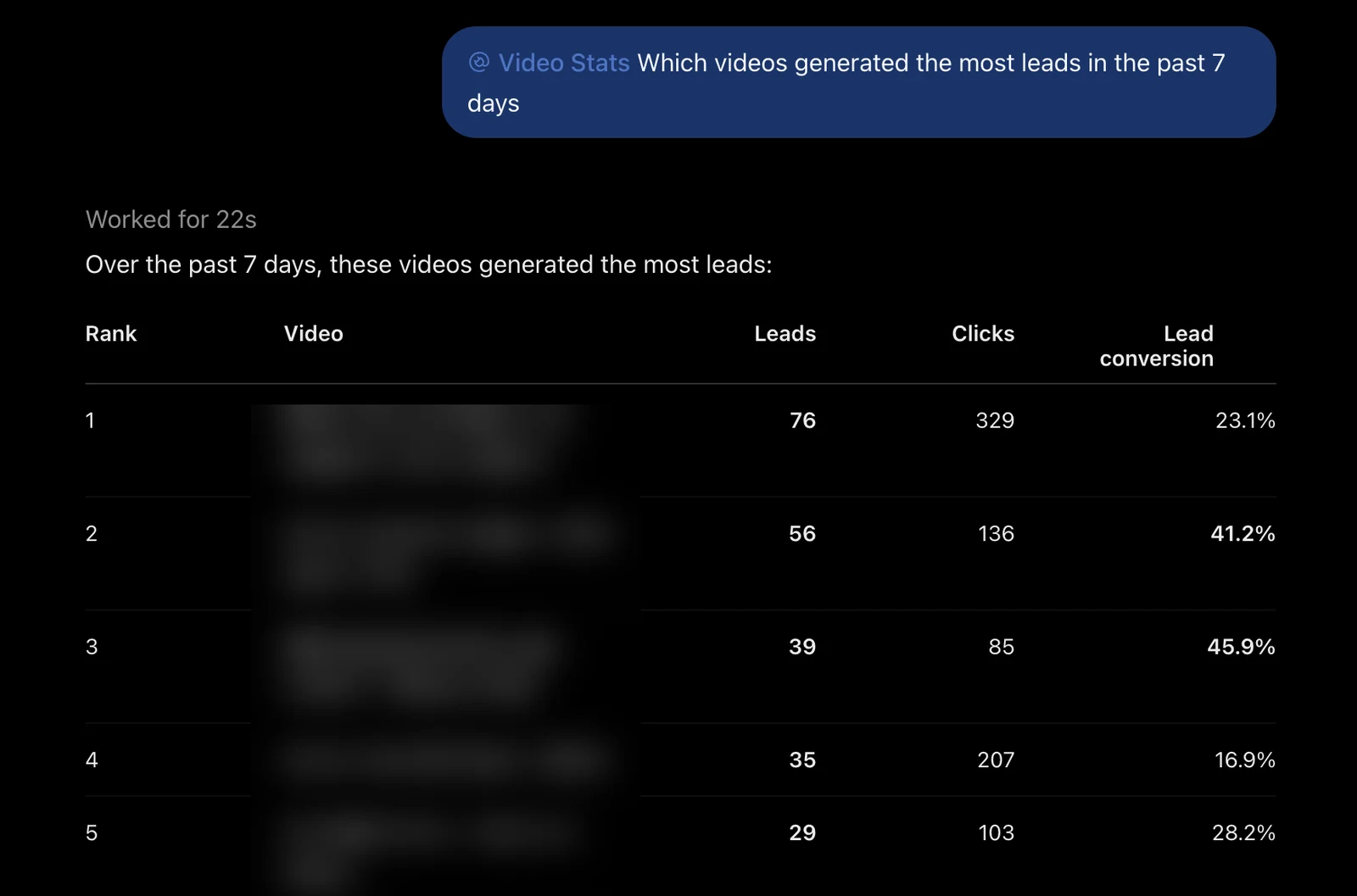
Start your question with @Video Stats so ChatGPT knows to use your data, for example: "@Video Stats Which videos generated the most leads in the past 7 days?"
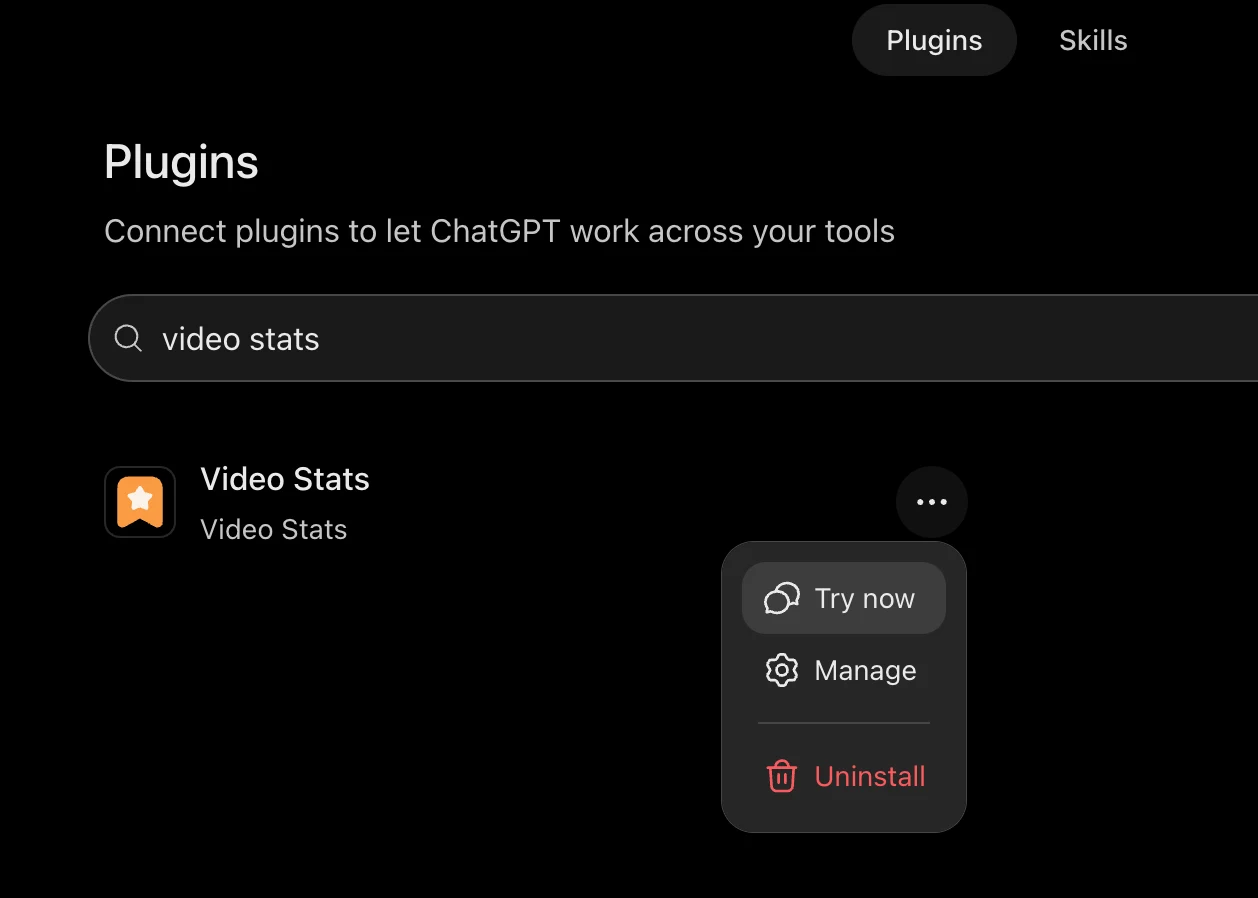
You can also go to Plugins, search for "video stats", click ••• next to it and choose Try now.
Connecting Multiple Workspaces
Each connection covers one workspace. To switch workspace, revoke the app under Settings > MCP > Connected apps (or remove the connector in your AI tool), then connect again and pick the other workspace.
To have several workspaces connected in the same AI tool at once, use a workspace-specific URL:
- Switch to the workspace in VideoStats
- Go to Settings > MCP and open Need several workspaces connected in the same app at once?
- Copy that URL and add it as an extra custom connector in your AI tool
Repeat for each workspace. Your AI tool will see each one as a distinct connection.
Method 2: MCP Token (Advanced)
You don't need a token for Claude or ChatGPT. Tokens are for developer tools that use a config file, such as Claude Code and Cursor, and for scripts or tools that can't sign in with OAuth. Existing tokens keep working.
Step 1: Create an MCP Token
- Go to Settings > MCP in your VideoStats dashboard
- Click MCP tokens (advanced) near the bottom of the page to expand it
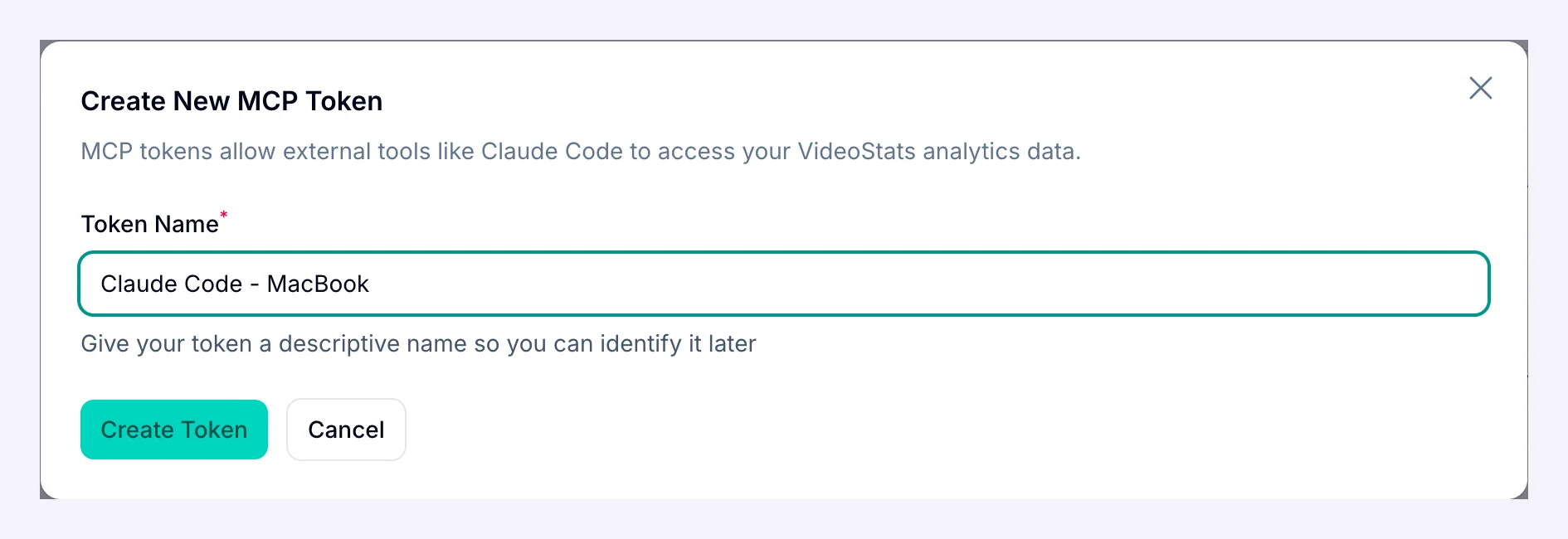
- In the MCP Access section, click Create MCP Token
- Give it a descriptive name (e.g., "Claude Code - MacBook" or "Cursor - Work Laptop")
- Your token will be created and listed in the table
Each token is scoped to the channel you're currently viewing. For multiple channels, create a separate token from each channel's settings.
Step 2: Copy the Connection Command
- Find your new token in the list and click Connect
- Select the tab for your AI tool (Claude Code, Cursor, or Other)
- Copy the connection command or JSON config
Claude Code
Run the provided command in your terminal:
claude mcp add --transport http videostats-your-channel https://videostats.ai/mcp/video-stats --header "Authorization: Bearer YOUR_TOKEN" --scope user
Then restart Claude Code to pick up the new connection.
Claude Desktop
Use the connector URL instead (Method 1). Connectors you add in Claude's Customize > Connectors work in the desktop app too.
Cursor
Add the provided JSON to your Cursor MCP settings (Settings > MCP):
{
  "videostats-your-channel": {
    "url": "https://videostats.ai/mcp/video-stats",
    "headers": {
      "Authorization": "Bearer YOUR_TOKEN"
    }
  }
}
Other MCP-Compatible Tools
Use these details to configure any tool that supports the MCP protocol:
- Transport: Streamable HTTP
- Endpoint URL:
https://videostats.ai/mcp/video-stats - Authorization Header:
Bearer YOUR_TOKEN
Step 3: Start Asking Questions
Open your AI tool and start asking about your YouTube performance. The tool will automatically access your VideoStats data to answer your questions.
Example Prompts to Try
Thumbnail Coaching
- "Audit my channel's thumbnails and tell me what visual patterns my top videos have in common"
- "Analyze the thumbnail for my video about [topic] and suggest improvements"
- "Compare my 5 best and 5 worst performing thumbnails — what's different?"
- "Which of my videos have good content but weak thumbnails that I should redesign?"
Performance Analysis
- "Give me a weekly performance report comparing this week to my monthly average"
- "What are my top 5 videos by sales this month?"
- "Which of my landing pages are converting the best from YouTube traffic?"
- "Which videos are sending the most traffic to my course landing page?"
- "Show me videos with high views but low click-through — where am I leaving money on the table?"
- "How is my most recent video performing?"
Channel Strategy
- "Give me a full channel health check for the last 30 days"
- "What type of content drives the most revenue on my channel?"
- "Compare my channel's performance this week vs last month — are things trending up or down?"
- "Find my biggest optimization opportunities"
QR Codes
- "Create a QR code for https://example.com/landing-page"
- "Show me all my QR codes sorted by scans"
- "How many scans has my product QR code gotten?"
- "Create a QR code for my upcoming camera review video"
Multiple Channels
If you manage multiple YouTube channels in VideoStats, each OAuth connection and each token covers one channel.
- OAuth: Choose the channel when you approve the connection. To connect several channels in the same AI tool at once, use the workspace-specific URLs described in Connecting Multiple Workspaces.
- MCP Token: Switch to each channel, create a token, and follow the setup steps above. Repeat for each channel.
Your AI tool will be able to access all connected channels, and will use the appropriate channel's data based on context.
Managing Your Tokens (MCP Token Method)
From the Settings > MCP page, expand MCP tokens (advanced) to:
- View all your active tokens, including when they were created and last used
- Connect — click to see connection commands for any token at any time
- Revoke — delete a token if you no longer need it or if it may have been compromised
OAuth connections appear under Connected apps on the same page, with when each was connected and last used. Click Revoke to disconnect an app immediately. You can also remove the connector from your AI tool's settings: in ChatGPT, go to Plugins, click ••• next to Video Stats and choose Uninstall.
Security
- Connector-URL connections use OAuth. You sign in once in the popup, and the access token stays with your AI tool; it's short-lived and renewed automatically.
- MCP tokens are read-only — they can view your analytics data and create QR codes, but cannot modify video descriptions, channel settings, or other account data
- Each connection is scoped to a single channel: a connector-URL connection sees only the workspace you chose when you authorized, and a token only the channel it was created in
- Keep your MCP tokens secure — don't share them publicly or commit them to version control
- If you believe a token has been compromised, revoke it immediately and create a new one
- Role access — only Admin and User roles can access the MCP section. Junior members do not have access
Troubleshooting
ChatGPT: "I can't find Create MCP App"
Custom MCP apps need a paid ChatGPT plan (Plus, Pro, Business, Enterprise or Edu) and the web app at chatgpt.com. On Business or Enterprise plans, a workspace owner may need to allow custom apps.
ChatGPT: "It answers without my VideoStats numbers"
Start your question with @Video Stats. Without it, ChatGPT may answer from general knowledge instead of your data.
OAuth: "Sign-in popup didn't open" or "Authorization failed"
Make sure pop-ups are allowed for your AI tool. If the popup was blocked, remove the connector from your AI tool's settings, allow popups, and add the connector again.
Connector URL: "I see the wrong workspace's data"
Each connection covers the workspace you chose when you authorized. Revoke the app under Settings > MCP > Connected apps, remove the connector from your AI tool, then add it again and choose the right workspace. To have several workspaces connected at once, see Connecting Multiple Workspaces.
Claude: "It won't let me add another connector"
Claude's free plan allows one custom connector. Remove another custom connector, or upgrade your Claude plan.
Token: "No tenant context available"
This means the token couldn't be matched to a channel. Try revoking the token and creating a new one.
AI tool doesn't see VideoStats data
Make sure you restarted your AI tool after adding the connection. Most tools require a restart to pick up new MCP server connections.
Token was created before connection commands were available
If you see a message about the token being created before persistent display was available, revoke it and create a new one. Newer tokens store the connection details so you can view them anytime.
Analytics data looks empty
If your VideoStats account is new or you haven't set up link tracking yet, analytics metrics (clicks, leads, sales) will be zero. YouTube metrics (views, likes) should still appear for any imported videos.