Ask Your Channel · Part 3
How to Connect Claude to Your YouTube Analytics
Ask Claude which videos bring in leads and sales, from your real numbers. In this guide, you'll connect your channel in 4 steps, even on the free plan.

You can ask Claude which of your videos bring in leads and sales, and get answers from your real numbers instead of general advice. It takes one connection between Claude and your channel's data, and it works on every Claude plan, including the free one.
In this guide, you'll learn what you need, how to connect Claude to your YouTube analytics in 4 steps, and the first 4 questions worth asking.
By the way, when we asked the first of those questions about Justin Brown's Primal Video channel, the page that turned the most clicks into leads was the one his videos sent the least traffic to.
What Claude can see once your channel is connected
Claude only knows what you give it. Paste in a YouTube Studio export and it can talk about views and watch time, but it can't tell you which of those views turned into customers, and the numbers are stale by tomorrow.
Connecting Video Stats fixes both. Claude reads your current numbers each time you ask, including the link clicks, leads and sales behind every video and every page your videos link to.
That means Claude can do the analysis you'd otherwise do in a spreadsheet: rank videos by the money they bring in, spot the pages that convert, and suggest what to make next from your own results. How to Analyze Your YouTube Channel With AI covers all 7 kinds of questions it can answer.
What you need before you connect Claude
| You need | Why |
|---|---|
| A Claude account on any plan: Free, Pro, Max, Team or Enterprise | Custom connectors work on every plan. The free plan allows one custom connector |
| Claude on the web, in the desktop app or in CoWork | You add the connector in Claude's settings |
| A Video Stats account that tracks your links | Clicks, leads and sales come from Video Stats. Leads and sales need the tracking code on your pages |
On a Team or Enterprise plan, an owner adds the connector once under Organization settings → Connectors. Everyone else then finds it under Customize → Connectors and clicks Connect.
How to connect Claude to your YouTube analytics in 4 steps
You'll switch between Claude and Video Stats once, so keep both open.
Step 1: Copy the Video Stats connector URL
In Video Stats, go to Settings → MCP. At the top, under Claude CoWork and ChatGPT Connector, click Copy URL.
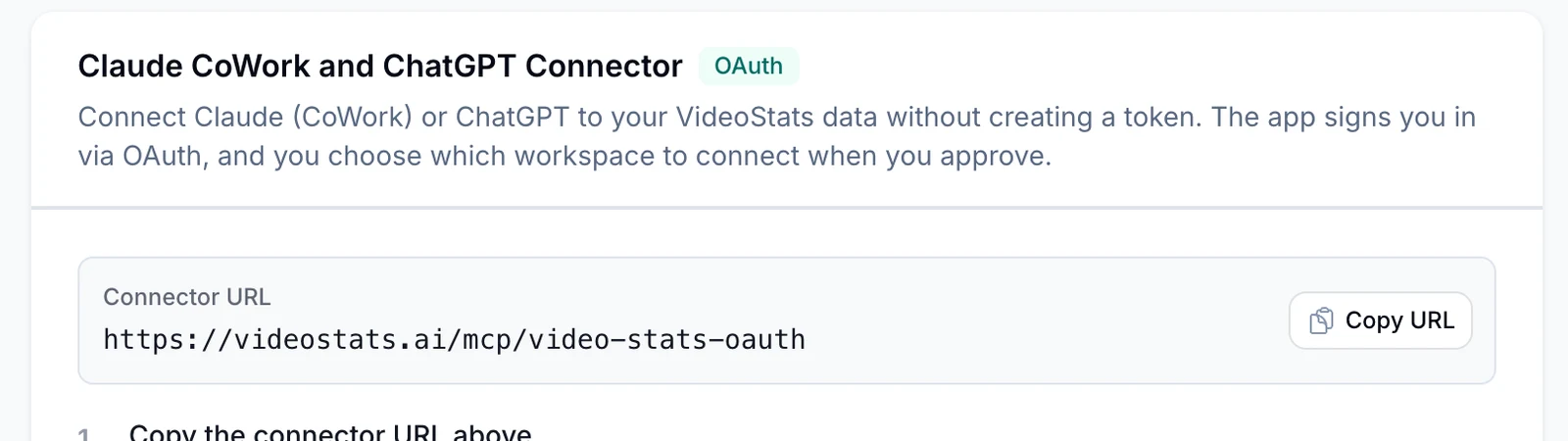
Everyone uses the same URL: https://videostats.ai/mcp/video-stats-oauth. You choose which channel to connect when you authorize, in step 3.
Step 2: Add Video Stats as a custom connector in Claude
In Claude, click Customize in the sidebar and choose Connectors. Click + Add in the top right, then Add custom connector.
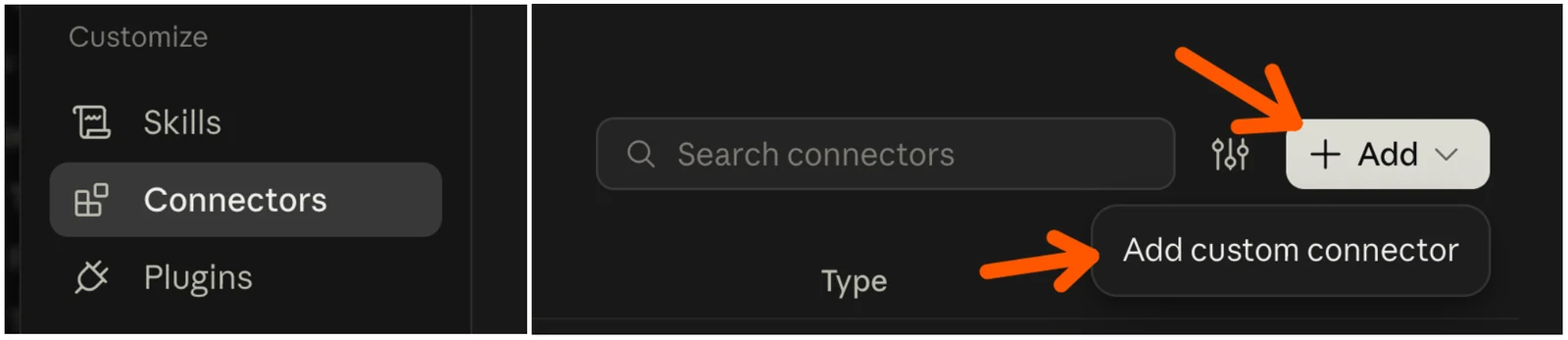
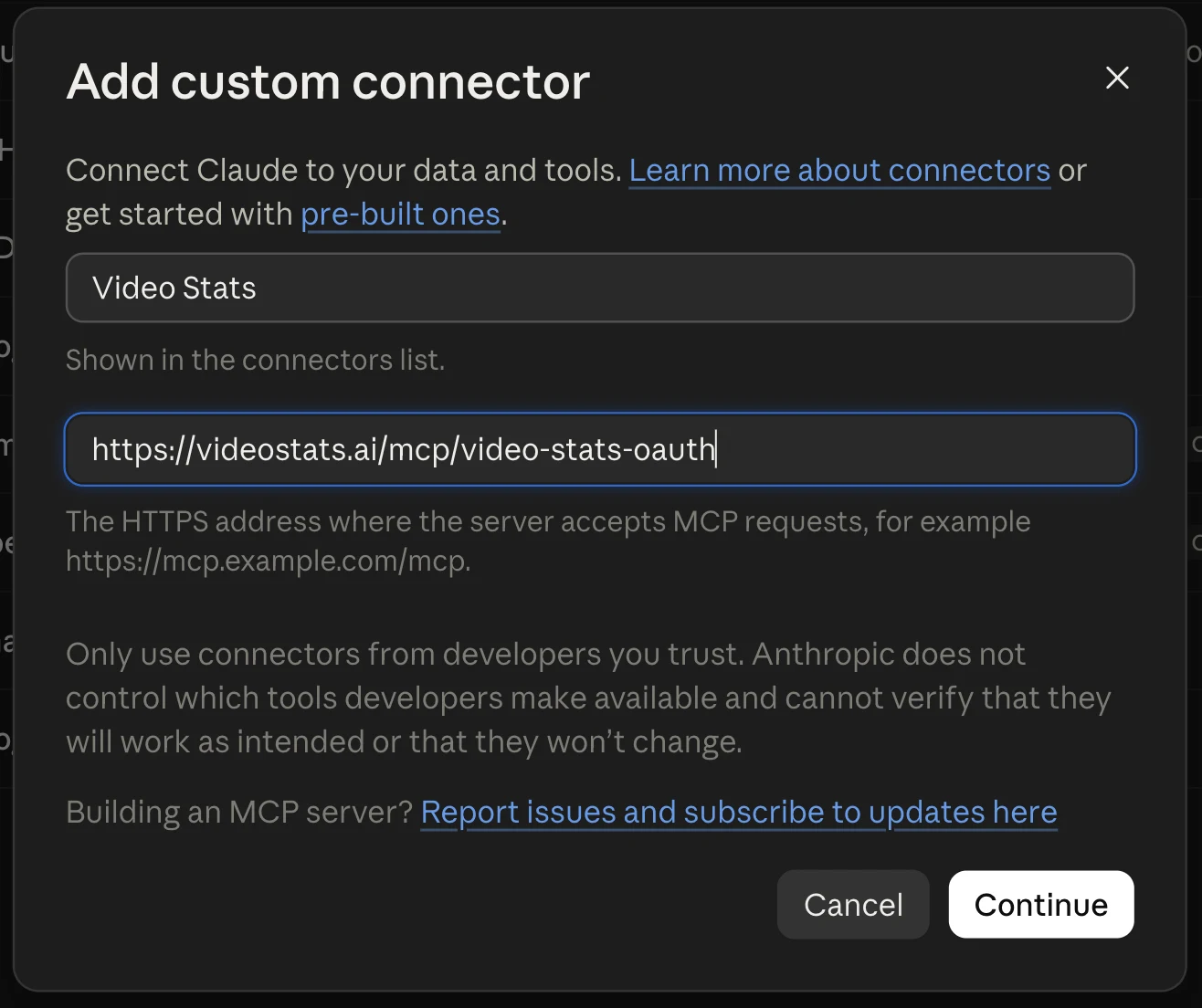
Fill in the two fields:
- Name: Video Stats. This is how it appears in your connectors list.
- MCP server URL: paste the connector URL from step 1.
Then click Continue.
Step 3: Choose your channel and click Authorize
Claude opens a Video Stats window. Sign in if you need to, then pick the channel you want Claude to see under Workspace to connect, and click Authorize.
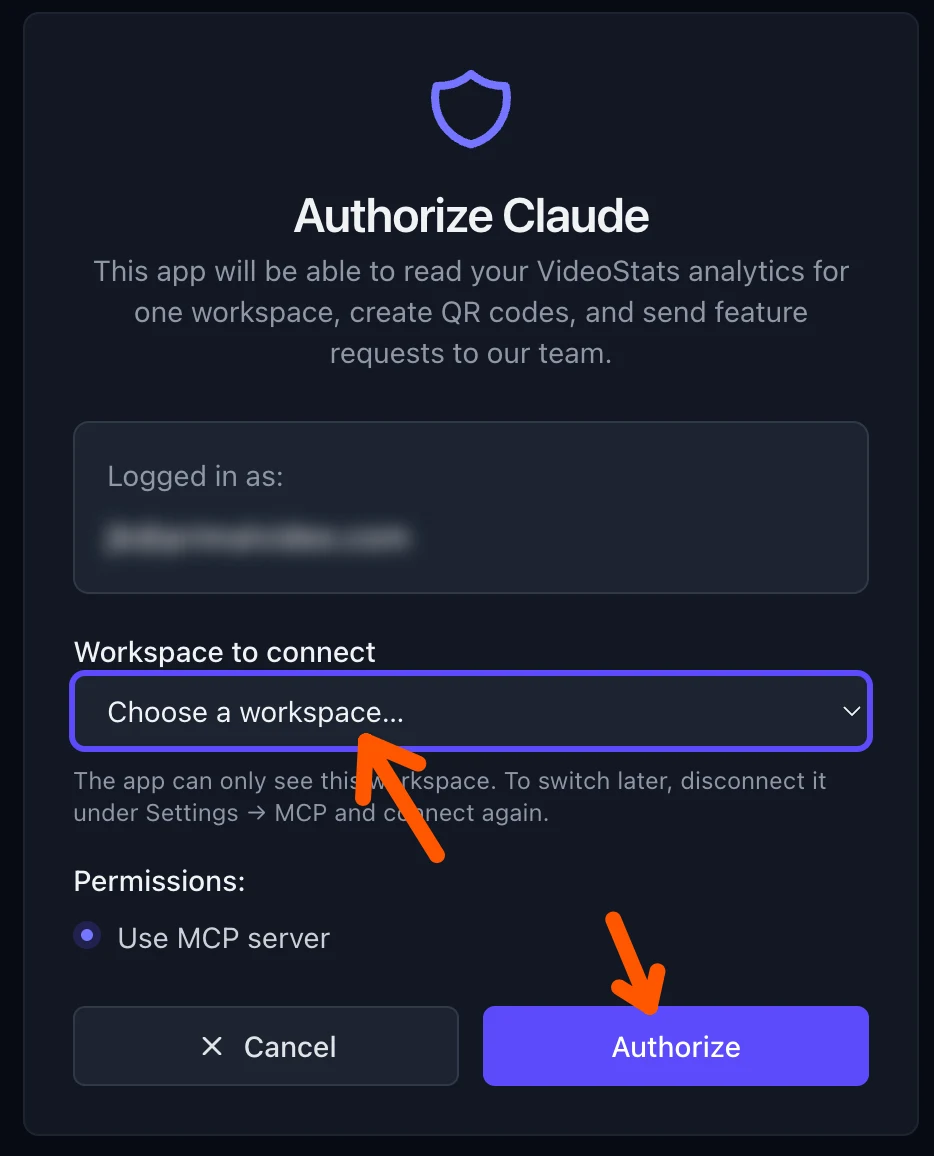
Claude can only see the workspace you choose. To switch later, disconnect it under Settings → MCP in Video Stats and connect again.
Video Stats now shows in your connectors list with a tick.
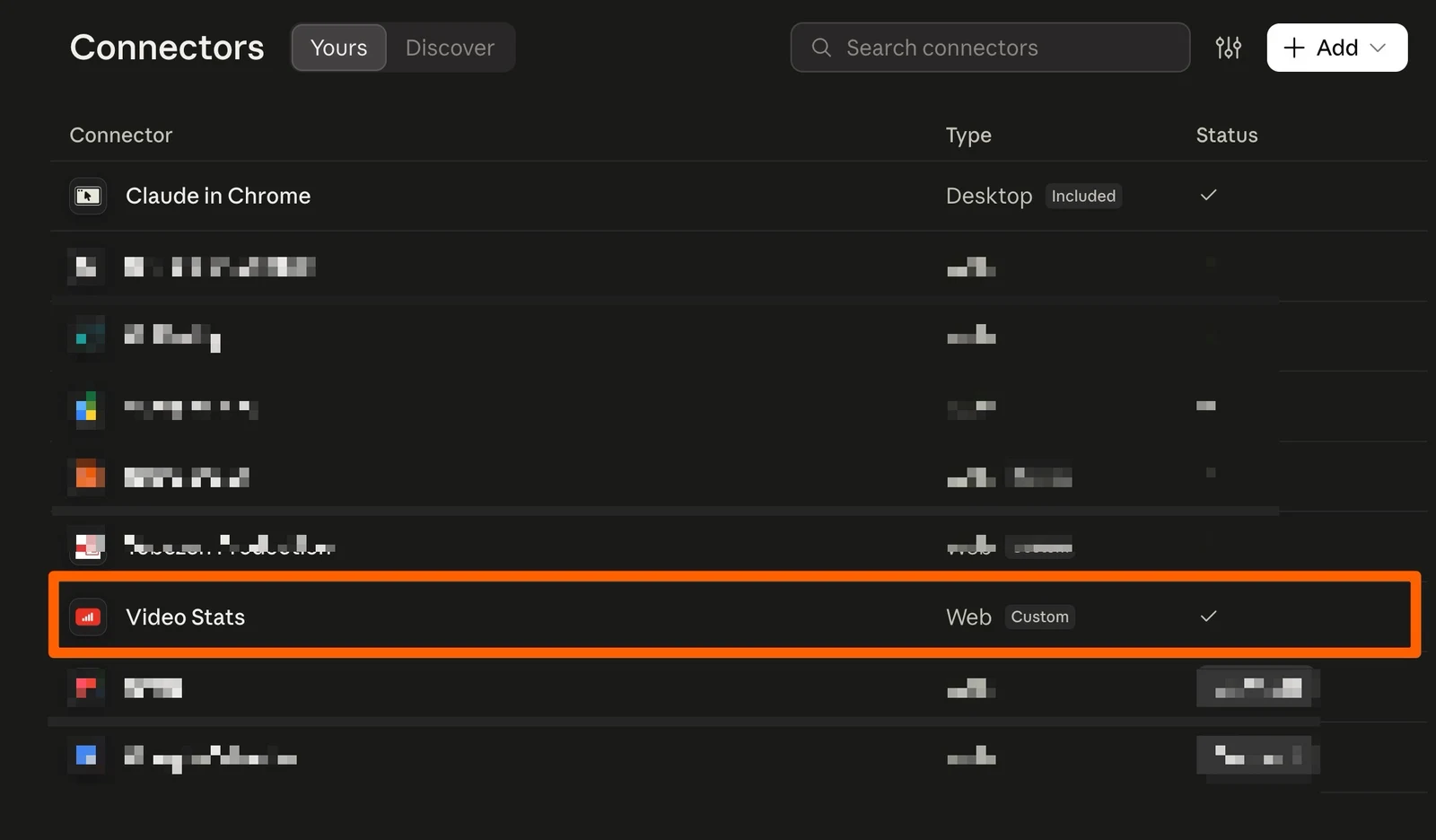
If the Video Stats window doesn't open, your browser blocked it. Allow pop-ups for claude.ai, remove the connector and add it again.
Step 4: Turn on Video Stats in a chat and ask your first question
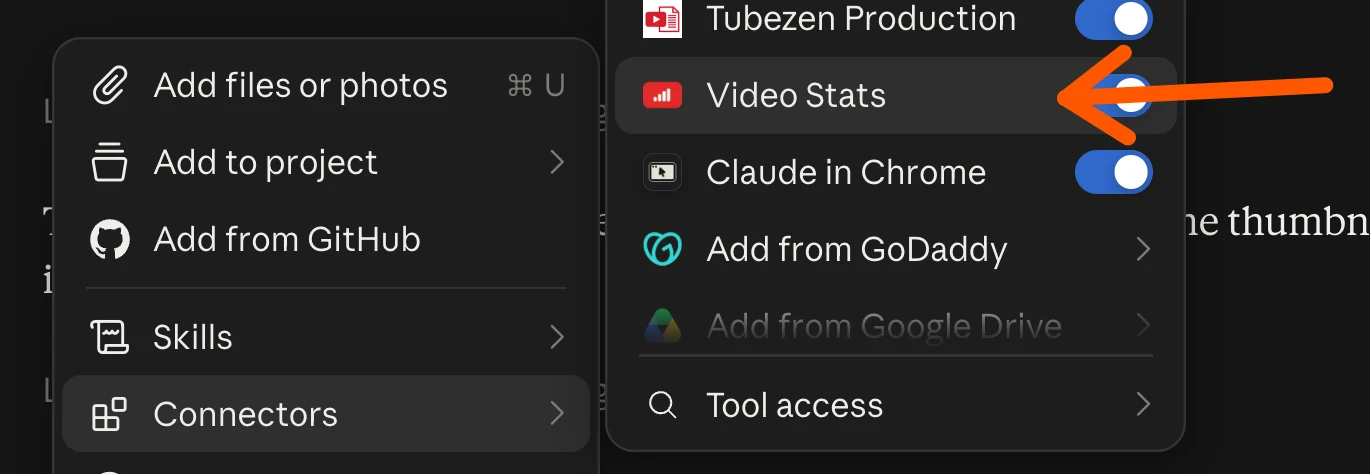
Start a new chat. Click the + button in the message box (Add files, connectors, and more), open Connectors, and check that Video Stats is switched on. Then ask your question in plain English.
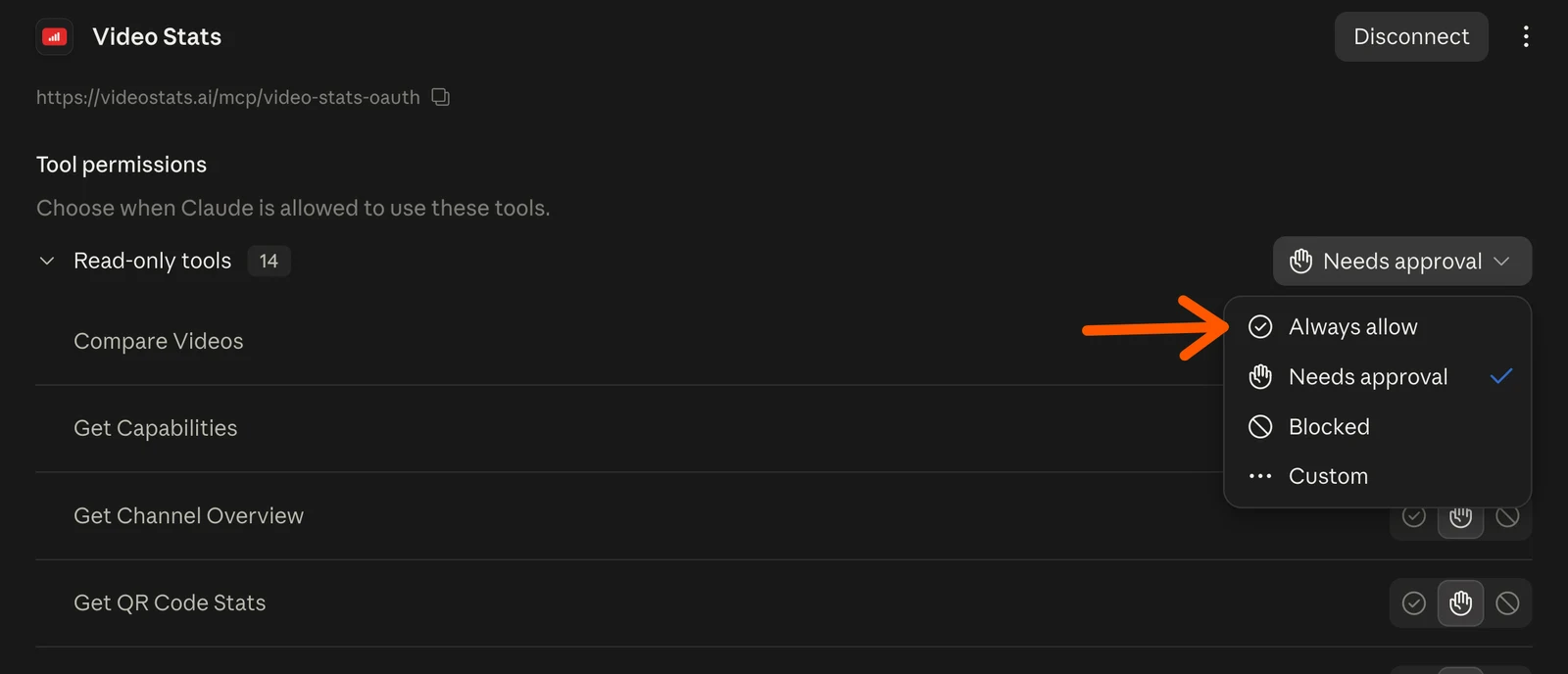
By default, Claude asks before it uses each Video Stats tool. If you'd rather not approve every request, open Customize → Connectors → Video Stats. Under Tool permissions, open the Needs approval menu next to Read-only tools and choose Always allow. Those tools can only read your data.
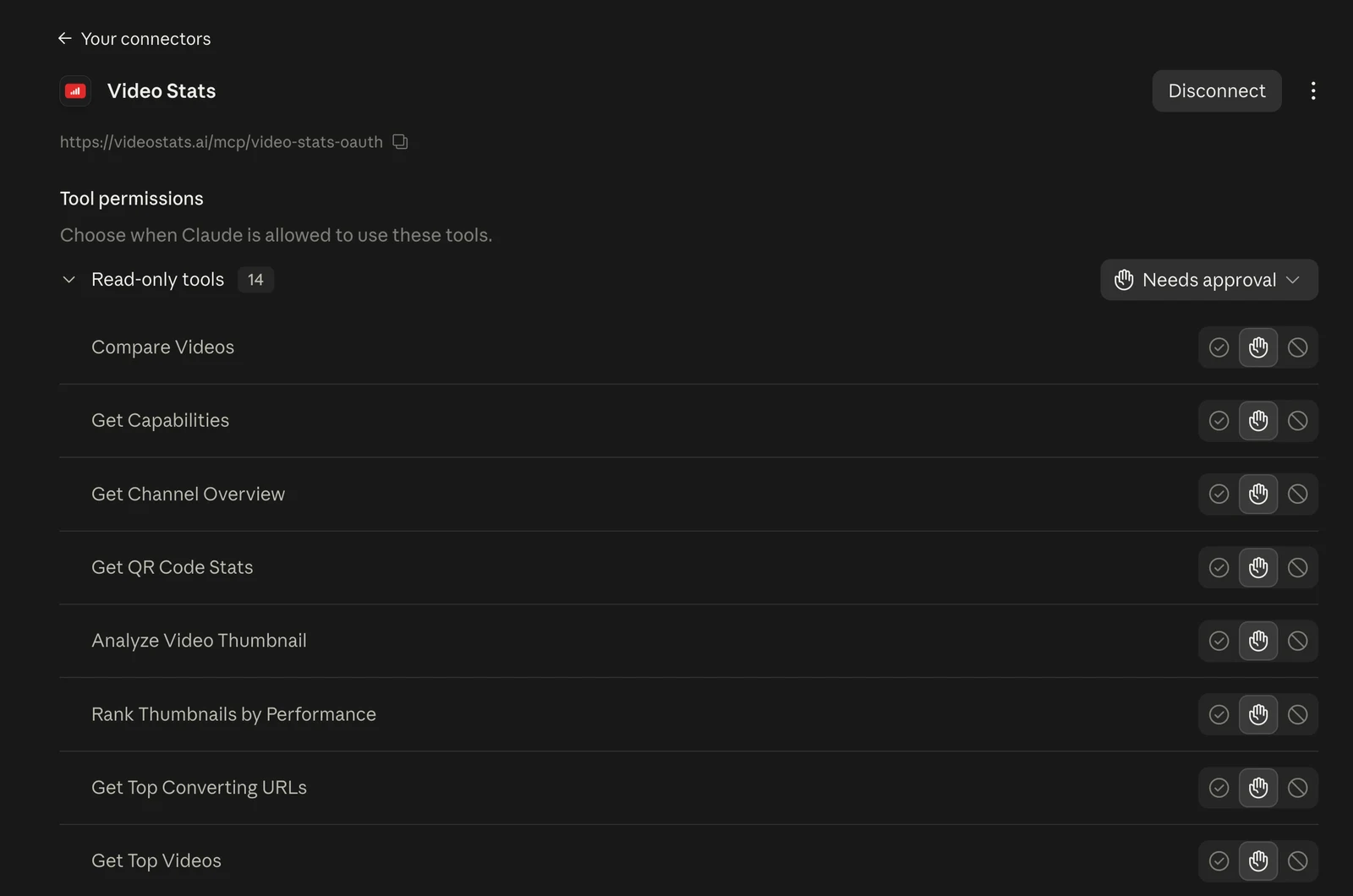
Creating a QR code and sending a feature request aren't read-only, so Claude still asks before it does either.
4 questions to ask Claude about your YouTube channel first
Each of these answers something YouTube Studio can't, and each one links to a deeper guide in this series.
1. "Which of my landing pages bring in the most leads from YouTube?"
This is the question from the top of this guide. For Primal Video, the answer came back like this:
| Page your videos link to | Link clicks | Leads | Clicks that became leads |
|---|---|---|---|
| Primal Video Method | 25,217 | 9,199 | 36.5% |
| iPhone and Android video guides | 3,455 | 1,036 | 30.0% |
| AI toolkit | 2,962 | 475 | 16.0% |
| YouTube ranking guide | 1,475 | 372 | 25.2% |
| Livestream checklist | 341 | 134 | 39.3% |
Primal Video's Video Stats data since tracking began, as of September 30, 2026.
The livestream checklist turns 39.3% of its clicks into leads, the best of the five, but gets the least traffic. That's the kind of finding worth acting on: link it from more of the videos where it fits, and it should bring in more leads without a single new video. Claude can take the next step too, if you ask which videos send people to a page.
2. "Compare the 5 videos with the highest click-through rate and give an analysis."
Claude pulls the thumbnails along with each video's numbers and lays them out side by side, so you can see what the winners have in common. For Primal Video, it came back as a board of the top five over the last 90 days:
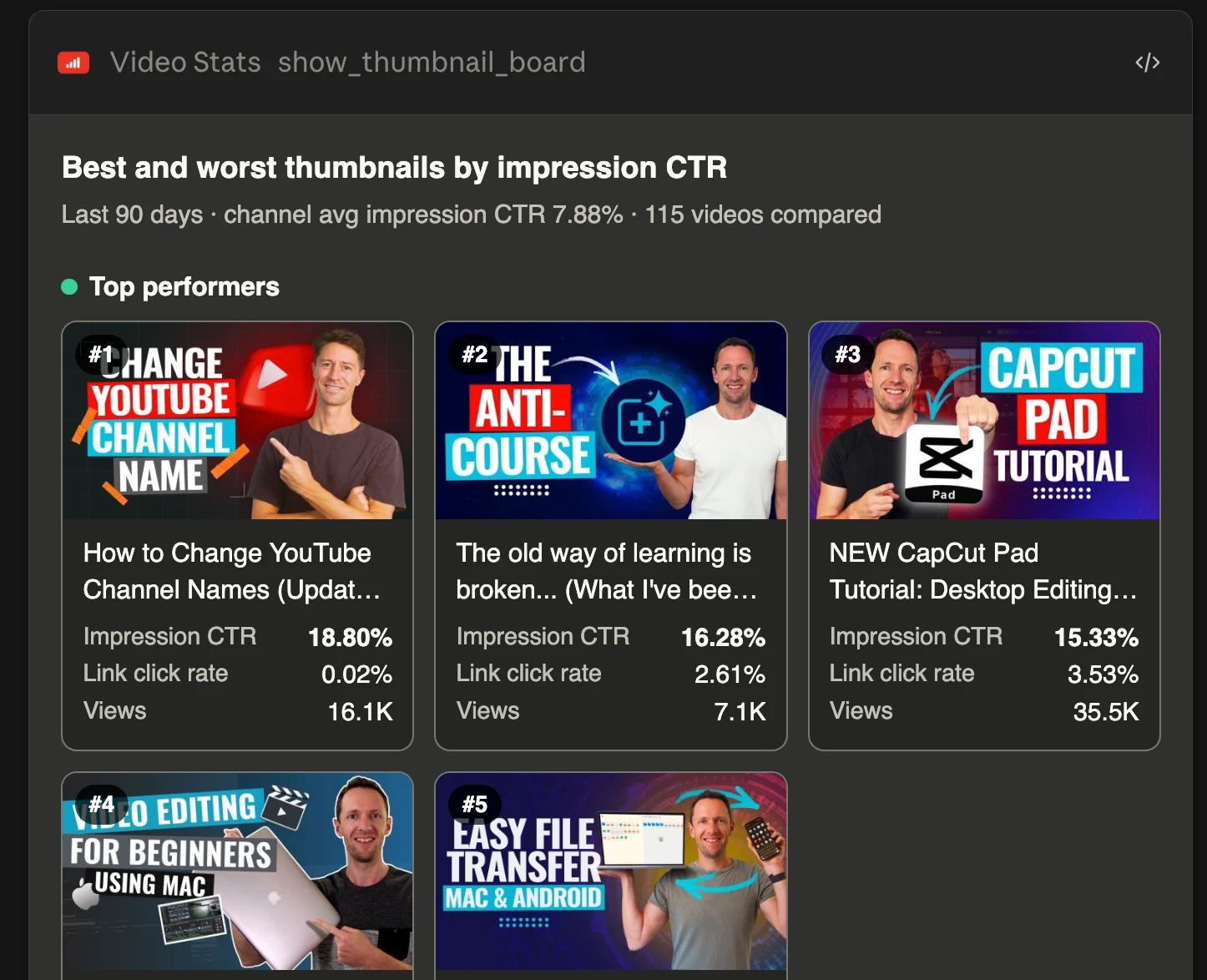
The thumbnail that won the most clicks from YouTube sent almost nobody to Justin's site.
All five beat the channel average of 7.88%, but look at the link click rate under each one. The channel-name tutorial has the highest click-through rate, 18.80%, and a link click rate of 0.02%: most viewers likely got their answer and left. The CapCut Pad tutorial earns 15.33% and sends 3.53% of its viewers to a link, which is why it shows up among Justin's best lead sources. A thumbnail's job is to bring in viewers who'll act, so it pays to judge thumbnails on both numbers.
3. "Which videos have been live for more than a year and still bring in leads?"
These are your evergreen earners, and the best candidates for an update or a follow-up video. Justin uses this question to plan remakes.
4. "Turn my last 30 days into a one-page report for my team."
Claude compares the last 30 days with the 30 before and writes it up as a document you can share. Section 5 of the hub guide shows what a trend check found on Primal Video.
Video Stats sends Claude engaged views by default, the count YouTube Studio uses, and labels which one each answer used. YouTube Engaged Views Explained covers why that keeps your conversion rates honest.
If Claude doesn't use your Video Stats data
- Claude answers without your numbers. Video Stats isn't switched on in that chat. Turn it on from the + menu under Connectors.
- Claude won't let you add another connector. The free plan allows one custom connector. Remove another one, or upgrade.
- The sign-in keeps looping. Remove the connector, sign in to Video Stats in the same browser, and add it again.
- You see the wrong channel's data. Each connection covers the channel you chose when you authorized. Disconnect it under Settings → MCP in Video Stats, then remove and re-add the connector in Claude and choose the right channel.
- Clicks, leads and sales are all zero. Video Stats needs to be tracking the links in your descriptions, and leads and sales need the tracking code on your pages.
FAQ
Can Claude analyze my YouTube channel?
Yes, once it can see your data. Connect it to Video Stats and Claude can answer from your current views, link clicks, leads and sales, including which videos and pages bring in customers.
Does this work on Claude's free plan?
Yes. Custom connectors work on every Claude plan. The free plan allows one custom connector, so Video Stats can be that one.
Does it work in the Claude desktop app and CoWork?
Yes. Connectors belong to your Claude account, so once you've added Video Stats, you can use it on the web, in the desktop app and in CoWork.
What about Claude Code?
Claude Code uses the same connector URL, added with a one-line command in your terminal. How to Use a YouTube MCP Server in Claude Code and Cursor walks through it.
Is it safe to connect Claude to my YouTube data?
Claude can read your Video Stats data and create QR codes, but it can't change your videos or your YouTube channel. You approve the connection when you add it, and you can remove it at any time.
Can I use ChatGPT instead?
Yes, on a paid ChatGPT plan. How to Connect ChatGPT to Your YouTube Analytics walks through its 5 steps.
Ready to ask Claude which videos pay you? Video Stats tracks every link on every video and connects the results to Claude and ChatGPT. Start your free trial, then follow the 4 steps above.


