How to Connect ChatGPT to Your YouTube Analytics
Ask ChatGPT which of your videos bring in leads and sales, and get answers from your real numbers. In this guide, you'll connect your channel in 5 steps.

You can ask ChatGPT which of your videos brought in the most leads last month, and get an answer from your real numbers instead of a guess. All it takes is a connection between ChatGPT and your channel's data, including the link clicks, leads and sales that YouTube doesn't track.
In this guide, you'll learn what you need before you start, how to connect ChatGPT to your YouTube analytics in 5 steps, and the first 5 questions worth asking once you have.
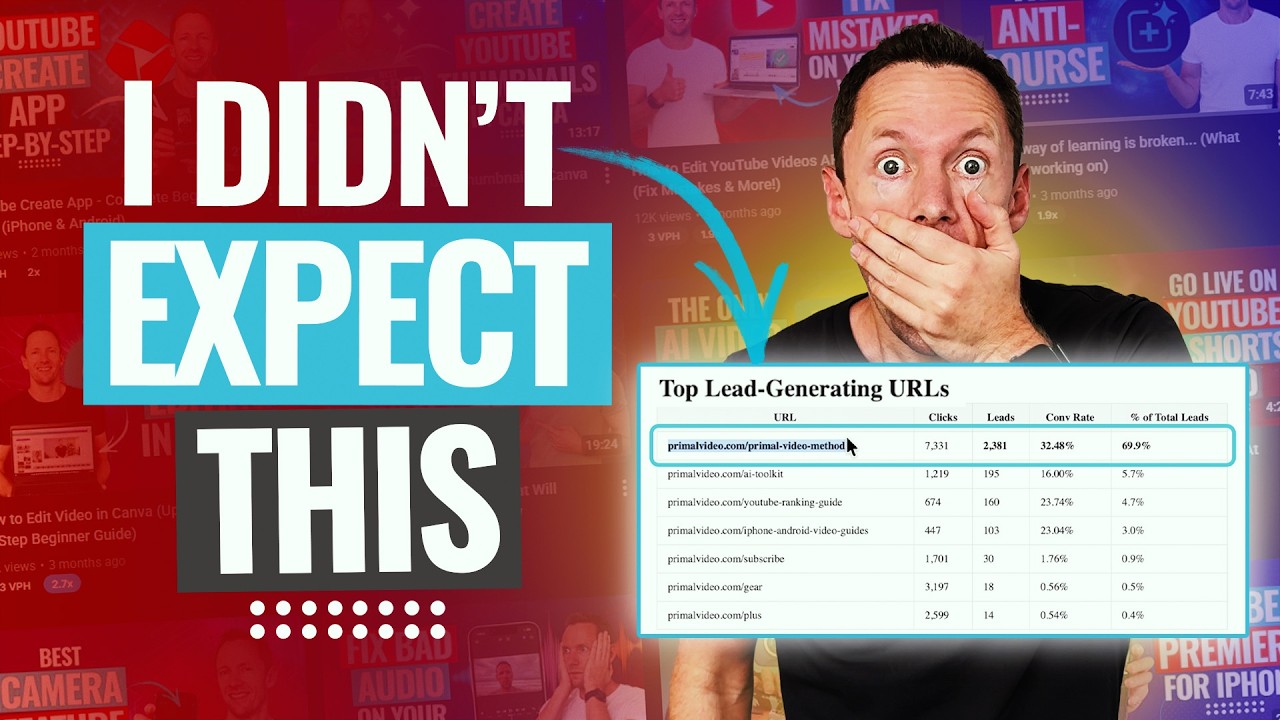
By the way, when we asked the first of those questions about Justin Brown's Primal Video channel, two of the top five videos had turned about 41% of their clicks into leads, more than four times his channel average.
What ChatGPT can see once your channel is connected
On its own, ChatGPT knows nothing about your channel. You can paste in an export from YouTube Studio, but that only covers views, watch time and subscribers, and it's out of date the moment you finish.
Connecting Video Stats changes both. ChatGPT reads your current numbers every time you ask, and it sees what happens after the click: which videos send people to your site, and which of those people become leads and customers.
That means you can ask the questions that matter to your business, like which videos to update, which pages to promote and which topics to make more of, and get answers based on your own results. How to Analyze Your YouTube Channel With AI covers every kind of question you can ask.
What you need before you connect ChatGPT
Check these three things first, because ChatGPT won't show the option without the first two.
| You need | Why |
|---|---|
| A paid ChatGPT plan: Plus, Pro, Business, Enterprise or Edu | Free accounts can't add custom MCP apps |
| ChatGPT on the web, at chatgpt.com | You add the app from ChatGPT's Plugins page |
| A Video Stats account that tracks your links | Clicks, leads and sales come from Video Stats. Leads and sales need the tracking code on your pages |
On a Business or Enterprise plan, a workspace owner may need to allow custom apps first.
How to connect ChatGPT to your YouTube analytics in 5 steps
You'll switch between ChatGPT and Video Stats once. Keep both open in your browser.
Step 1: Copy your connector URL from Video Stats
In Video Stats, go to Settings → MCP. At the top, under Claude CoWork and ChatGPT Connector, click Copy URL.
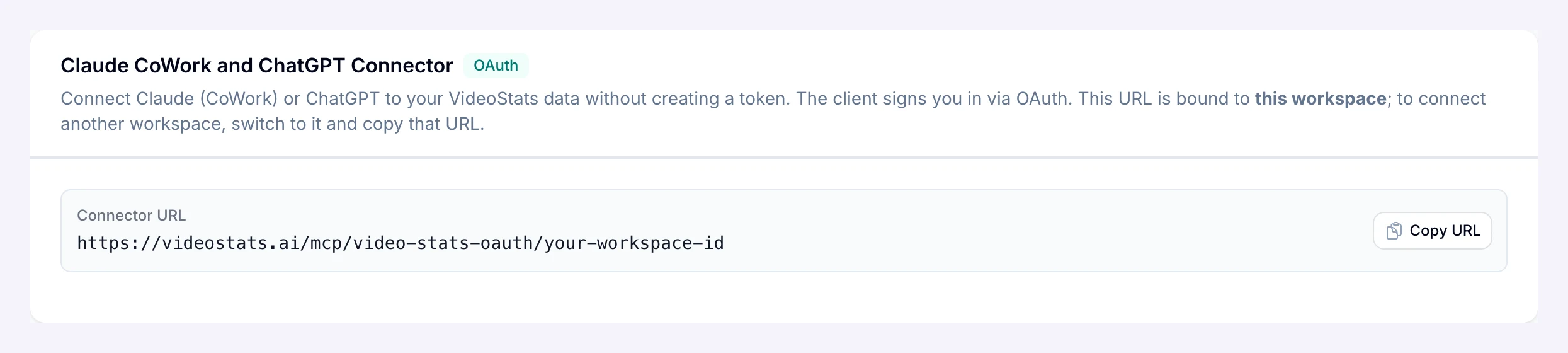
Each channel has its own connector URL. If you manage more than one channel, switch to the right one before you copy.
Step 2: Open ChatGPT's Plugins directory and choose Create MCP App
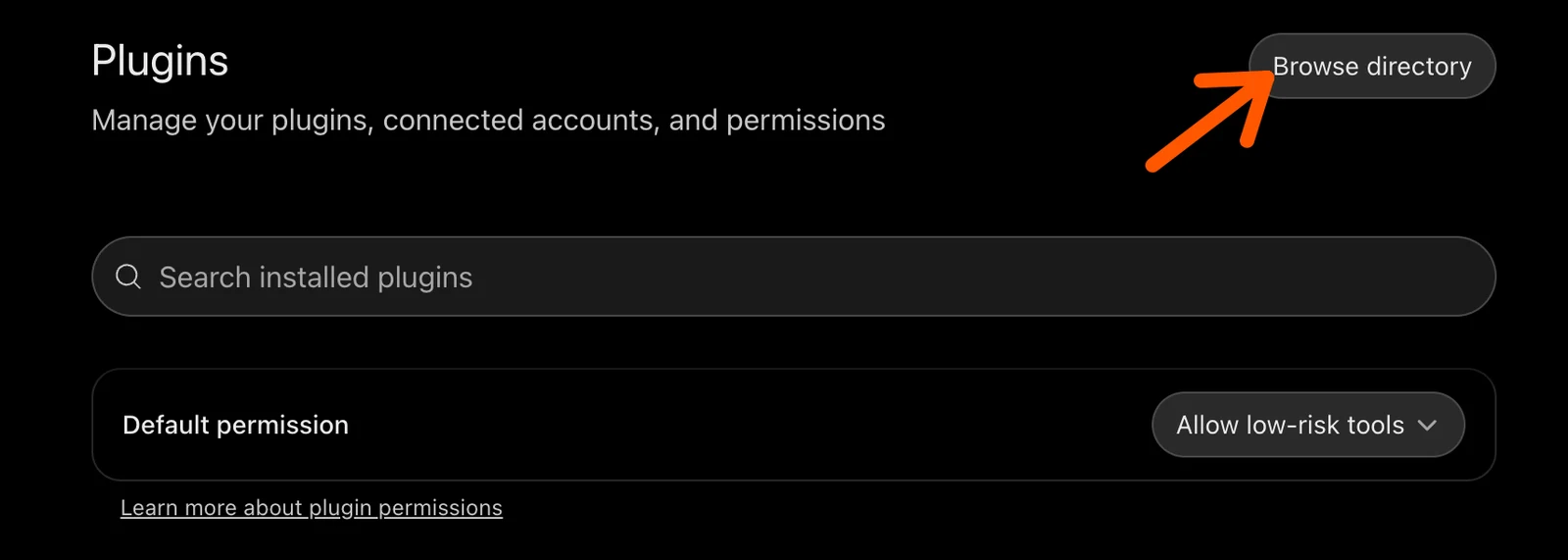
In ChatGPT, open Settings → Plugins and click Browse directory. You can also click Plugins in the sidebar.
In the directory, click Add in the top right and choose Create MCP App.
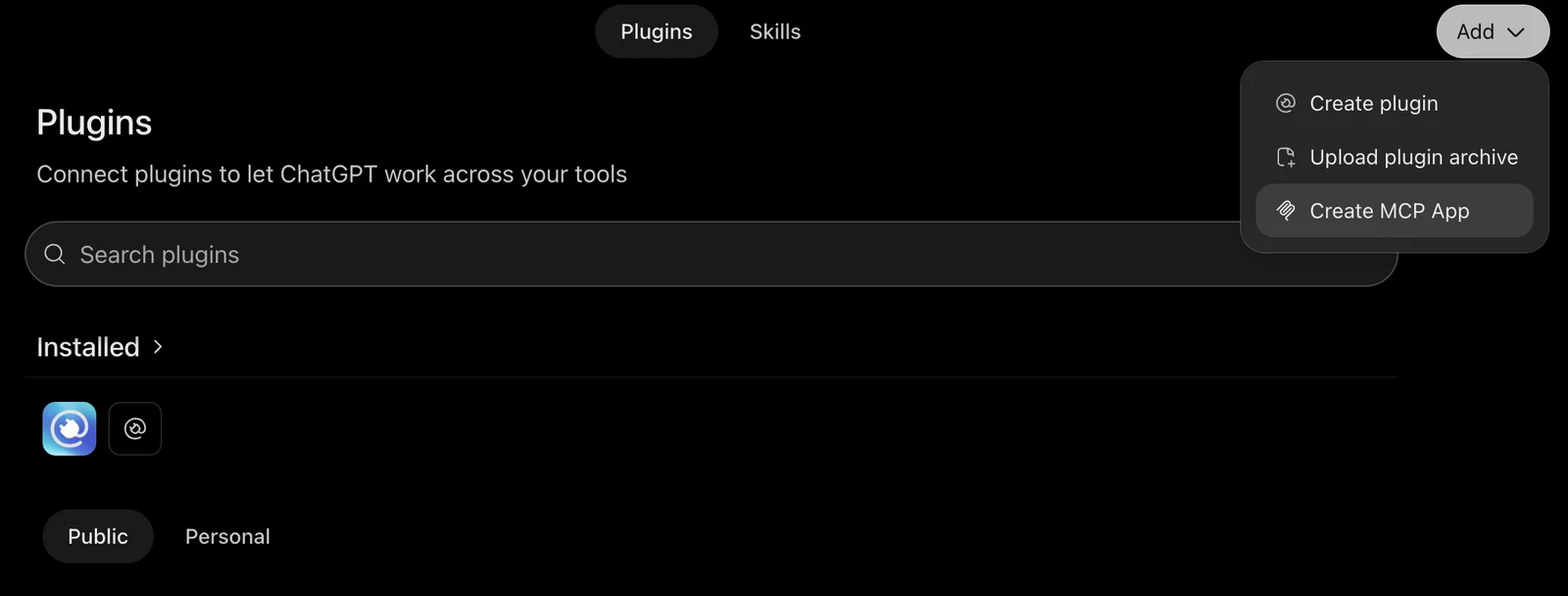
Don't see Create MCP App? It needs a paid ChatGPT plan.
Step 3: Fill in the New Plugin form
ChatGPT opens a New Plugin form. Fill it in like this:
- Name: Video Stats
- Description (optional): My YouTube channel's views, link clicks, leads and sales. ChatGPT reads this to decide when to use the app, so it's worth filling in.
- Connection: leave Server URL selected and paste the connector URL from step 1
- Authentication: OAuth
Then create the app.
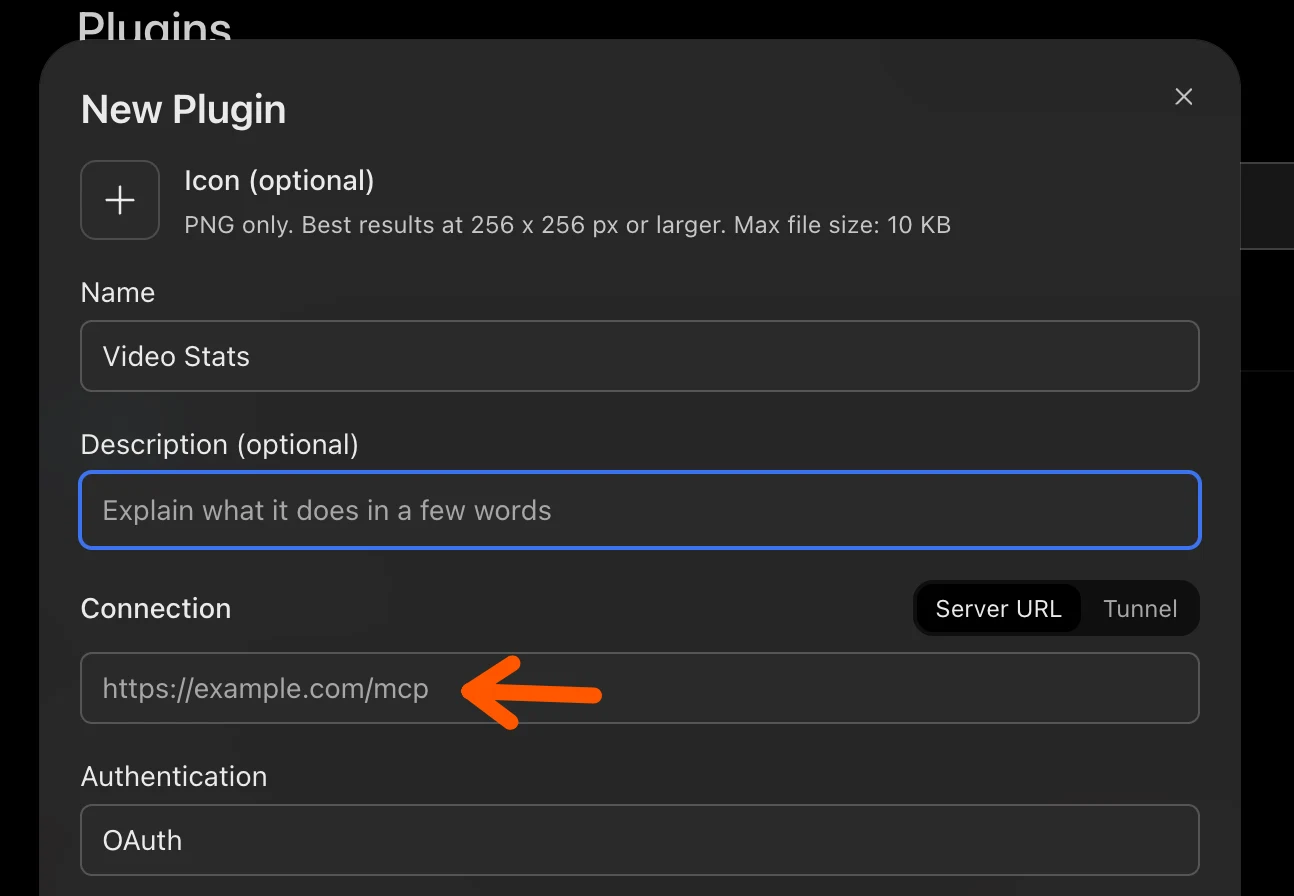
Paste the connector URL into the Connection field. You don't need an icon.
Step 4: Connect Video Stats and click Authorize
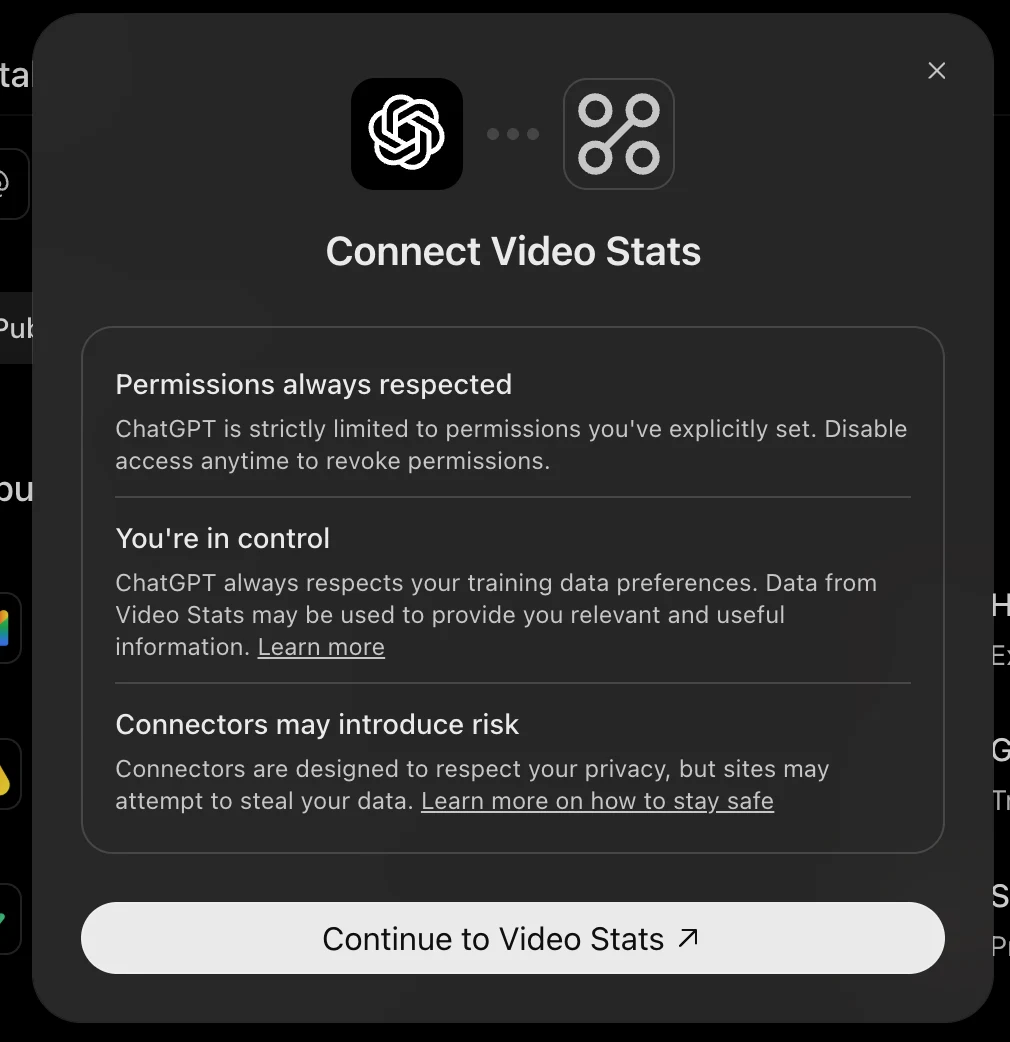
ChatGPT shows a Connect Video Stats screen that explains what the app can and can't do. Click Continue to Video Stats.
A Video Stats window opens. Sign in if you need to, check that it shows the right account, and click Authorize.
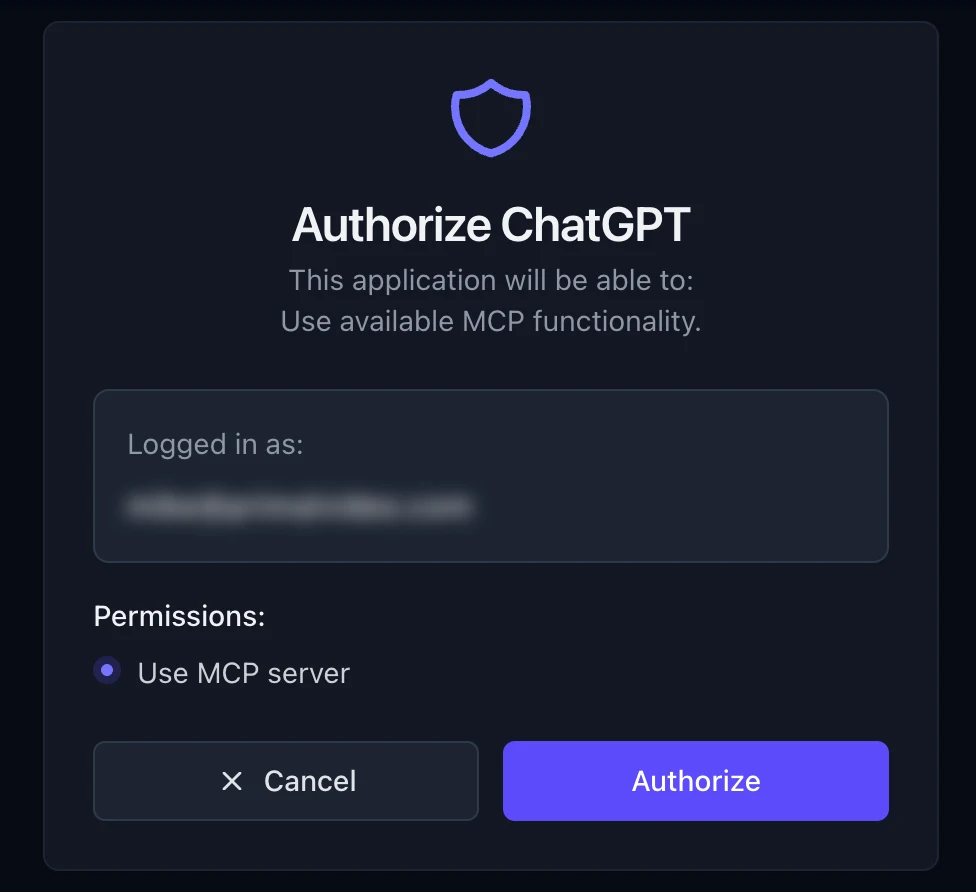
You approve each connection once, and you can remove it from ChatGPT's Plugins page at any time.
If the Video Stats window doesn't open, your browser blocked it. Allow pop-ups for chatgpt.com, remove the app, and add it again.
Step 5: Ask your first question with @Video Stats
Start a chat and type @Video Stats before your question, so ChatGPT knows to use your data. Or go to Plugins, search for "video stats", click ••• next to it and choose Try now.
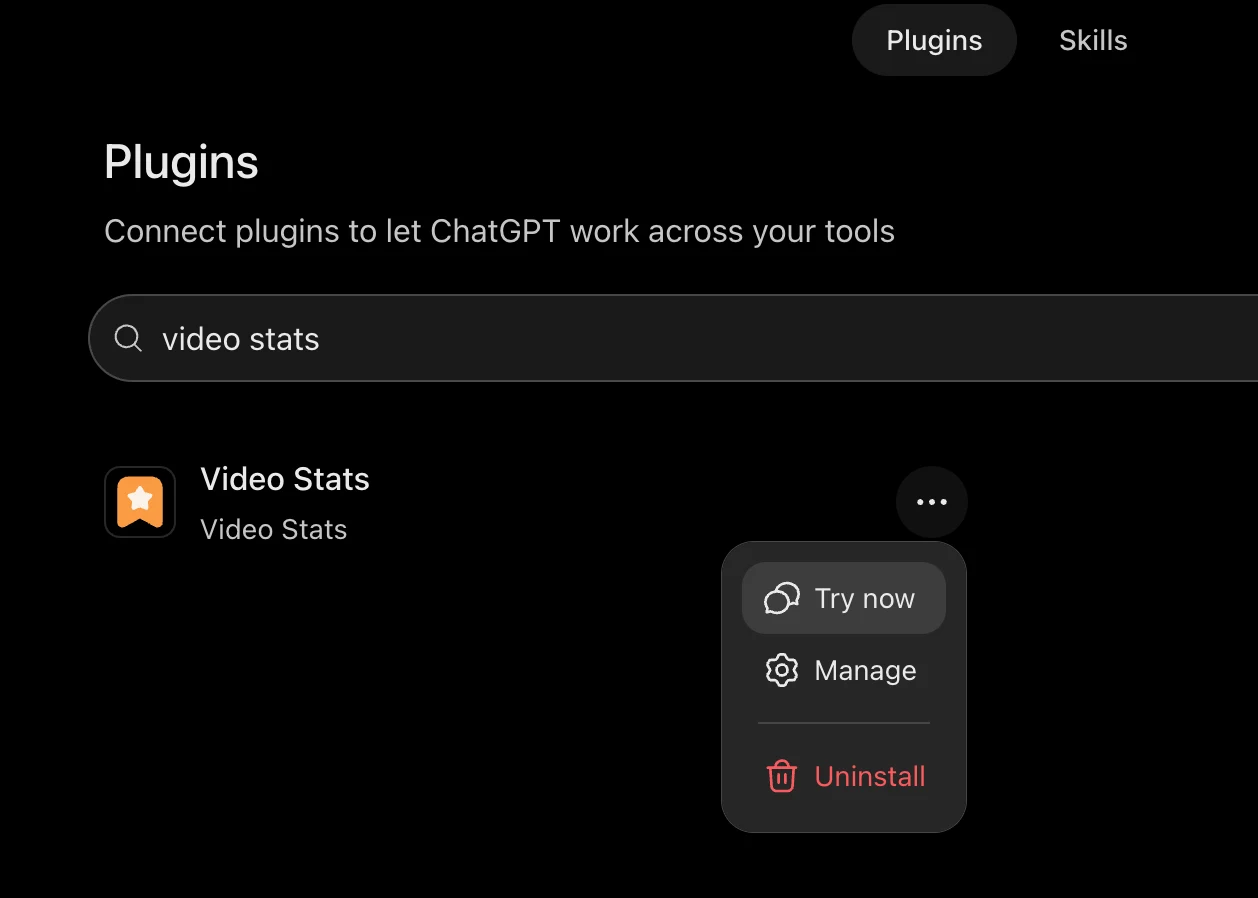
Then ask in plain English. ChatGPT pulls your numbers from Video Stats and answers in a few seconds.
5 questions to ask ChatGPT about your YouTube channel first
Start with these. Each one answers something YouTube Studio can't, and each links to a deeper guide in this series.
1. "Which of my videos brought in the most leads in the last 30 days?"
This is the question from the top of this guide. For Primal Video, it came back like this:
| Video | Link clicks | Leads | Clicks that became leads |
|---|---|---|---|
| DaVinci Resolve Tutorial for Beginners (2026) | 2,211 | 451 | 20.4% |
| How to Use the Instagram Edits App in 2026 | 542 | 220 | 40.6% |
| How to Use OBS Studio (2026) | 921 | 207 | 22.5% |
| CapCut Pad Tutorial: Desktop Editing on iPad | 384 | 160 | 41.7% |
| VN Video Editor Tutorial for Beginners | 590 | 112 | 19.0% |
Primal Video's Video Stats data for the 30 days to September 29, 2026. The channel average is 9.1%.
The Instagram Edits and CapCut Pad tutorials had a quarter of the clicks of the DaVinci Resolve video, but each turned about 41% of them into leads. That tells Justin which topics his viewers act on, which is worth more than which topics they watch.
Here's a 7-day version of the same question, asked in ChatGPT on Primal Video's account. The answer took 22 seconds:
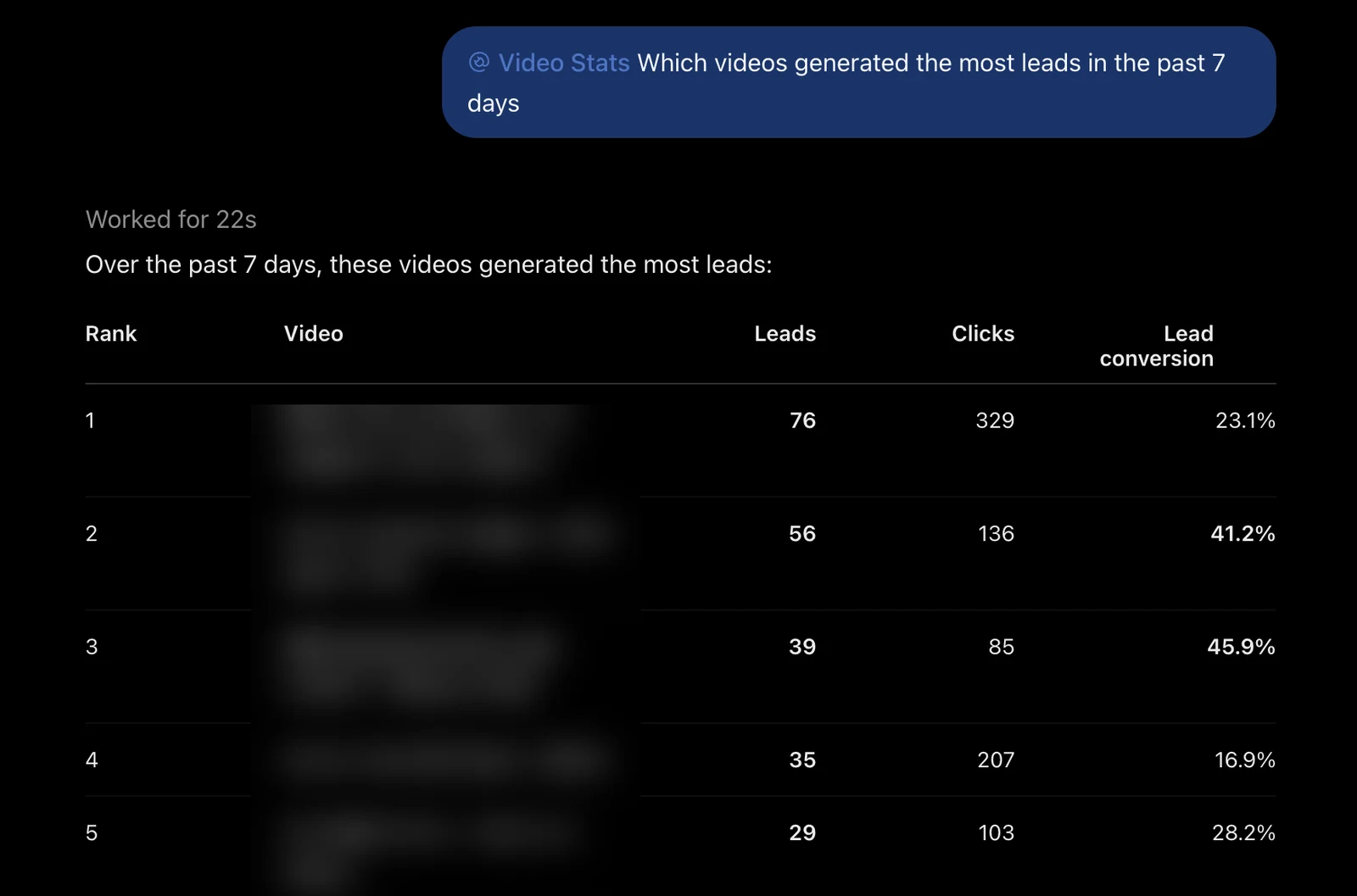
The same pattern shows up over 7 days: the videos with the fewest clicks in the top 5 converted best, at 41.2% and 45.9%.
2. "Which of my landing pages bring in the most leads from YouTube?"
ChatGPT ranks the pages your videos link to by clicks, leads and sales, and can then list the videos sending traffic to any one page. On Primal Video, the Primal Video Method guide page has turned 36% of its 25,217 clicks into leads.
3. "Find my videos with lots of views but few leads."
This finds the popular videos with a conversion problem, which are the cheapest wins on your channel because the traffic is already there. Section 3 of the hub guide shows what it found on Primal Video.
4. "How are my clicks and leads trending compared with last month?"
ChatGPT compares the last 30 days with the 30 before, with daily numbers, so you can tell a real drop from a quiet week.
5. "Give me a health check of my channel for the last 30 days."
A good first question for any channel: ChatGPT summarizes your views, clicks, leads and sales, then points out what's working and what needs attention.
Video Stats sends ChatGPT engaged views by default, the count YouTube Studio uses, and labels which one each answer used. YouTube Engaged Views Explained covers why that matters for your conversion rates.
If ChatGPT doesn't use your Video Stats data
Most problems come down to one of these:
- ChatGPT answers without your numbers. Start your question with @Video Stats so ChatGPT knows to use it.
- You can't find Create MCP App. Check your plan. Free accounts don't have it, and on Business or Enterprise a workspace owner may need to allow custom apps.
- The sign-in keeps looping. Uninstall the app from ChatGPT's Plugins page, sign in to Video Stats in the same browser, and add it again.
- You see the wrong channel's data. The connector URL belongs to one channel. Uninstall the app, switch to the right channel in Video Stats, copy its URL and add it again.
- Clicks, leads and sales are all zero. Video Stats needs to be tracking the links in your descriptions, and leads and sales need the tracking code on your pages.
FAQ
Can ChatGPT analyze my YouTube channel?
Yes, once you give it your data. On its own it can't see your channel. Connect it to Video Stats and it can answer from your current views, link clicks, leads and sales, including which videos bring in customers.
Can I connect ChatGPT to YouTube on the free plan?
No. Custom MCP apps need a paid plan: Plus, Pro, Business, Enterprise or Edu. On the free plan, you can still paste in an export from YouTube Studio.
Is it safe to connect ChatGPT to my YouTube data?
ChatGPT can read your Video Stats data and create QR codes, but it can't change your videos or your YouTube channel. You approve the connection when you add it, and you can remove it at any time.
Do I need a separate connection for each channel?
Yes. Each connector URL belongs to one channel in Video Stats. To use several channels, add an app for each one, with a name like "Video Stats: Channel name".
Does this work with Claude too?
Yes. Claude connects with the same connector URL, as a custom connector. How to Analyze Your YouTube Channel With AI lists every app that works with Video Stats.
Ready to ask ChatGPT which videos pay you? Video Stats tracks every link on every video and connects the results to ChatGPT and Claude. Start your free trial, then follow the 5 steps above.