Ask Your Channel · Part 6
Get a Weekly YouTube Report From AI, Sent Automatically
Have ChatGPT or Claude check your YouTube leads and sales every Monday and send you the report. In this guide, you'll set it up 3 ways, one with no code.

You can have a weekly YouTube report waiting for you every Monday morning, written by AI from your real numbers: which videos brought in leads, how this week compares with last, and the one video worth fixing. You set it up once, and it keeps arriving whether you remember or not.
In this guide, you'll learn 3 ways to get an automated YouTube analytics report, from a no-code option in Claude to one that sends it to your phone, plus the exact prompt we tested.
By the way, the first report we generated this way flagged a video that had 53 link clicks in a week and no leads at all.
Why an AI report beats checking your dashboard
The questions in Part 5 are worth asking every week: how your channel is trending, which videos brought in leads, and which one needs attention. The trouble is remembering to ask, and opening a dashboard when you're busy making videos.
A scheduled report flips that around. Your AI assistant runs your questions on a timer, reads your current numbers through Video Stats, and sends you a short summary. You read it in two minutes and know what to do that week.
It also does something a dashboard can't: it explains. A dashboard shows that leads fell 10%. An AI report tells you that clicks fell less than leads did, so the problem is conversion rather than traffic, and names the video to look at first.
The weekly report prompt we tested
Every option below uses the same prompt. We ran it against Primal Video's live data, and it came back in 21 seconds:
Using Video Stats, write my weekly YouTube report for the last 7 days.
Include: clicks, leads and sales vs the previous 7 days; my top 3 videos
by leads; and the one video with lots of traffic but weak conversion I
should fix. Keep it under 200 words, plain text, no tables, ready to send
as a message.
Here's what it wrote, word for word:
Weekly YouTube Report (Sep 26 – Oct 2)
Clicks: 4,879, down 6.4% from 5,212 the week before.
Leads: 457, down 10% from 508.
Sales: 0 this week and 0 last week.
Lead conversion slipped to 9.4% of clicks, from 9.7%.Top 3 videos by leads:
- DaVinci Resolve Tutorial for Beginners (2026 Update): 86 leads from 370 clicks (23% conversion)
- How to Use the Instagram Edits App in 2026: 55 leads from 140 clicks (39%)
- How to Use OBS Studio, Complete Tutorial (2026!): 42 leads from 210 clicks (20%)
Fix this one: How to Use OBS Studio, Complete Tutorial for Beginners (2025!). It had 5,112 views and 53 link clicks but no leads, against a channel average of 9.6%. The 2026 OBS video converts at 20%. Check that the description link still works, then point it, the pinned comment and an end screen at the 2026 version or its lead magnet.
That "Fix this one" paragraph is the finding from the top of this guide: a tutorial with 53 link clicks in a week and no leads. It's the kind of problem that's easy to miss for months, and a weekly report surfaces it on its own.
Change the prompt to suit you. Ask for sales instead of leads, a 30-day view on the first Monday of the month, or a report for each channel you manage.
3 ways to get your YouTube report sent to you automatically
| Option A: Claude scheduled task | Option B: ChatGPT scheduled task | Option C: Claude Code routine | |
|---|---|---|---|
| Code needed | None | None | A little |
| Runs when your computer is off | Yes | Yes | Yes |
| Where the report arrives | Email (with the Gmail connector) and a push notification from Claude | ChatGPT notification and email | Telegram, email, Slack, or WhatsApp and SMS (via Twilio) |
| Plan needed | A paid Claude plan | A paid ChatGPT plan | Claude Pro, Max, Team or Enterprise |
Each one needs your assistant connected to Video Stats first: Part 2 covers ChatGPT, Part 3 covers Claude, and Part 4 covers Claude Code.
Option A: A Claude scheduled task that emails you (no code)
Claude can run a task on a schedule in the cloud, so it works even when your computer is asleep and Claude is closed. Scheduled tasks are available on Claude's paid plans.
Connect Gmail before you create the task. In Customize → Connectors, make sure both Video Stats and Gmail are connected first. A task only gets the connectors you had when you created it, so if you connect Gmail afterwards, the task still won't email you.
- In Claude, click Scheduled in the sidebar and create a new task. Claude opens the Create scheduled task form.
- Give it a Name, such as "Weekly YouTube Report".
- Paste this prompt into Instructions, with your own email address in place of "my main email":
Using Video Stats, write my weekly YouTube report for the last 7 days.
Include: clicks, leads and sales vs the previous 7 days; my top 3 videos
by leads; and the one video with lots of traffic but weak conversion I
should fix. Keep it under 200 words, plain text, no tables, ready to send
as a message.

Delivery: I want this report emailed to me every week, whether the numbers
are good or bad.

1. Email the report to my main email using the Gmail connector's
   send_message tool. Subject: a one-sentence headline (for example
   "Weekly YouTube report: leads 457 (-10%), clicks 4,879 (-6.4%)").
   Body: the complete report in plain text, not a shortened version.

2. Then call the PushNotification tool with the same headline and the
   complete report.

If the Gmail send fails for any reason, say so at the top of the push
notification so I know to check.
- Set Frequency to Weekly, then pick a time and a day, such as 9:00 AM on Monday.
- Set Permissions to Automatically approve, so the task can use Video Stats and Gmail without stopping to ask you.
- Leave Require this computer switched off, so the task runs in the cloud even when your computer is asleep. Then click Save.
The prompt spells out the delivery on purpose. "Whether the numbers are good or bad" stops the task from skipping a quiet week, the subject line puts the headline numbers in your inbox, and the push notification tells you if the email ever fails.
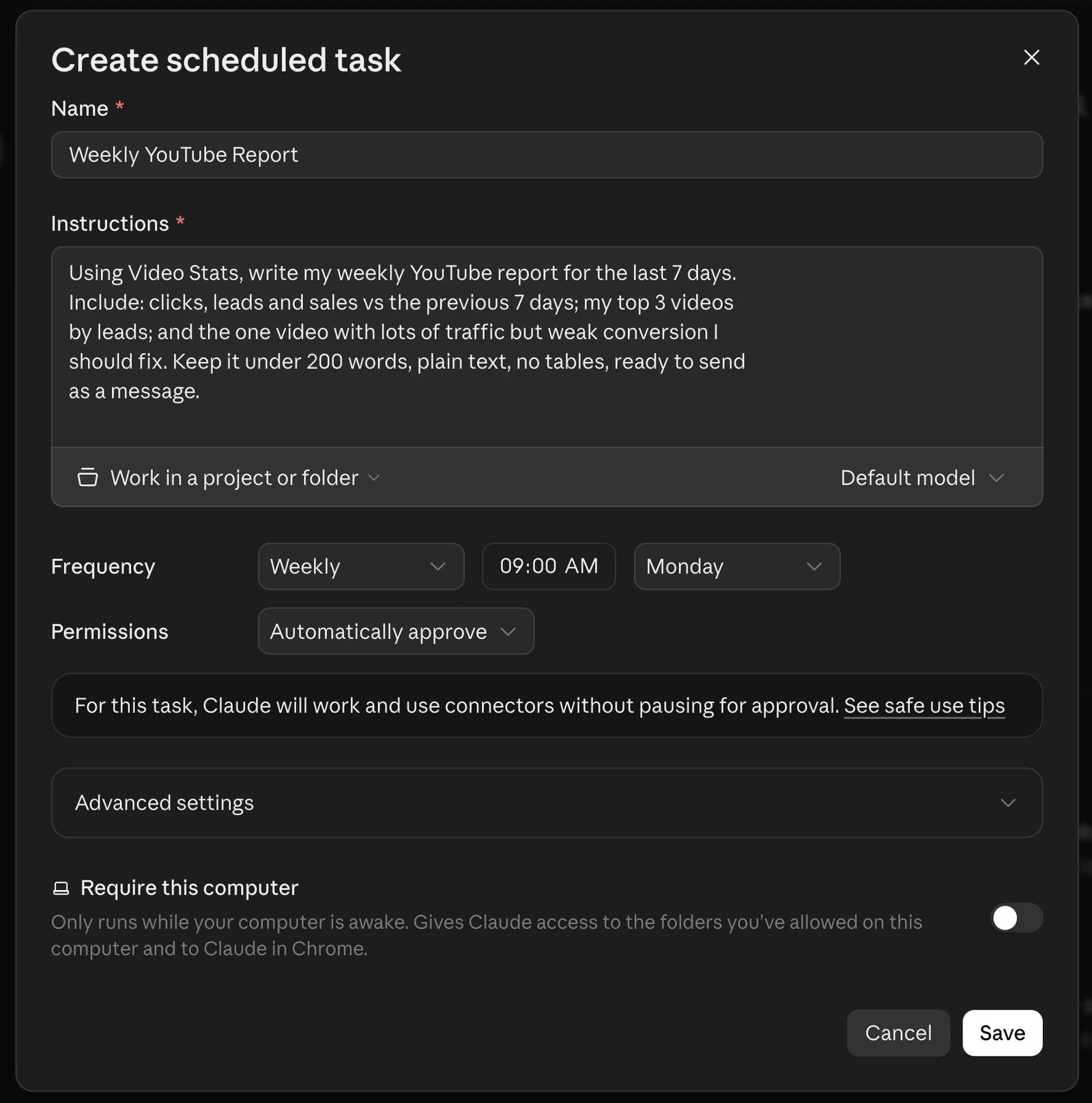
With Automatically approve, Claude uses your connectors without pausing for approval, which is what lets the email go out on its own.
Before you leave it to run, test it. On the Scheduled page, click ••• on your task and choose Run now.
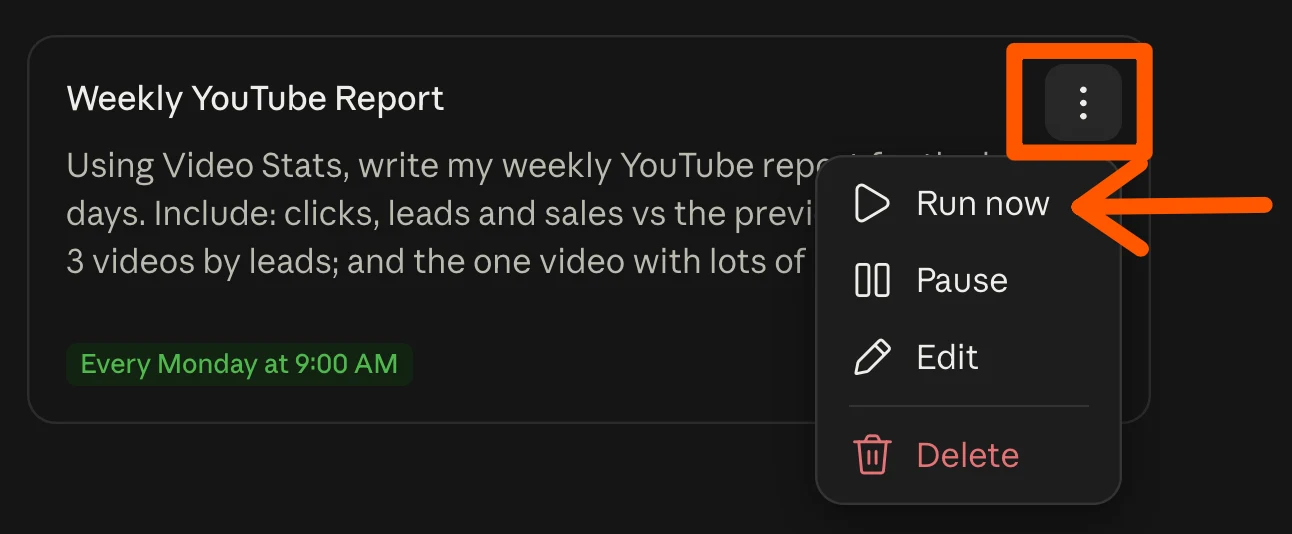
A few minutes later, the report lands in your inbox, with the headline numbers in the subject line:
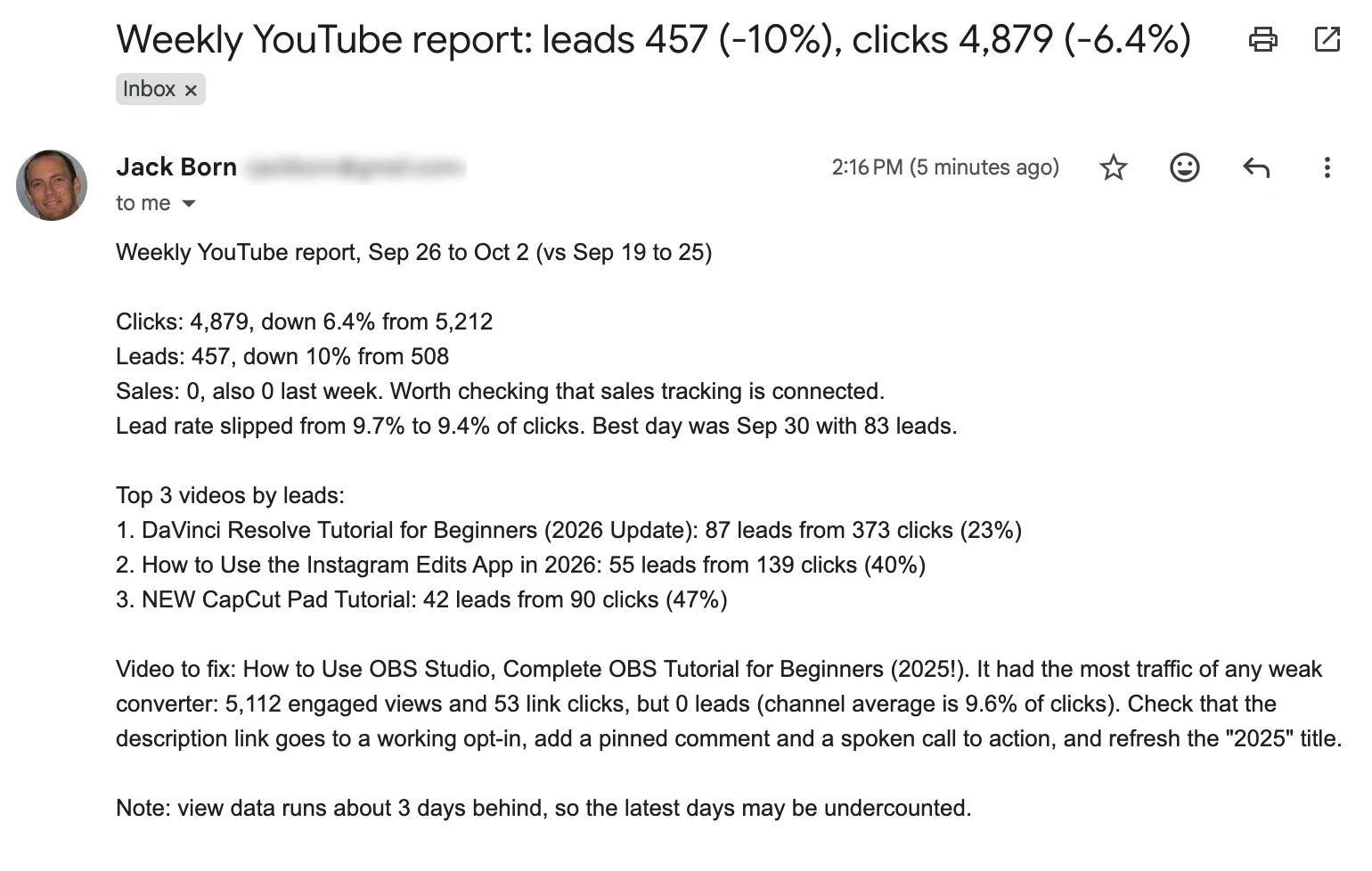
The real email from our test run on Primal Video's channel, sent by the Claude scheduled task through Gmail.
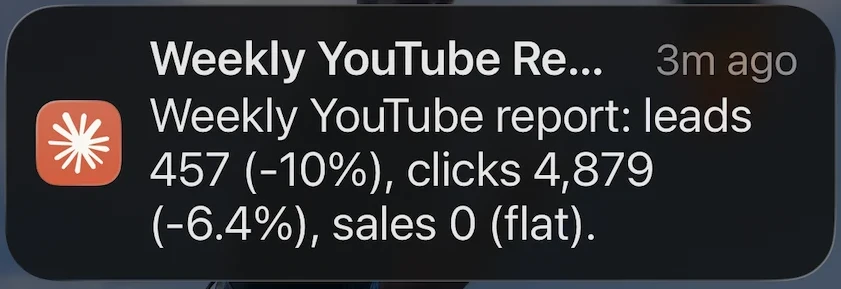
The push notification arrives on your phone at the same time, so you see the headline even before you open your email:
Option B: A ChatGPT scheduled task (no code)
ChatGPT can also run a prompt on a schedule, and it sends you a notification and an email with the result when each run finishes. Scheduled tasks can use your connected apps, including Video Stats, on a paid plan.
Start a chat with @Video Stats, paste the prompt, and add "Do this every Monday at 7am." ChatGPT confirms the schedule, and you can change or pause it from its Scheduled page. Tasks can run at most once an hour.
Option C: A Claude Code routine that sends it to Telegram
If you'd like the report on your phone in Telegram, a Claude Code routine can do it. Routines are Claude Code's scheduled tasks: they run in the cloud on a Pro, Max, Team or Enterprise plan, so your computer can be off, and they use the connectors on your Claude account, including Video Stats. You set one up in your browser at claude.ai/code/routines.
1. Create a Telegram bot and copy its token. In Telegram, message @BotFather and send /newbot. Give your bot a display name, then a username that ends in "bot". BotFather replies with your bot's token: a long code that starts with numbers and a colon.
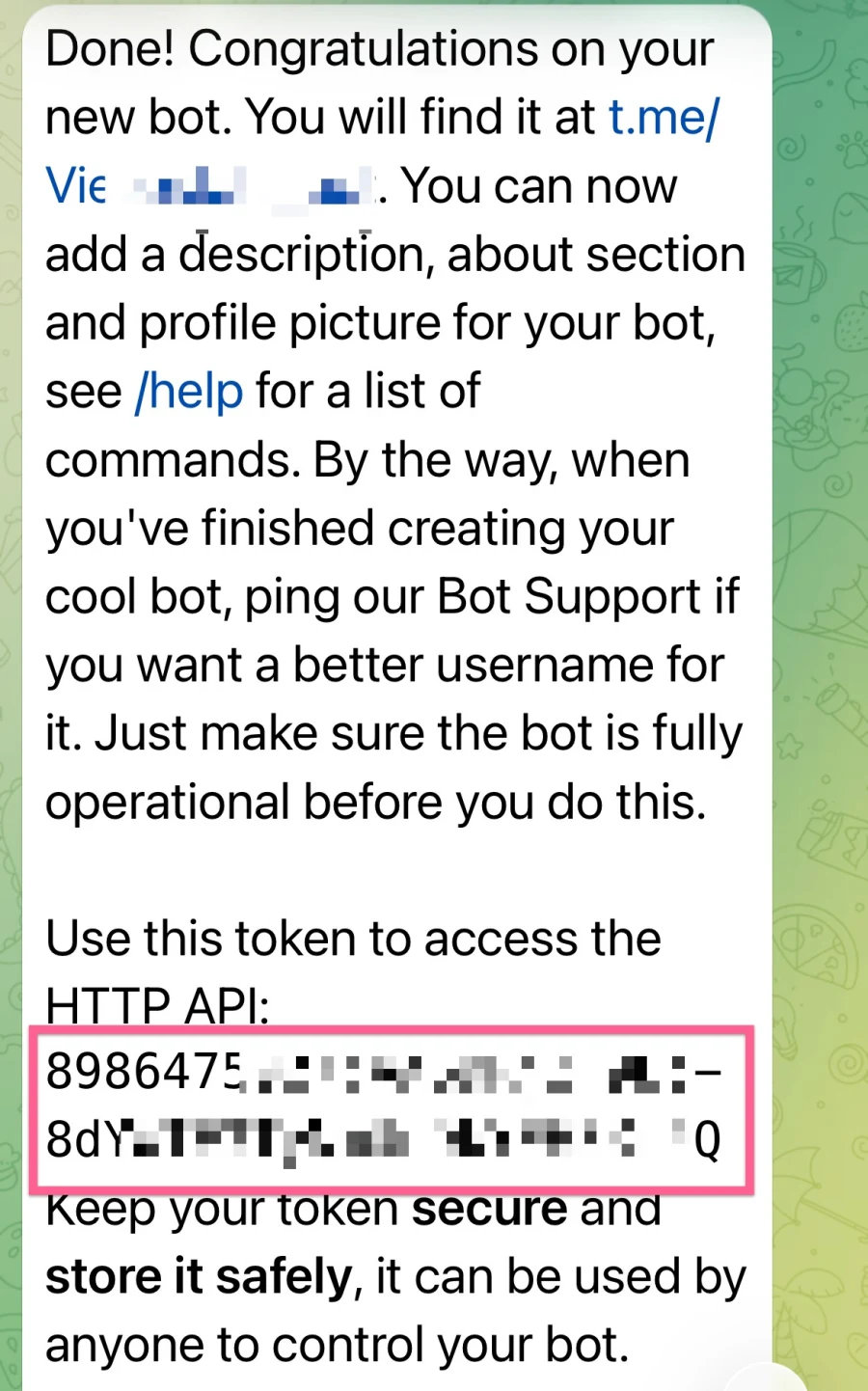
Treat the token like a password: anyone who has it can send messages as your bot.
Copy it rather than retyping it. Telegram shows the token in a font where the letter O and the number 0 look almost the same, and one wrong character means Telegram rejects every message with "Unauthorized".
2. Find your Telegram chat ID. This is the number that tells your bot where to send the report, and Telegram doesn't show it in the app. To get it:
- Open your new bot in Telegram, tap Start, and send it any message, such as "hi". Your bot can only message chats that have messaged it first.
- In your browser, go to this address, with your token in place of
<TOKEN>(keep the wordbotdirectly in front of it):
https://api.telegram.org/bot<TOKEN>/getUpdates
- Find
"chat":{"id":in the text. The number after it, such as123456789, is your chat ID. If the page shows"result":[], send your bot another message and refresh.
No luck? Message @userinfobot in Telegram, and it replies with your ID, which is the same number.
3. Check the bot can message you. Before building the routine, send yourself a test from your computer's terminal, with your token and chat ID filled in:
curl -s "https://api.telegram.org/bot<TOKEN>/sendMessage" -d chat_id=<CHAT_ID> -d text="Test from my YouTube report bot"
If the message arrives, both are right. If you see "Unauthorized", the token is wrong. If you see "chat not found", check the chat ID, or send your bot a message first.
4. Create the routine. Go to claude.ai/code/routines and click New routine. Name it, then paste this as the instructions:
Using Video Stats, write my weekly YouTube report for the last 7 days.
Include: clicks, leads and sales vs the previous 7 days; my top 3 videos
by leads; and the one video with lots of traffic but weak conversion I
should fix. Keep it under 200 words, plain text, ready to send as a
message.

Then send the complete report to my Telegram with:
curl -s "https://api.telegram.org/bot$TELEGRAM_BOT_TOKEN/sendMessage" \
  -d chat_id="$TELEGRAM_CHAT_ID" --data-urlencode text="<the report>"
5. Let the routine reach Telegram, and give it your bot's details. Routines can only reach approved websites by default, and the routine needs your token and chat ID. Both live in the routine's environment:
- Below the Instructions box, click the cloud icon with your environment's name, such as Default.
- Hover over the environment and click the settings icon on the right. The Edit environment dialog opens.
- Set Network access to Custom, add
api.telegram.orgunder Allowed domains, and tick Also include default list of common package managers. - In Environment variables, paste these two lines, with your own chat ID and token after the equals signs:
TELEGRAM_CHAT_ID=your-chat-id
TELEGRAM_BOT_TOKEN=your-bot-token
- Click Save changes.
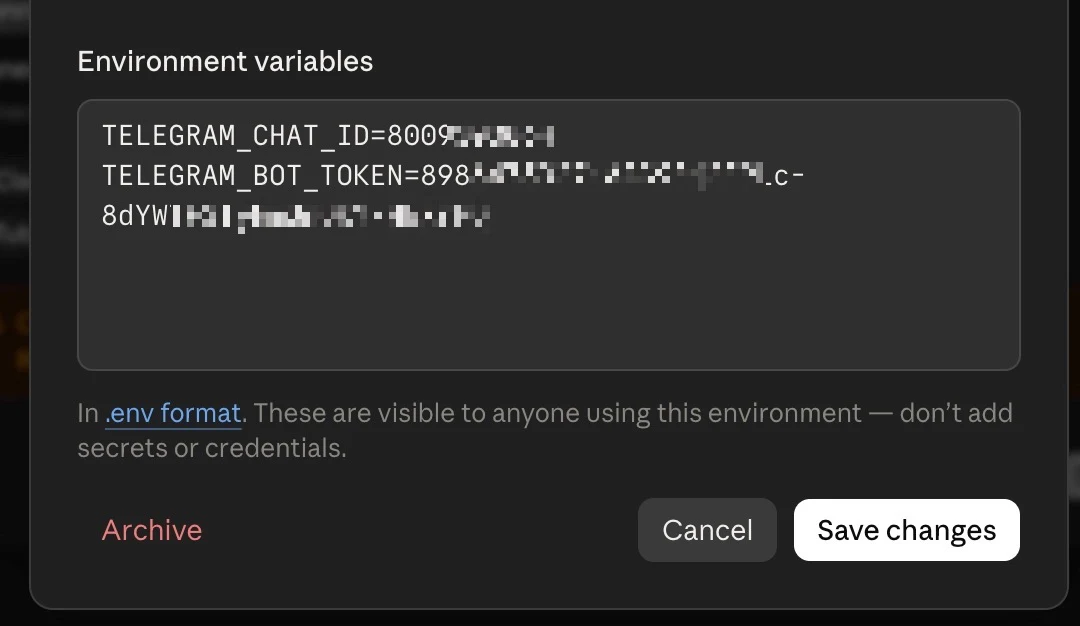
Environment variables are visible to anyone who uses that environment, so create one just for this routine that only you use. If your plan offers API credentials for the environment, store the bot token there instead.
6. Schedule it. Under Select a trigger, choose Schedule, Weekly, and a time a few minutes past the hour, such as 9:07 on Monday. Routines set exactly on the hour can start several minutes late. Check that Video Stats is included under Connectors, then click Create.
7. Test it. Click Run now on the routine's page. A minute or two later, Telegram lets you know the report has arrived:
Here's the report from our test run on Primal Video's channel:
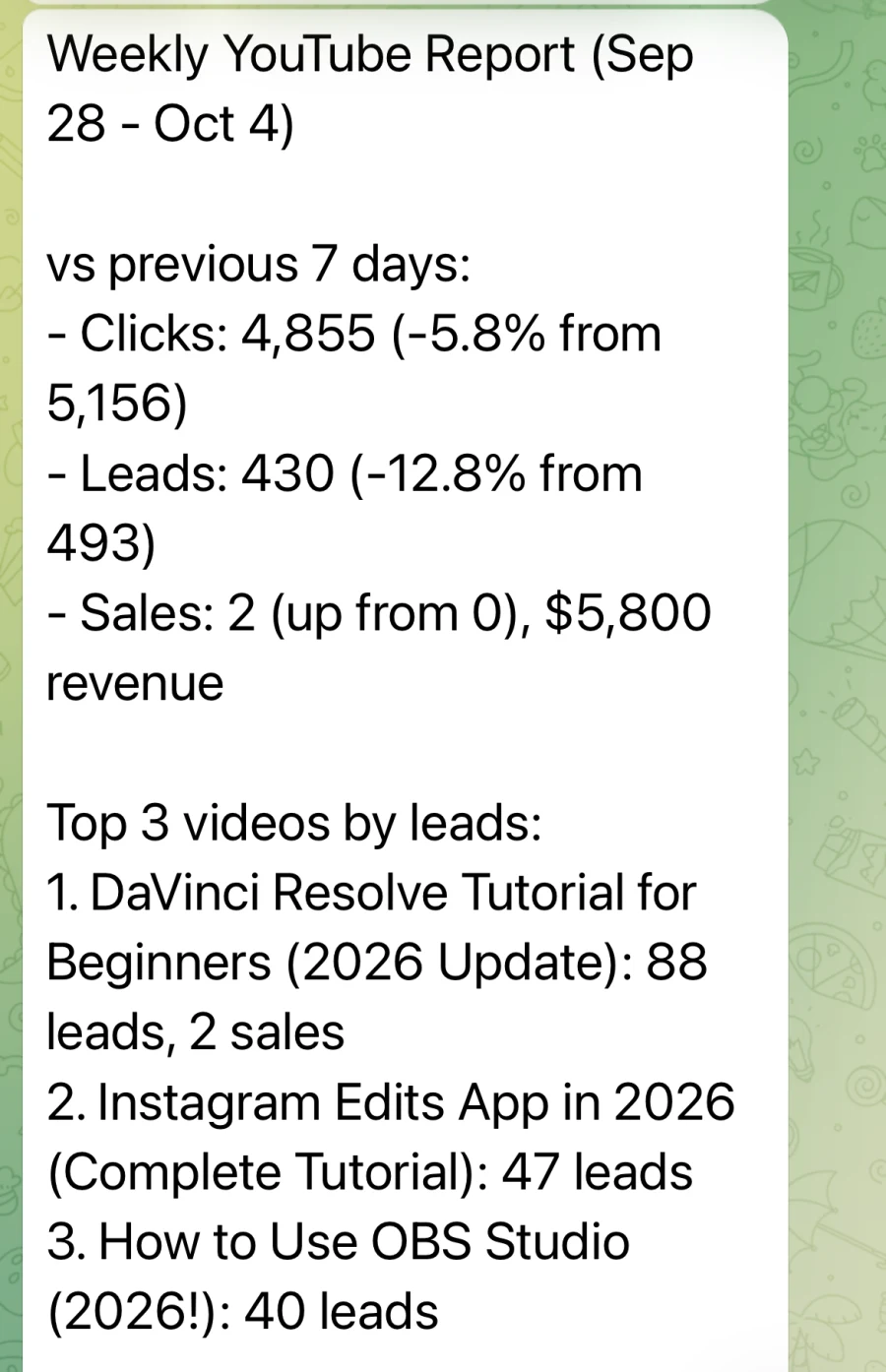
Same prompt, a week later: this time the report caught 2 sales worth $5,800, both from the DaVinci Resolve tutorial.
The report is one-way: replying in Telegram won't reach Claude. For follow-up questions, open Claude or ChatGPT on your phone, where Video Stats is already connected.
The same approach works for any service with a simple way to send a message. Twilio can send the report as an SMS or a WhatsApp message, and Slack works too.
Tip for launch day: to keep an eye on a new video while you're at your desk, Claude Code's /loop repeats a question on an interval for as long as that session is open. For example: /loop 1h Using Video Stats, check my newest video's clicks and leads and tell me if anything stands out.
You're only limited by your imagination: more ways to use your weekly report
Once your assistant can read your channel on a schedule, the report is only the start. Claude can use any connector on your account, so the same routine can post to Slack, update your calendar or keep a running log. A few ideas to try:
- Post it to your team's Slack. With the Slack connector, the report lands in a channel every Monday, so your editor, writer and VA see the same numbers you do.
- Send each client their own report. Agencies can set up one task per client channel, each with its own Video Stats connection, and deliver a branded summary to each client on the same morning.
- Get alerts instead of reports. Run a check every day and only message you when something changes: leads drop by more than 20%, a video's link suddenly gets clicks but no leads (often a broken link), or a QR code starts getting scans.
- Check every new video after 48 hours. A daily task can look for videos you published in the last two days and tell you how their first clicks and leads compare with your usual launch.
- Block time to act on it. With the Google Calendar connector, the task can add a 30-minute event on Monday called "Fix: [the video the report flagged]", so the finding turns into action.
- Have the fix drafted for you. Ask the report to include a rewritten description link and a pinned comment for the video it flags, ready to paste.
- Go deeper once a month. On the first Monday of each month, swap in a 90-day review, a thumbnail audit or a "what should I make next" analysis from Part 5.
- Keep a history. With a connector like Notion, each week's report can become a new page, so in six months you can ask which changes made a difference.
Start with one report, then add one idea at a time. Each is a sentence or two added to the instructions you already have.
Video Stats' built-in email reports
If you only want the same numbers every week, Video Stats can email them without any AI. In Settings → Reports, pick up to 6 channel stats, star the videos and links you care about, and choose daily, twice weekly, weekly or monthly. Each number comes with the previous 7 days for comparison.
The AI report is for when you want the analysis too: which video to fix, why leads moved, and what to do about it. Many people use both.
FAQ
Can ChatGPT send me a YouTube analytics report automatically?
Yes. Connect ChatGPT to Video Stats, then ask it to run your report prompt on a schedule. ChatGPT sends you a notification and an email when each run finishes. Custom connections need a paid ChatGPT plan.
Does my computer need to be on?
No. Claude scheduled tasks, ChatGPT scheduled tasks and Claude Code routines all run in the cloud, so the report arrives even when your computer is off.
Can I get the report on WhatsApp?
Yes, with the Claude Code option and a messaging service like Twilio, which can send WhatsApp messages and SMS. Telegram is the simplest to set up because its bots are free and take a few minutes.
Can I get a report for each channel I manage?
Yes. Each Video Stats connection covers one channel, so set up a scheduled task or script for each connection, or connect several channels and ask for one report covering all of them.
Want a weekly report that tells you which videos bring in leads? Video Stats tracks every link on every video and connects the results to ChatGPT, Claude and Claude Code. Start your free trial, then schedule your first report.


