YouTube to Email · Part 3
YouTube QR Codes: Turn TV Viewers Into Email Subscribers
Your viewers on a TV can't click your links. In this guide, you'll learn how to add trackable QR codes to your YouTube videos, with real scan data.

Some of your viewers can't click a single link in your description, because they're watching on a TV. Give them a QR code, and they can scan it from the couch without pausing the video.
On Primal Video, Justin Brown's channel, the QR codes in five tutorials brought in 1,687 email subscribers in the last 90 days. In this guide, you'll learn why QR codes matter more on YouTube every year, 4 ways to put one in your videos so viewers scan it, and how to track every scan back to the video it came from.
By the way, there's a trick that lets viewers scan your code on the same phone they're watching on.
Why most creators can't tell which QR code brought in a subscriber
QR codes in YouTube videos have a chicken-and-egg problem, and Justin and his brother Mike used to live with it.
The QR code has to go into your edit before you upload, because it's part of the video. But YouTube only gives your video its ID after you upload it. With a standard QR code, the link is baked into the image, so it can't include the video ID, and you can't tell which video a scan came from.
That means the numbers you need, which videos' codes get scanned and which scans turn into subscribers, are lost unless you track them by hand. Justin and Mike did exactly that, with a complex spreadsheet that matched each QR code to the video it ended up in.
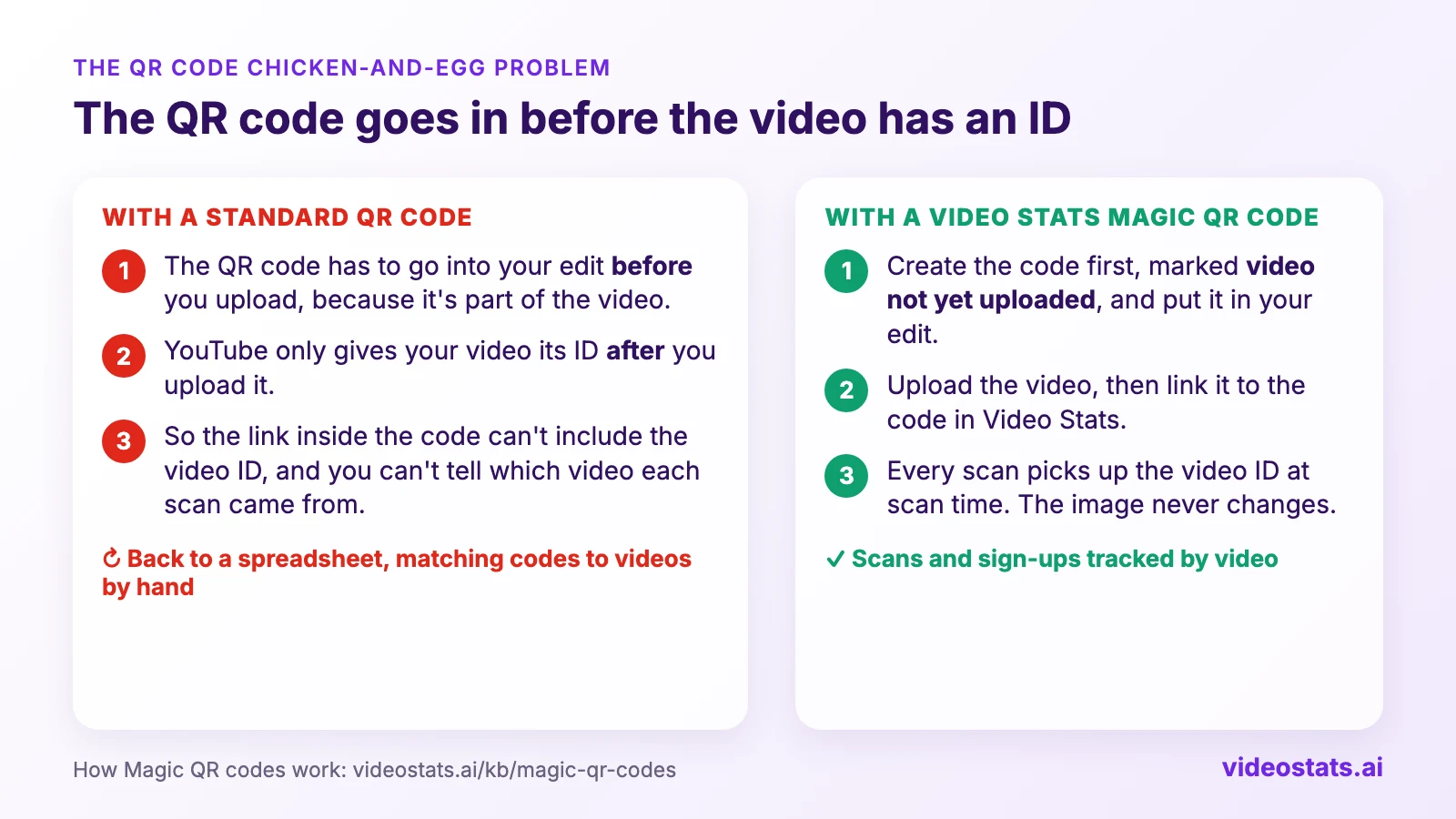
The video ID doesn't exist until after the code is already in the video.
A standard QR code has a second problem: once the video is live, the link is locked in. In Justin's words, if an affiliate link changes or a promotion ends, "there is literally nothing you can do about it to change that because it's inside the video." That's why so many creators skip QR codes. Later in this guide, you'll see how Justin and Mike fixed both problems.
Why QR codes matter more on YouTube every year
Two trends make QR codes worth adding to your videos now.
More of your viewers are watching on a TV. TV has overtaken mobile as the main screen for watching YouTube in the US, by watch time, and viewers watch more than 1 billion hours of YouTube on TVs every day, according to YouTube's CEO (Our big bets for 2025). His letter adds that, according to Nielsen, YouTube had already been number one in US streaming watch time for two years. In July 2026, YouTube reached a record 14.2% of all TV viewing in the US, more than any other media company, according to Nielsen's Gauge. Someone watching on a TV can't click a link in your description. They can point their phone at your screen.
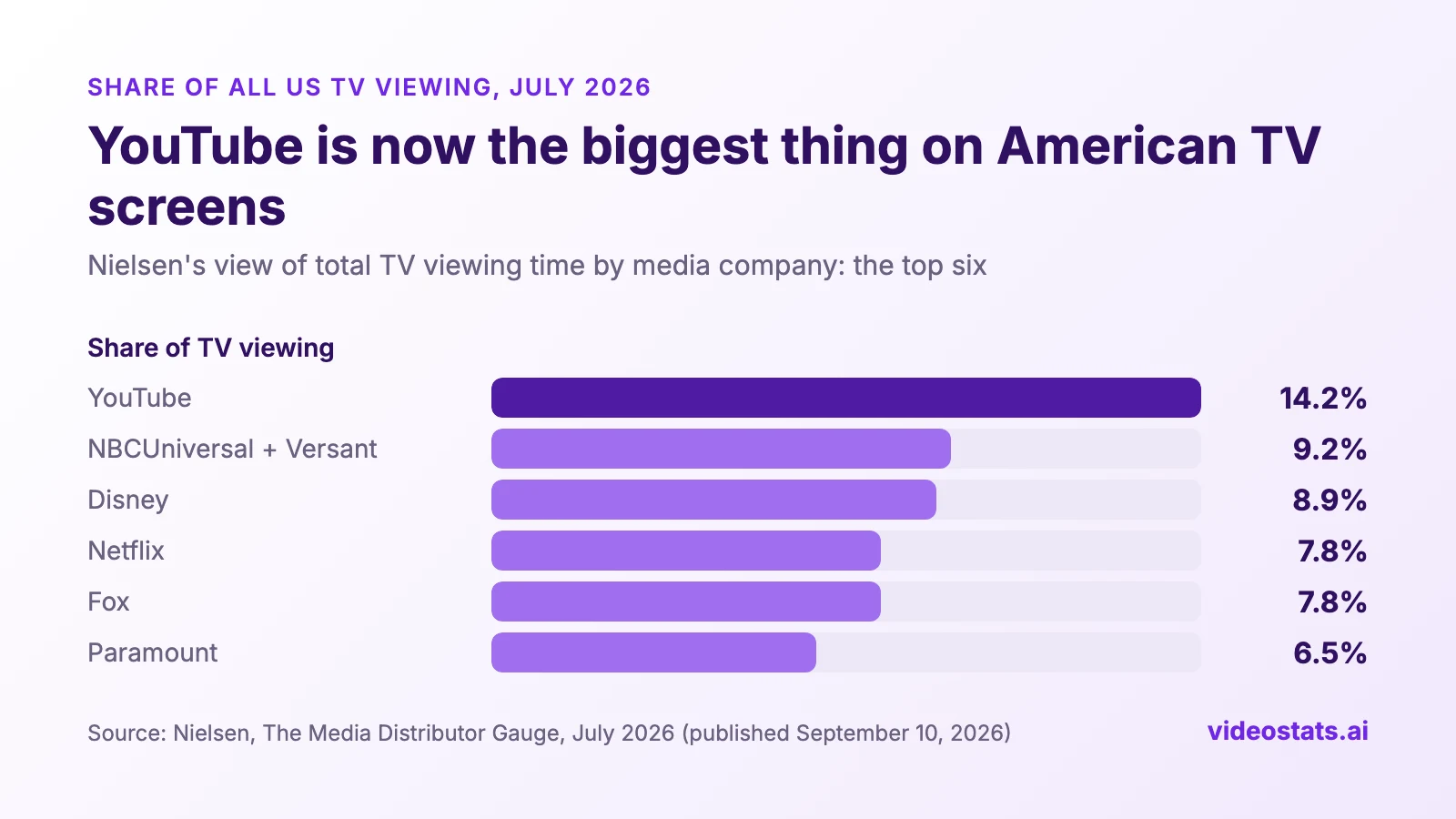
YouTube now gets more of America's TV time than any TV network or streaming service. Data from Nielsen's Media Distributor Gauge.
TV isn't the only case. As Justin puts it, "think about all the people that are sitting at a computer or their laptops that have their phone sitting right next to them."
Viewers know what to do with a QR code. The pandemic turned QR codes into an everyday habit, on restaurant menus and at checkouts. In 2020 alone, the number of US smartphone users who scanned one grew by 24.9%, to 65.7 million, and eMarketer forecast steady growth after that, to 99.5 million in 2025, more than 4 in 10 smartphone users (eMarketer). You don't have to explain what a QR code is anymore.
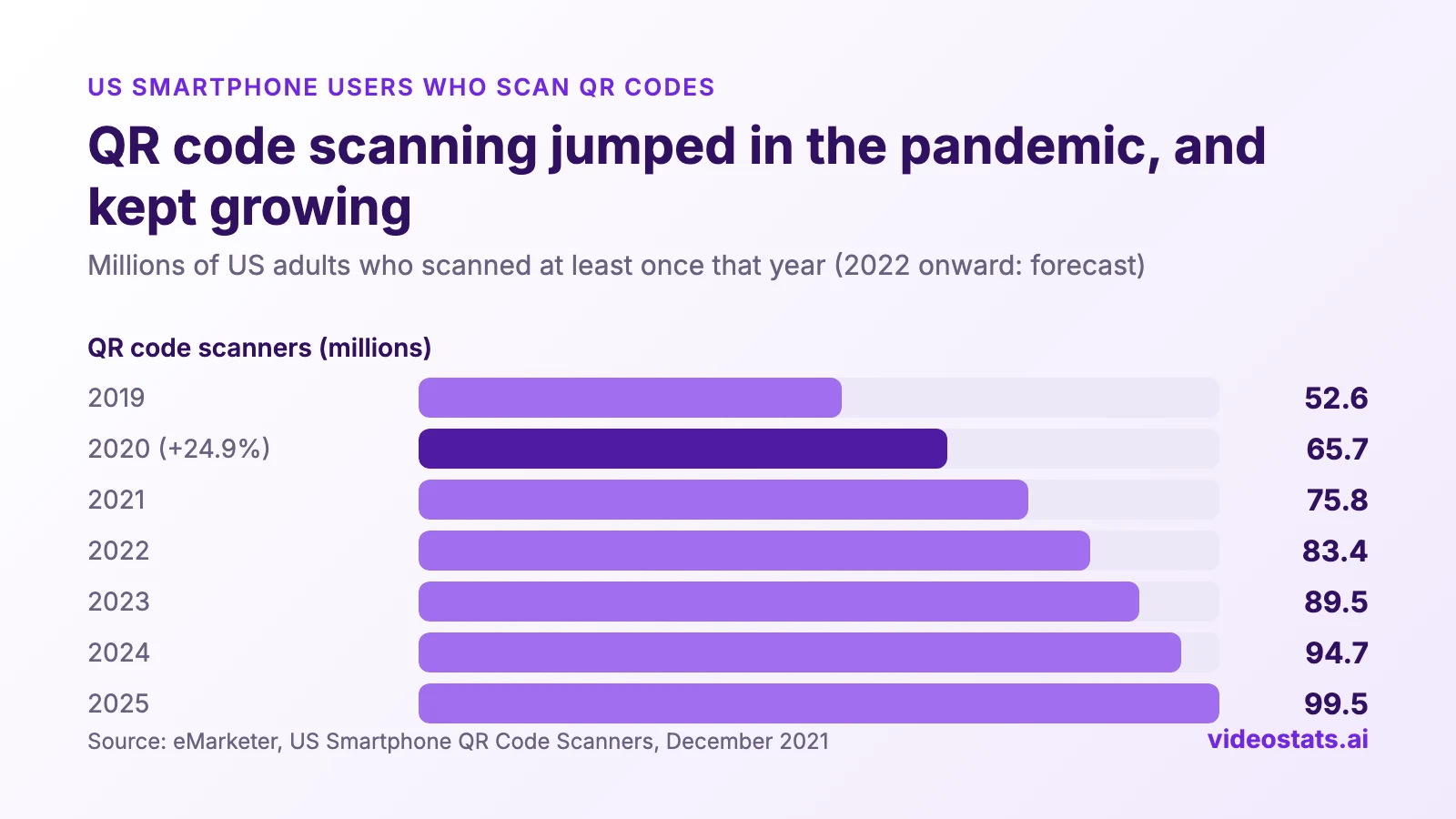
The pandemic jump in 2020 made scanning a habit, and the habit stuck. Data from eMarketer.
You're still early. Most YouTube videos don't have a QR code, so the creators who add one now reach viewers that everyone else's links miss.
How well QR codes work in YouTube videos: Primal Video's numbers
Primal Video puts a QR code in many of its tutorials, usually pointing at a free lead magnet that matches the video. Over the last 90 days, five of those codes brought in 1,687 email subscribers, and more than half of all scans signed up on most of them:
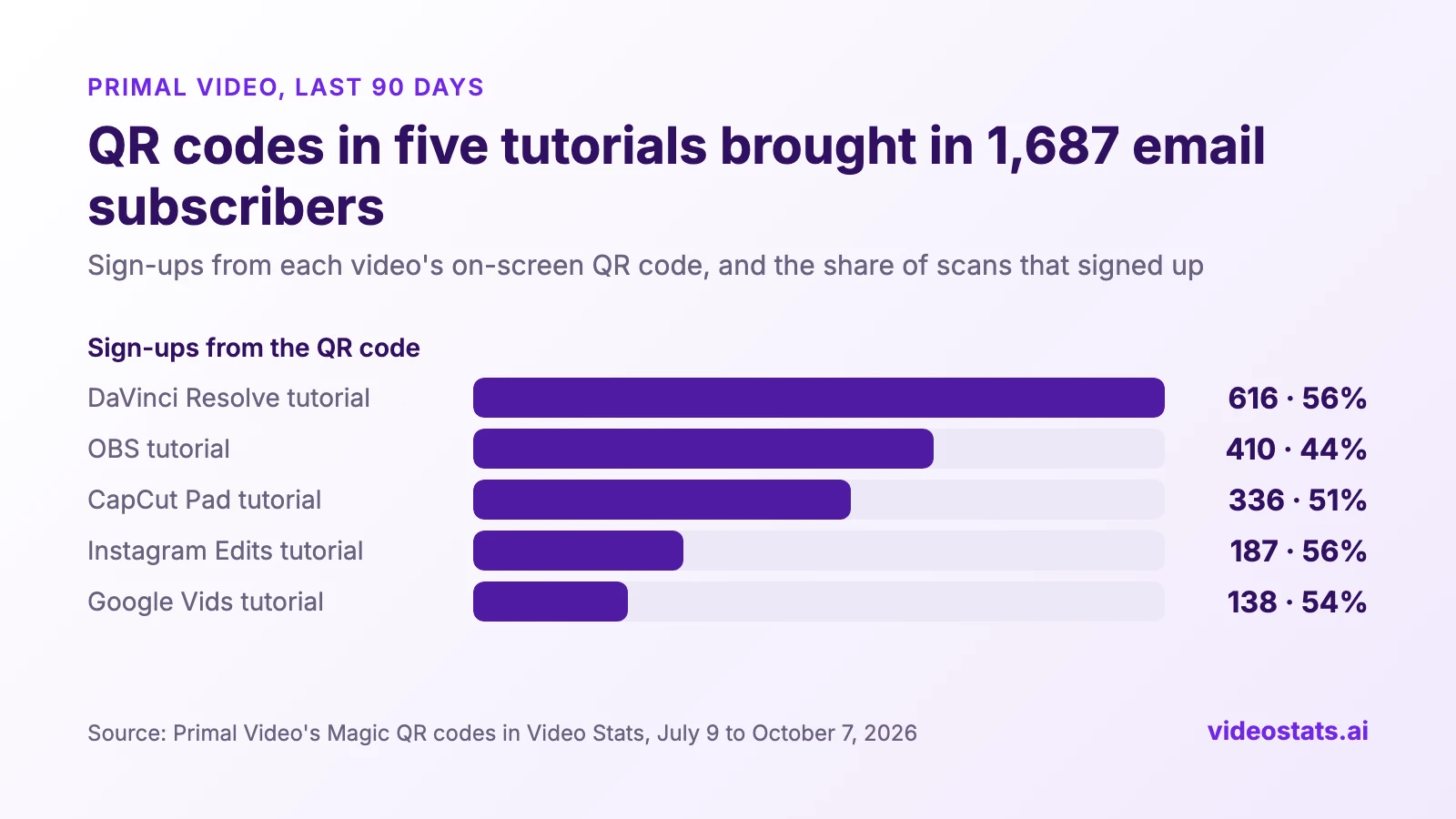
People who scan from the couch still sign up. On four of the five codes, more than half of them did.
QR codes work for affiliate links too. The code for the CapCut Pad app in Primal Video's CapCut Pad tutorial was scanned 1,704 times in the same 90 days, and the codes for two microphones in its microphone guide were scanned more than 900 times between them.
4 ways to get viewers to scan your YouTube QR code
1. Keep a small QR code on screen for the whole video
Primal Video keeps a small QR code in the bottom-right corner of the screen throughout its videos, so it's there whenever a viewer decides they want the link:
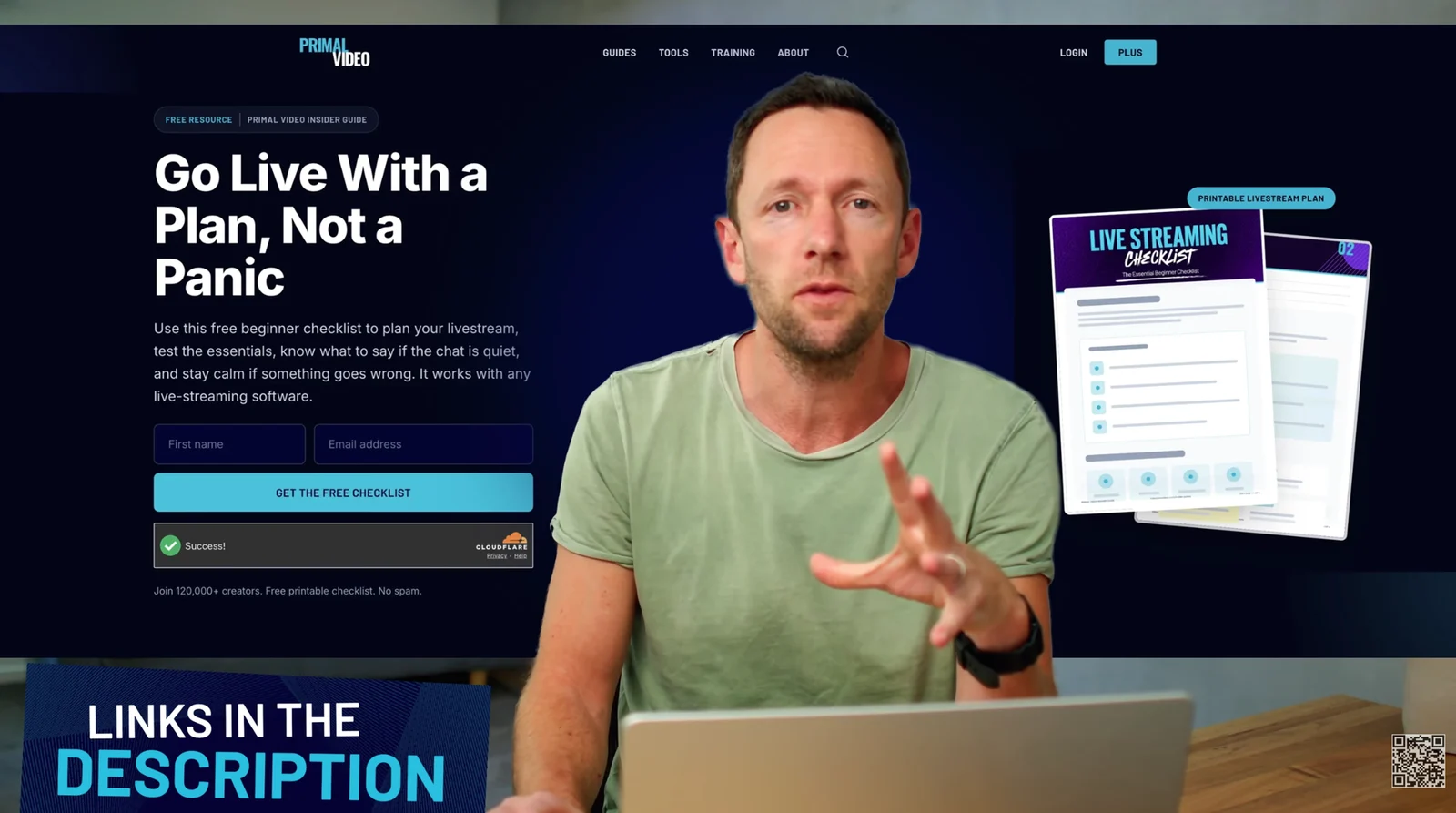
The small code in the corner stays on screen the whole time.
The easiest way to do this on every video at once is YouTube's video watermark. In YouTube Studio, under Customization, you can upload a square image (at least 150 × 150 pixels, under 1 MB) and choose to show it for the entire video. YouTube places it in the bottom-right corner of your videos (YouTube Help). Upload a QR code as that image, and every video you've published gets a scannable code, old ones included.
Two things to know: watermarks don't appear on videos made for kids, and YouTube says they may not appear in every player. And because the watermark is the same on every video, it can't tell you which video a scan came from. Point it at an offer that suits your whole channel, such as your newsletter or your most popular lead magnet, and use a per-video code (below) for your matched offers. Video Stats creates a QR code for your watermark when you set up your account.
2. Make it big at the moment you ask
When Justin gets to his call to action, the small code grows into a big "Scan me" box, right next to the lead magnet he's talking about:
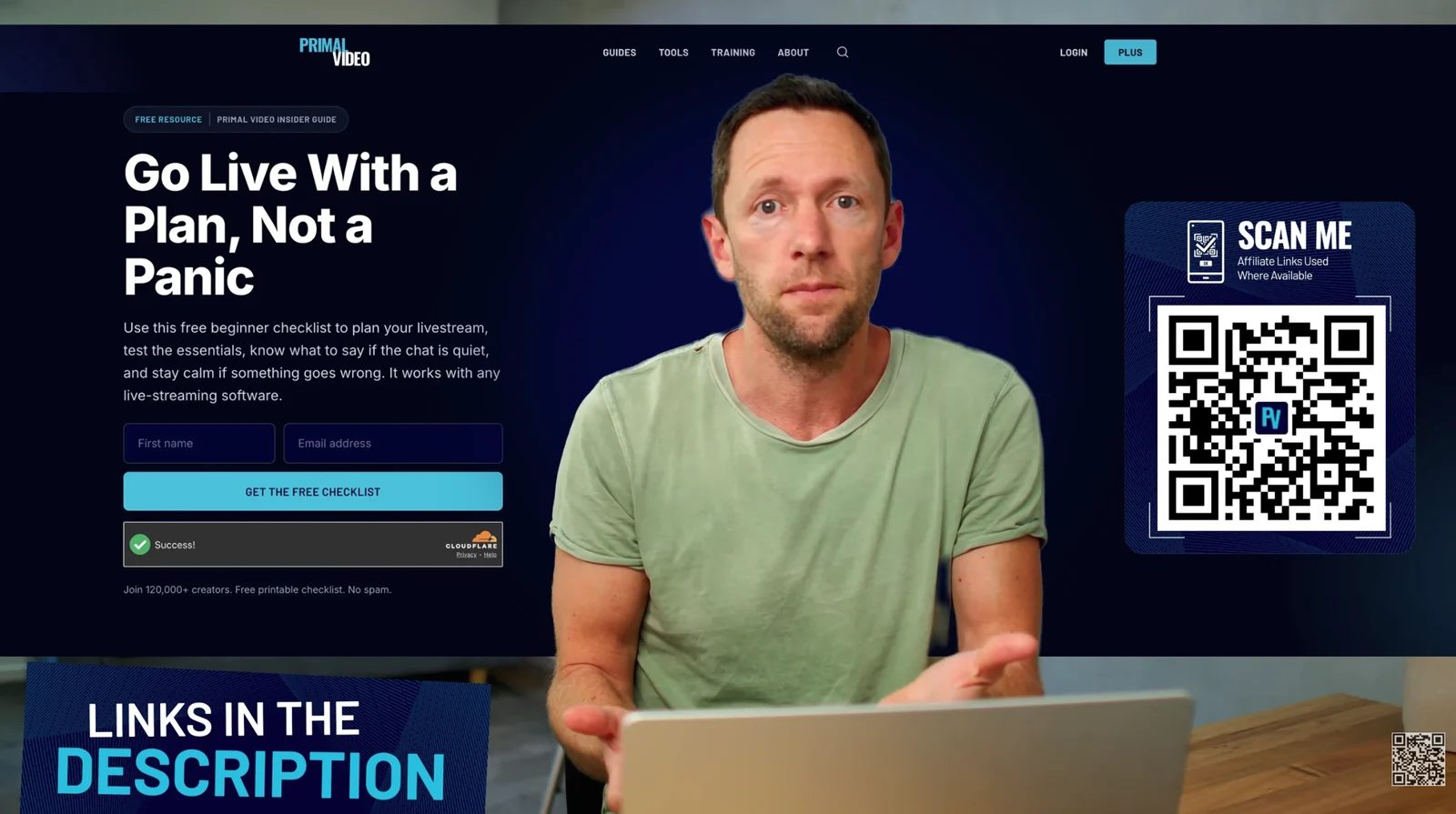
A few seconds after the frame above, the corner code becomes a big "Scan me" box next to the offer.
A few tips for the big code:
- Make it big enough to scan from across the room. Primal Video's code fills about a quarter of the screen's height. Test it from your own couch before you publish.
- Keep it on screen for a few seconds, long enough for someone to find their phone and open the camera.
- Give it contrast and space. A dark code on a white background, with a clear margin around it, scans fastest. A small logo in the middle is fine.
- Label it. "Scan me" tells viewers it's for them, and a line about what they'll get gives them a reason.
3. Say it out loud
A code on screen works better when you mention it. Tell viewers what it's for and where it is: "Scan the code on screen to grab the checklist, or use the link in the description." Justin points to both places every time, so viewers on a TV and viewers who can click both know what to do.
4. Show viewers on a phone the long-press trick
Viewers watching on their phone can't point their camera at their own screen. But they can still scan your code:
- On Android, they press and hold the home button or navigation bar to open Circle to Search, which now spots QR codes on screen automatically and shows a link to open (Android Authority). It's available on recent Pixel and Samsung Galaxy phones.
- On iPhone, they take a screenshot, open it in Photos, and press and hold the QR code to open its link (Bitly).
The same trick works for a QR code in any image saved on a phone. It's worth a one-line mention in your video: "Watching on your phone? Take a screenshot, then press and hold the code to open it."
3 ways to add a trackable QR code to your YouTube videos
The first two work, but each leaves you with a gap. Option C closes both.
Option A: A free QR code generator
Paste a link into a free generator, download the image and put it in your edit.
- Good for: free, quick, and fine for a link that will never change.
- Where it falls short: the link is fixed forever once the video is published. You don't see how many people scanned it, and the code can't tell you which video a scan came from.
Option B: A dynamic QR code service
Paid dynamic QR code services send each scan through a short link first, so you can change the destination later and see a scan count.
- Good for: you can update the link after the video is live, and you see how many times each code was scanned.
- Where it falls short: the service doesn't know which YouTube video the code is in, so you still match codes to videos by hand: the spreadsheet problem. And a scan count isn't a sign-up count. You see that people scanned, not whether they joined your list.
Option C: Video Stats Magic QR codes
This is how Justin and Mike replaced their spreadsheet. Video Stats, which Justin co-founded, creates Magic QR codes that are built for YouTube:
- Create the code before the video exists. Choose "video not yet uploaded", download the code and put it in your edit. Once the video is live, link it to the code in Video Stats. From then on, every scan picks up the video's ID automatically, while the image in your video stays the same.
- Change the destination at any time, even years after the video is published.
- See scans, sign-ups and sales by video, alongside the clicks from your descriptions.
- Use your branding. Codes come with your channel's logo and colors, and on some plans as ready-made "Scan me" cards for long videos and lower-third overlays for Shorts.
Justin walks through creating a Magic QR code, linking it to a video and changing its destination in this video:
"The QR Code Problem Every YouTuber Has (And How We Fixed It)", from Primal Video.
Here's how it handles each drawback above:
| The problem | How Video Stats solves it |
|---|---|
| The link is fixed forever once the video is published (A) | Change the destination at any time, without changing the image |
| You don't see how many people scanned it (A) | Every scan is counted |
| The code can't tell you which video a scan came from (A, B) | Link the video after upload, and every scan carries its video ID |
| You match codes to videos by hand (B) | No spreadsheet: each code is tied to its video in Video Stats |
| A scan count isn't a sign-up count (B) | You see the sign-ups and sales that came from each code |
One limit to know: sign-ups are counted on pages where the Video Stats tracking code is installed, or on Video Stats opt-in pages.
Options A and B leave you guessing or updating a spreadsheet with every video. Option C keeps tracking your QR codes after you've set it up once.
What to put behind your YouTube QR code
A QR code is only as good as the page it opens. The codes that brought Primal Video the most subscribers all point at a free lead magnet that matches the video: the livestream checklist in the OBS tutorial, a step-by-step editing guide in the editing tutorials.
The same rules apply as for the link in your description. Offer the next step from the video, make it sound quick to use, and make sure the page works well on a phone, because that's where everyone who scans will see it. YouTube Lead Magnets That Convert: Dos and Don'ts, part 2 of this series, covers how to choose one.
5 tips for getting more from your YouTube QR codes
Once your QR codes are tracked, a few habits make them look better, take less time and fit into how your team works.
-
Put your own logo in the middle. A QR code with your logo looks like it belongs to your channel, so viewers trust it more than an anonymous square. You can save more than one logo in Video Stats and choose which goes on each code: your channel logo for most videos, say, and a product or course logo for the code that promotes it.
-
Pick a color that matches your branding. Choose the color preset closest to your channel's look, so the code feels like part of your video rather than something pasted on top. Keep enough contrast with the background that it still scans easily.
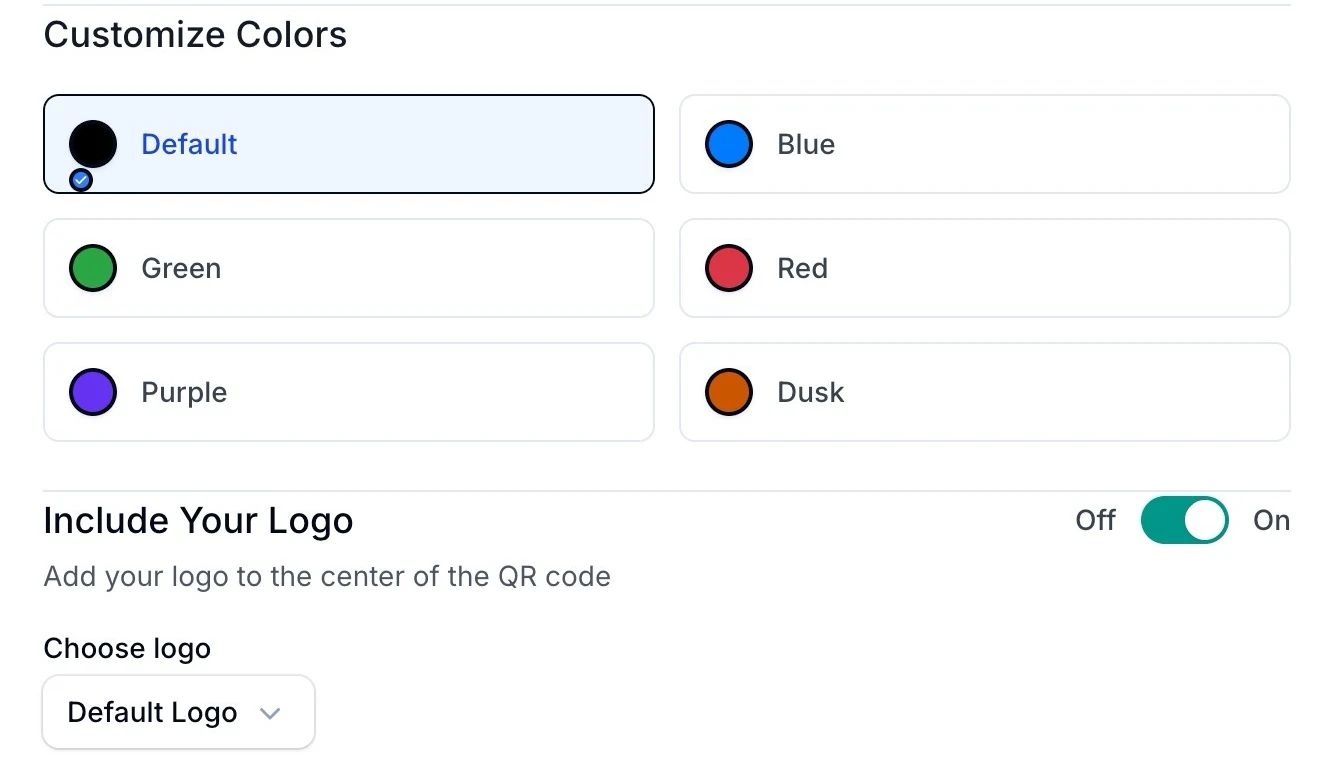
Pick a color and choose which of your logos goes in the middle of each code.
-
Use the ready-made graphics to speed up your edit. Instead of designing a "Scan me" card yourself, download one with your QR code already in it (on plans that include them): a card for long videos, or a lower-third overlay for Shorts, with a background color you choose. Drop it into your timeline and you're done.
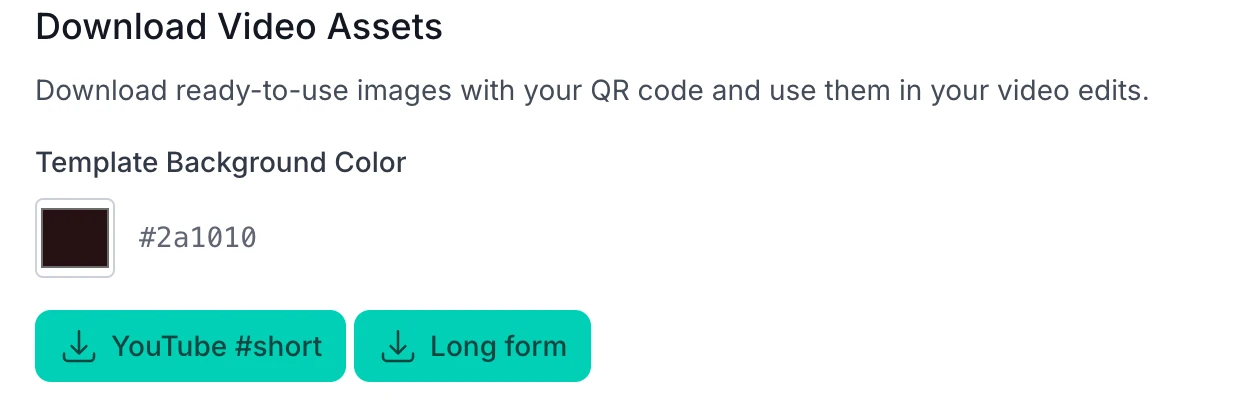
Choose a background color, then download the version for Shorts or long videos.
-
Create codes and check their stats from your AI assistant. If you've connected Video Stats to ChatGPT, Claude or Claude Code, you can ask it to make a QR code for a link and a video, list your codes, or tell you which ones got the most scans and sign-ups. How to Analyze Your YouTube Channel With AI shows how to connect it.
-
Make codes before you need them, and let your team assign them. Create a few codes marked "video not yet uploaded" ahead of time, and give your editor or team access to Video Stats. They can drop a code into each edit and link it to the video once it's live, so tracking becomes part of how every video gets made rather than a job for later.
FAQ
Can you put a QR code in a YouTube video?
Yes. Add it to your edit as an image, or upload one as your channel's video watermark in YouTube Studio so it appears on every video. Viewers scan it with their phone camera, or with a long press if they're watching on the same phone.
Do QR codes in YouTube videos work?
On Primal Video, the QR codes in five tutorials brought in 1,687 email subscribers in 90 days, and on four of them more than half of the people who scanned signed up. They work best when the code is big, on screen long enough, and mentioned out loud.
Can I change a QR code after my video is published?
Not with a standard QR code, because the link is part of the image. With a dynamic QR code, such as a Video Stats Magic QR code, the image stays the same and you can change where it sends people at any time.
How do I track which video a QR code scan came from?
The link behind the code needs the video's ID, which doesn't exist until you upload. Video Stats solves this by letting you create the code first and link the video after upload, so every scan carries the video ID.
How big should a QR code be in a YouTube video?
Big enough to scan from across a room. Primal Video's "Scan me" code fills about a quarter of the screen's height. Test it on your own TV before you publish.
Want to know which of your videos' QR codes bring in subscribers? Video Stats creates QR codes you can put in your videos before they're uploaded, and tracks every scan and sign-up by video. Start your free trial.


